
BNO-Kofi Bonner
Participating Frequently
December 7, 2016
Answered

Image Position Shift When Replacing EPS Files with AI files

  • December 7, 2016
  • 3 replies
  • 1518 views

We’ve been re-saving our old EPS icon artwork as AI files in Illustrator CS6. When we relink the file in InDesign, the AI files come in with extra white space around them. Why is this happening?

For example, we have an EPS file that is a line illustration within a rounded box; the illustration is masked/clipped by the rounded box in Illustrator. The artboard is just a standard 8.5” x 11”. To create the AI file, we open this EPS file and save it as an AI file. Next, we relink it in InDesign to replace the EPS with the AI file. When this happens, the image shifts from it’s original position - even when import options are set to crop to “Bounding Box (Visible Layers Only)” and the InDesign preference for “File Handling” is NOT set to “Preserve Image Dimensions When Relinking”.

Also, when we place this file in InDesign (without relinking) we see the same thing: the EPS file comes in closely cropped, as expected, and the AI file has about .625” of white space around it. Does anyone know why this is happening? Thanks!

NOTE: We've had this issue with multiple versions of InDesign and Illustrator including CS6, CC and CC 2014.
This topic has been closed for replies.
Correct answer vinny38

Hi.

I tried to recreate the issue, and I indeed managed to do so in one case:

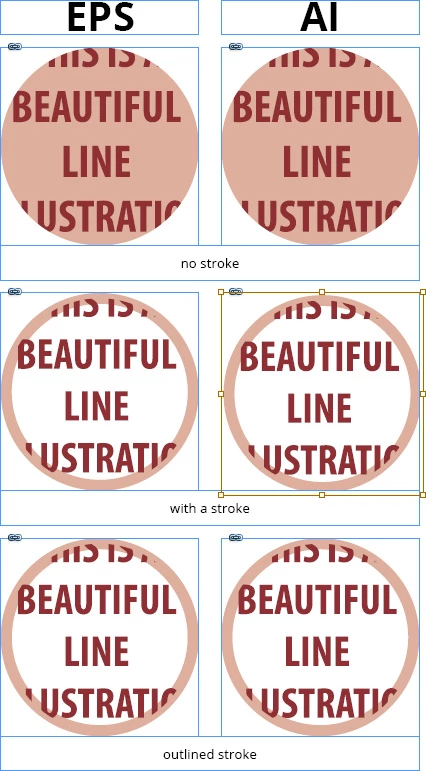
is there a chance your artwork contains rounded box with a stroke, even white?

Seems to be causing an unwanted offset.

Solution: outline stroke before saving the .ai

If my guess is wrong, could you post a screenshot including your artwork?

See image below (using Bonding Box option, because Art includes clipped artwork...)

3 replies

vinny38
vinny38Correct answer
Legend
December 8, 2016

Hi.

I tried to recreate the issue, and I indeed managed to do so in one case:

is there a chance your artwork contains rounded box with a stroke, even white?

Seems to be causing an unwanted offset.

Solution: outline stroke before saving the .ai

If my guess is wrong, could you post a screenshot including your artwork?

See image below (using Bonding Box option, because Art includes clipped artwork...)

BNO-Kofi Bonner
Participating Frequently
December 12, 2016

Thanks for really diving in on that one vinny38 - you've gotten us to the crux of the problem! I appreciate you taking the time to go through that.

We're hoping to not have to outline each stroked box, but that solution definitely works.

I'm still hoping to find out why the stroke causes an offset - I could swear that it hasn't always done that. We've been working with CS6 for years, and this suddenly started happening (I'm not sure of the timeframe).

BNO-Kofi Bonner
Participating Frequently
December 7, 2016

Thanks TJ65, welcome to the forum - I was hopeful, but that's not getting rid of the extra white space for me. I'm going to keep trying to play with those settings.

TJ65
Participant
December 8, 2016

Sorry to hear that, do you have an example of the artwork or a screenshot?

Steve Werner
Community Expert
Community Expert
December 7, 2016

Have you tried the other Crop options when placing the AI file? In particular, have you tried Art?

I just did a test with an Illustrator logo and didn't see extra space when either using Bounding Box (Visible Layers Only) or Art.

BNO-Kofi Bonner
Participating Frequently
December 7, 2016

Thanks Steve - yes, we have tried crop to "Art". It actually gave us the same result as "Bounding Box (Visible Layers Only)"!

TJ65
Participant
December 7, 2016

Make sure the frame box height or width is same as the placed art dimension and art is centered in the frame. From menu bar select Object /Fitting/Frame Fitting options. Than click to check Auto fit option box and set Fitting Option to Fill Frame Proportionally. Then select art and re-link to the .ai version. There might still be a very slight shift — depending how snug the frame box is to the art. This may still take some time if you have a lot of art to replace, however there wont be huge shifts from original placement — hope this helps, ran it this this same issue a while back and this worked for me — new to the forum