
love_felis
Inspiring
April 5, 2018
Question

Image Smaller in Indesign than Photoshop

  • April 5, 2018
  • 2 replies
  • 550 views

I am putting an image into an image frame in Indesign. When I highlight the frame the dimensions are 4" x 4". Here are the specs of the image when I pull it into Photoshop:
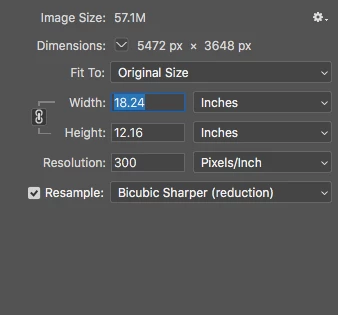
When I drop the image into the frame on InDesign and highlight it the dimensions are now 4" x 2.6". Why?

Cheers!

This topic has been closed for replies.

2 replies

jane-e
Community Expert
Community Expert
April 6, 2018

What happens when you don't put the image into a frame and just click to place the image on the page?

Test it in a new document. There may be defaults set for your existing document and/or attributes set for the frame. Look in Object Styles to see if there is a + next to the style or if a style has been created and assigned.

love_felis
Inspiring
April 10, 2018

Where is Object Style? Sometimes when I drop an image in the frame the image goes into the frame as its original size, and other times it will fit the proportions of the frame. I like when it goes in at the original size so I can adjust to show the portion of the image I want.

jane-e
Community Expert
Community Expert
April 10, 2018

Object Styles is a panel, which can be found in the Window menu. It's also in the Advanced workspace (but not the Essentials workspace.)

You can also select the frame and go to Object > Fitting > Frame Fitting Options to see what has been set for the frame.

The plus here shows that I have an override for "None".

editbreath
Known Participant
April 6, 2018

You can experiment with the Fitting options.

It seems to me that InDesign is set to fit the frame and maintain the image's aspect ratio. Both Photoshop and InDesign are reporting approximately a 1.5/0.66 ratio.

The image is smaller in InDesign because the frame is smaller. Make the frame in InDesign the same as the frame in Photoshop and then drop the image into it and it should be the same, right?