Participating Frequently
October 17, 2017
Answered

Image tagged with sRGB, but ID assigns AdobeRGB upon pdf export

  • October 17, 2017
  • 3 replies
  • 2136 views

This seems to happen when the image originated from PS Elements. At least in the half dozen cases I researched.

PS recognizes the sRGB profile. However, when including image in a new design, ID exports pdf with AdobeRGB embedded.

(note: ID does not convert; it assigns the profile)

(note2: my settings are set to preserve embedded profiles; to ask when opening, ask when pasting, etc.; default is set at sRGB, SWOP, 2.2, and 20%

Ideally I would like ID to recognize the profile. If not, I would like ID to alert me of the issue, and/or allow me to assign the correct profile (or at least change the default that ID presumes the profile should be, from AdobeRGB to the much more commonly used sRGB.

Currently, when we experience this situation (and usually not until after a job is printed and client complains) I'm able to tag these clients to alert us on future orders. But with 100's of jobs daily and 10's of thousands of customers, sure would be nice if ID simply recognized an embedded profile.

    This topic has been closed for replies.
    Correct answer rob day

    this image file IS tagged with sRGB.

    I see it clearly in PS (CC2017). And my settings would have alerted me otherwise.

    Maybe the dropbox link confirms this.

    The metadata does.

    <x:xmpmeta xmlns:x="adobe:ns:meta/" x:xmptk="Adobe XMP Core 5.6-c138 79.159824, 2016/09/14-01:09:01        ">

       <rdf:RDF xmlns:rdf="http://www.w3.org/1999/02/22-rdf-syntax-ns#">

          <rdf:Description rdf:about=""

                xmlns:xmp="http://ns.adobe.com/xap/1.0/"

                xmlns:photoshop="http://ns.adobe.com/photoshop/1.0/"

                xmlns:dc="http://purl.org/dc/elements/1.1/"

                xmlns:xmpMM="http://ns.adobe.com/xap/1.0/mm/"

                xmlns:stEvt="http://ns.adobe.com/xap/1.0/sType/ResourceEvent#"

                xmlns:stRef="http://ns.adobe.com/xap/1.0/sType/ResourceRef#"

                xmlns:tiff="http://ns.adobe.com/tiff/1.0/"

                xmlns:exif="http://ns.adobe.com/exif/1.0/">

             <xmp:CreatorTool>Adobe Photoshop CS5.1 Windows</xmp:CreatorTool>

             <xmp:CreateDate>2017-10-02T16:28:32-07:00</xmp:CreateDate>

             <xmp:MetadataDate>2017-10-02T16:30:12-07:00</xmp:MetadataDate>

             <xmp:ModifyDate>2017-10-02T16:30:12-07:00</xmp:ModifyDate>

             <photoshop:LegacyIPTCDigest>00000000000000000000000000000001</photoshop:LegacyIPTCDigest>

             <photoshop:ColorMode>3</photoshop:ColorMode>

             <photoshop:ICCProfile>sRGB IEC61966-2.1</photoshop:ICCProfile>

             <photoshop:DocumentAncestors>

                <rdf:Bag>

                   <rdf:li>adobe:docid:photoshop:c827c48c-cf33-117a-abc4-b573f22281ee</rdf:li>

                </rdf:Bag>

             </photoshop:DocumentAncestors>

             <photoshop:History>2017-10-02T16:25:39-07:00&#x9;File Untitled-1 opened&#xA;2017-10-02T16:28:32-07:00&#x9;File H:\Heather Thomas\Heather Thomas\MOPA Brand Products\POSTCARDS\Francesca Oyster.pdf saved&#xA;2017-10-02T16:30:12-07:00&#x9;File H:\Heather Thomas\Heather Thomas\MOPA Brand Products\POSTCARDS\Francesca Oyster.jpg saved&#xA;</photoshop:History>

             <dc:format>image/jpeg</dc:format>

             <xmpMM:InstanceID>xmp.iid:16055A67C9A7E711A4FBF1657DAE779C</xmpMM:InstanceID>

             <xmpMM:DocumentID>xmp.did:14055A67C9A7E711A4FBF1657DAE779C</xmpMM:DocumentID>

             <xmpMM:OriginalDocumentID>xmp.did:14055A67C9A7E711A4FBF1657DAE779C</xmpMM:OriginalDocumentID>

             <xmpMM:History>

                <rdf:Seq>

                   <rdf:li rdf:parseType="Resource">

                      <stEvt:action>created</stEvt:action>

                      <stEvt:instanceID>xmp.iid:14055A67C9A7E711A4FBF1657DAE779C</stEvt:instanceID>

                      <stEvt:when>2017-10-02T16:28:32-07:00</stEvt:when>

                      <stEvt:softwareAgent>Adobe Photoshop CS5.1 Windows</stEvt:softwareAgent>

                   </rdf:li>

                   <rdf:li rdf:parseType="Resource">

                      <stEvt:action>saved</stEvt:action>

                      <stEvt:instanceID>xmp.iid:15055A67C9A7E711A4FBF1657DAE779C</stEvt:instanceID>

                      <stEvt:when>2017-10-02T16:30:12-07:00</stEvt:when>

                      <stEvt:softwareAgent>Adobe Photoshop CS5.1 Windows</stEvt:softwareAgent>

                      <stEvt:changed>/</stEvt:changed>

                   </rdf:li>

                   <rdf:li rdf:parseType="Resource">

                      <stEvt:action>converted</stEvt:action>

                      <stEvt:parameters>from application/pdf to image/jpeg</stEvt:parameters>

                   </rdf:li>

                   <rdf:li rdf:parseType="Resource">

                      <stEvt:action>derived</stEvt:action>

                      <stEvt:parameters>converted from application/pdf to image/jpeg</stEvt:parameters>

                   </rdf:li>

                   <rdf:li rdf:parseType="Resource">

                      <stEvt:action>saved</stEvt:action>

                      <stEvt:instanceID>xmp.iid:16055A67C9A7E711A4FBF1657DAE779C</stEvt:instanceID>

                      <stEvt:when>2017-10-02T16:30:12-07:00</stEvt:when>

                      <stEvt:softwareAgent>Adobe Photoshop CS5.1 Windows</stEvt:softwareAgent>

                      <stEvt:changed>/</stEvt:changed>

                   </rdf:li>

                </rdf:Seq>

             </xmpMM:History>

             <xmpMM:DerivedFrom rdf:parseType="Resource">

                <stRef:instanceID>xmp.iid:15055A67C9A7E711A4FBF1657DAE779C</stRef:instanceID>

                <stRef:documentID>xmp.did:14055A67C9A7E711A4FBF1657DAE779C</stRef:documentID>

                <stRef:originalDocumentID>xmp.did:14055A67C9A7E711A4FBF1657DAE779C</stRef:originalDocumentID>

             </xmpMM:DerivedFrom>

             <tiff:ImageWidth>1275</tiff:ImageWidth>

             <tiff:ImageLength>1800</tiff:ImageLength>

             <tiff:BitsPerSample>

                <rdf:Seq>

                   <rdf:li>8</rdf:li>

                   <rdf:li>8</rdf:li>

                   <rdf:li>8</rdf:li>

                </rdf:Seq>

             </tiff:BitsPerSample>

             <tiff:PhotometricInterpretation>2</tiff:PhotometricInterpretation>

             <tiff:Orientation>1</tiff:Orientation>

             <tiff:SamplesPerPixel>3</tiff:SamplesPerPixel>

             <tiff:XResolution>3000000/10000</tiff:XResolution>

             <tiff:YResolution>3000000/10000</tiff:YResolution>

             <tiff:ResolutionUnit>2</tiff:ResolutionUnit>

             <exif:ExifVersion>0221</exif:ExifVersion>

             <exif:ColorSpace>1</exif:ColorSpace>

             <exif:PixelXDimension>1275</exif:PixelXDimension>

             <exif:PixelYDimension>1800</exif:PixelYDimension>

          </rdf:Description>


    I don't see a problem.

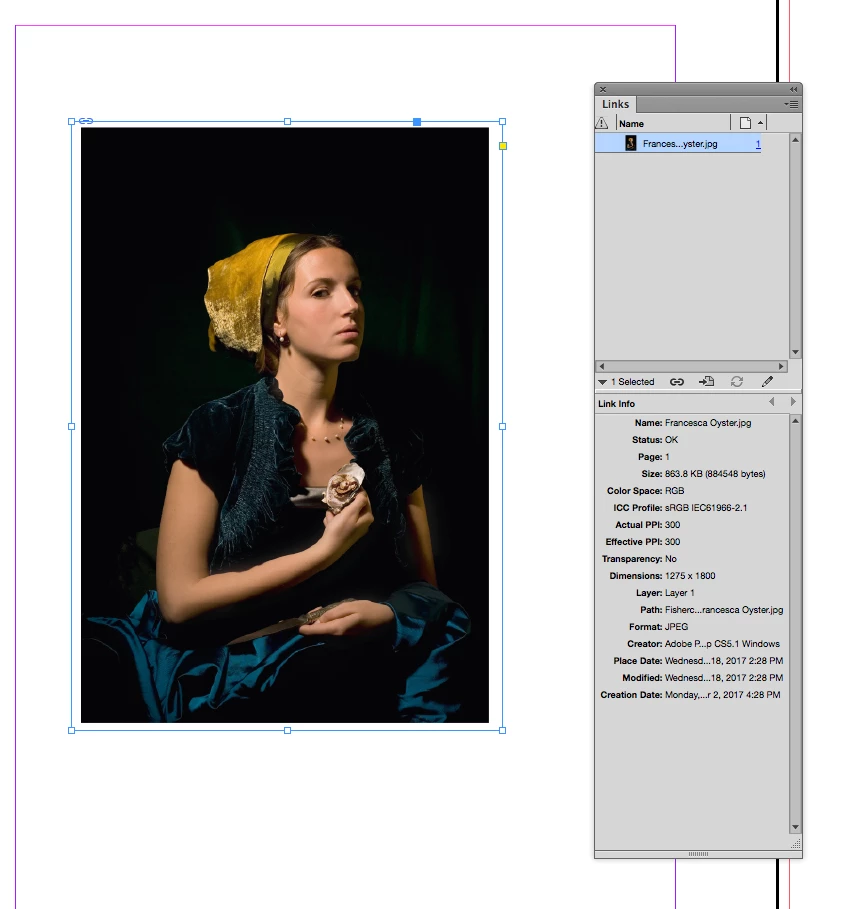
    If I place your file unchanged into a document created with the Preserve Embedded policy, the embedded profile shows in the Links panel:

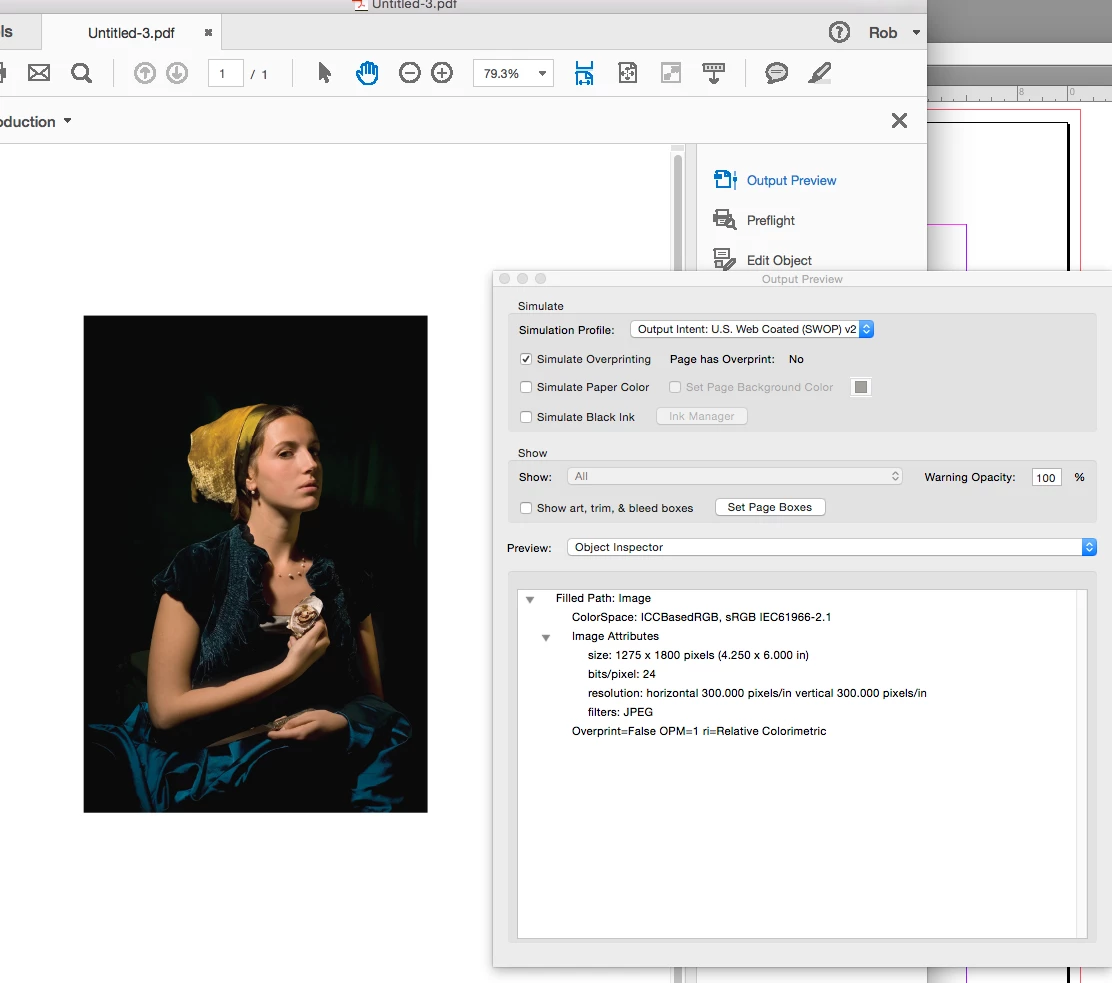
    If I export to the default PDF/X-4 the image exports with the sRGB profile. Here in AcrobatProDC:
    3 replies

    Mike Witherell
    Community Expert
    Community Expert
    October 18, 2017
    Ideally I would like ID to recognize the profile.

    In other words, you would like the export profile to be the same as the image's profile?

    ID default for assigning profiles is currently set to AdobeRGB. I can change that to the more often used sRGB. Might be the simplest cure.

    Yes, it would be the simplest cure. Change your Working Spaces to sRGB.

    Bear in mind that a working space is like having 1 set of laws and rules. You should have 1 way of workflowing through your PS > ID > PDF.

    Bear in mind that even though you say to Preserve Embedded Profiles, that does NOT mean that ID is not converting to the "house rules" working space of Adobe 1998. It IS converting it. It just means that it is not permanently changing the attached color profile from sRGB to Adobe 1998. Therefore, when the file is closed and at rest, it still has its original sRGB profile. While open in InDesign, the Adobe Color Engine has translated that attached sRGB to Adobe 1998.

    Assigning profiles within the ID document is like changing your mind repeatedly about your color management "house rules" aka working spaces. This ends up confusing the whole system. Better to already have defaulted to the desired Working Space color profile, and stop assigning profiles.

    If you are going to change things, begin in Photoshop > Edit > Color Settings > and choose a working space as sRGB. I prefer to Convert to Working Space as my color management policy. (I also prefer to not have it ask me, but rather just do as I instructed.) Then, once saved, go to Bridge > Edit > Color Settings, in order to force a synchronization to ID, AI, and Acrobat. This will give you a smoother workflow, and everything will be sRGB on output to PDF.

    Mike Witherell
    rob day
    Community Expert
    Community Expert
    October 18, 2017
    Bear in mind that even though you say to Preserve Embedded Profiles, that does NOT mean that ID is not converting to the "house rules" working space of Adobe 1998. It IS converting it. It just means that it is not permanently changing the attached color profile from sRGB to Adobe 1998. Therefore, when the file is closed and at rest, it still has its original sRGB profile. While open in InDesign, the Adobe Color Engine has translated that attached sRGB to Adobe 1998.

    InDesign does not convert images, it simply displays them based on the document's saved color management policy (which is not necessarily the Color Settings CM Policy).

    The Convert to Working Space policy does not convert placed images either, it only converts InDesign colors and swatches. If you use Convert, InDesign displays a placed image using its embedded profile, and if it doesn't have one it uses the ID doc's profile (Document RGB).

    Either the Preserve or Convert policy will do this—where I have the same RGB file save with different profile assignments sRGB & ProPhotoRGB:

    The two profiles produce very different previews, and because my ID document's policy is set to Preserve the two files with saved profiles display unchanged in the layout. There's no color conversion.

    If my document's RGB policy is Off the two image's profiles are ignored and and they get displayed the same way via the document's RGB profile (Adobe RGB in this case). If there's no profile assignment, the Color Settings' current Working RGB space again is used as a fallback. But in any case it's just a reassignment—there's no conversion.

    Participating Frequently
    October 18, 2017

    Rob,

    Thanks for all the great info.

    I'm looking into everything you shared. Our process is to create new ID documents and not use documents created earlier based on some other color settings. However, now I'm wondering if some of our users are doing this as planned or if indeed, they are actually using templates created earlier (and from other color setting configs).

    Again, let my digest all you wrote and get back to this post with revelations (hopefully).

    rob day
    Community Expert
    Community Expert
    October 17, 2017

    However, when including image in a new design, ID exports pdf with AdobeRGB embedded

    Also, the Links panel shows the status of an image's assigned profile. If the the document was created with the RGB policy set to Preserve Embedded all of the images' profiles will be honored and will export with the image profile assuming they are included in the export preset. Images without embedded profiles will show as Document RGB and get the document's assigned profile:

    If your client set the RGB policy to Off, or turned off CMS in color settings when the doc was created, all RGB images, with or without embedded profiles would get placed as Document RGB—the InDesign document's assigned profile will be assigned to the image:

    Participating Frequently
    October 17, 2017

    Thanks for your input. Maybe I need to clarify.

    The ID document was created here using our templates with settings as described earlier.

    The image (tagged as sRGB) was imported into the ID document.

    I checked the image's link and it read "Document RGB" (yet the image when opened in PS is tagged as sRGB). ID default for assigning profiles is currently set to AdobeRGB. I can change that to the more often used sRGB. Might be the simplest cure.

    (note: my PS settings are same as ID: honors embedded profiles)

    Perhaps you can re-read my original post along with this clarification. I hope it helps toward a resolution.

    My take: ID does not recognize embedded profiles of images originating from certain versions of applications.

    In this case, the app was PS Elements. Not sure which version. Perhaps I can include the metadata of the image?

    Willi Adelberger
    Community Expert
    Community Expert
    October 18, 2017

    If it shows up as Document RGB the image has not its own profile, so it uses the settings of the INDD file.

    If it has a profile attached, but ID cannot read it, it might help to open the image in Photoshop and resave it with that profile.

    rob day
    Community Expert
    Community Expert
    October 17, 2017

    Currently, when we experience this situation (and usually not until after a job is printed and client complains) I'm able to tag these clients to alert us on future orders. But with 100's of jobs daily and 10's of thousands of customers, sure would be nice if ID simply recognized an embedded profile.

    Your ID Color Settings do not affect an existing document's CM policy or assigned profiles. So, if your client's documents have AdobeRGB assigned or the RGB CM policy was turned Off at creation where the RGB images would have their profiles ignored, there's nothing you can do from Color Settings that would automatically change those saved document CM settings.

    You could turn on all of the warnings and fix each document as it is opened but with that many files scripting would be a better approach. If you are using OSX I can post an AppleScript.