DigitalChickster
Legend
April 29, 2026
Answered

Imported Illustrator file not centering

  • April 29, 2026
  • 2 replies
  • 45 views

I am creating a booklet in InDesign with ads imported that I’ve created using Illustrator. A few times now, I’ve created an ad… imported it… and when I make sure it’s centered (Command + Shift + E), it does NOT center. I’ve looked at the AI file and there are no stray items. I’m attaching two screenshots… one of the Illustrator file in outlines, and one of the InDesign file… showing it is not centered, even though I have centered it using command + shift + E. 

I know I can manually center it… but I’m just curious why this is happening. If you think it’s an Illustrator issue, I’ll post this on that forum, but it looks fine in Illustrator… just not InDesign.

    Correct answer m1b

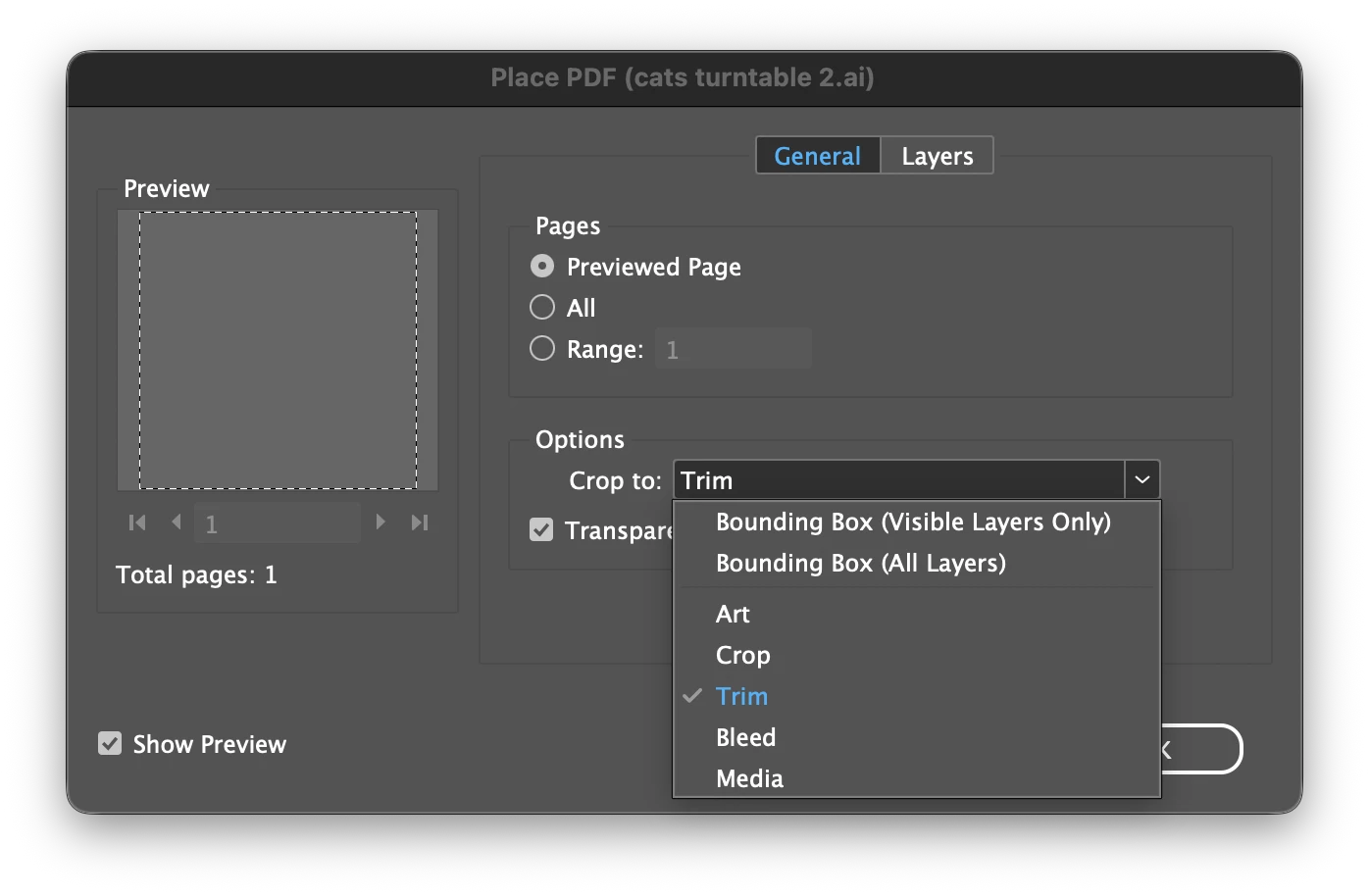
    Hi ​@DigitalChickster, if you’re confident that there aren’t any hidden or locked items messing up the bounds in Illustrator, the next thing to try would be the import options. Try this:

    1. In Indesign, choose Place (cmd-D)
    2. In the standard file dialog, check the “Show Import Options” button.
    3. Choose your illustrator document.
    4. Play with different “Crop To” options. I use “Trim” mostly.

    Let me know if that changes anything in your case.

    — Mark


    At the bottom of the File Dialog box when choosing the image to place into Indesign.
    Import Options dialog


    2 replies

    m1b
    Community Expert
    m1bCommunity ExpertCorrect answer
    Community Expert
    April 29, 2026

    Hi ​@DigitalChickster, if you’re confident that there aren’t any hidden or locked items messing up the bounds in Illustrator, the next thing to try would be the import options. Try this:

    1. In Indesign, choose Place (cmd-D)
    2. In the standard file dialog, check the “Show Import Options” button.
    3. Choose your illustrator document.
    4. Play with different “Crop To” options. I use “Trim” mostly.

    Let me know if that changes anything in your case.

    — Mark


    At the bottom of the File Dialog box when choosing the image to place into Indesign.
    Import Options dialog


    Brad @ Roaring Mouse
    Community Expert
    Community Expert
    April 29, 2026

    This! If you want to place the file according to the size of the artboard, you must define the import options accordingly. By default, an .ai file might import to the Bounding Box or Art Items, which will not center unless they actual ARE centered. One could use either Crop or Trim, and if there are bleed items, Bleed.

    leo.r
    Community Expert
    Community Expert
    April 29, 2026

    Make sure your Illustrator is updated to 30.3 and that Save in Background is disabled in Preferences. Also, resave the file from Illustrator if either of these conditions wasn’t true. Some users reported that placed Illustrator files are not displayed correctly in InDesign otherwise. Although I don’t know if it’s related to your issue.

    DigitalChickster
    Legend
    April 29, 2026

    Thanks for the quick response! I am using Illustrator v. 30.3. However “Save in the Background” was enabled, so I disabled it. But… it didn’t solve the issue. It’s a mystery!