Inspiring
November 24, 2020
Answered

Importing glyphs from Mac Character Viewer into Indesign?

  • November 24, 2020
  • 1 reply
  • 657 views

Hello, there is a symbol in Mac Character Viewer that I want to type into an Indesign document. I'm am working in BigSur 10.15.7. Normally,  you place your cursor where you want it in an Apple program like Notes or Pages, open Character Viewer by pushing control-command-spacebar, and then you double-click on the character in Character Viewer and it appears where your cursor is. Unfortunately, that is not working when I am working in Indesign. I also tried copying and pasting the symbol after placing it in Notes, but that did not work. At a minimum, I would just like to be able to place the symbol once, and then I could copy and paste it everywhere else I need it. Ideally, I would be able to import the symbol into the Indesign Glyph panel, and access it anytime I need it from there. but I could not figure out how to do that either. Any help on either front would be much appreciated. 
This topic has been closed for replies.
Correct answer Steve Werner

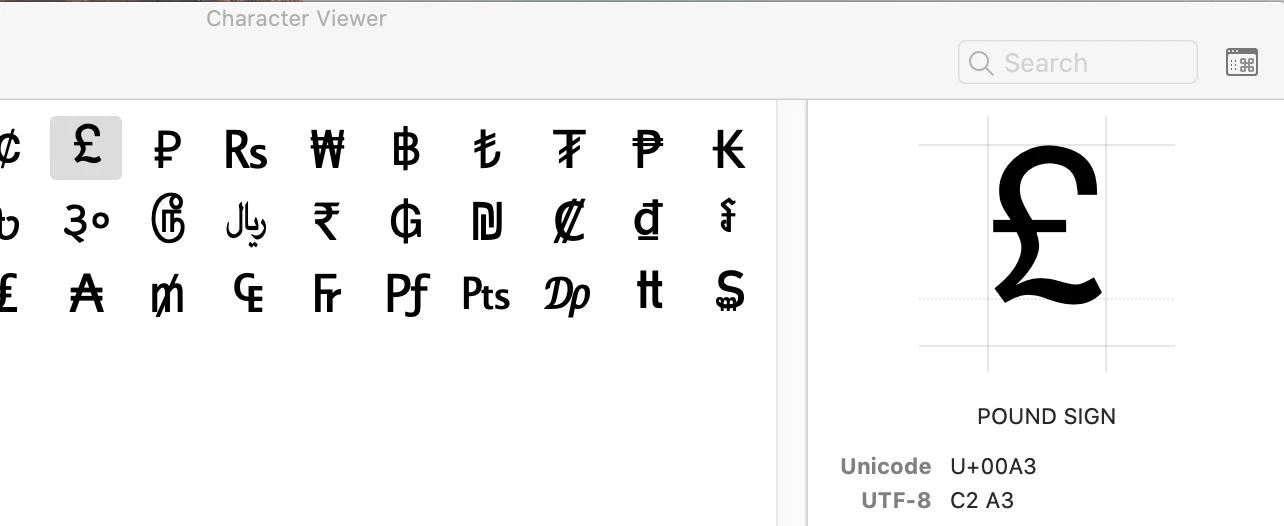
In the Character Viewer, select the glyph you want to insert in InDesign. Notice its Unicode value (upper right). I selected a Pound Sign. It's Unicode value is 00A3.


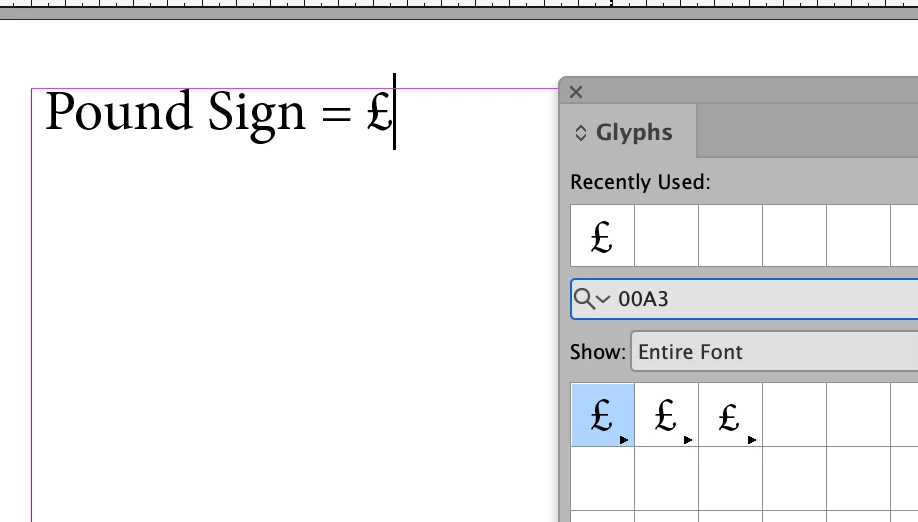
In InDesign open the Glyphs panel. In the Search field, enter the Unicode value (I entered 00A3). You will see the glyph(s). Double-click the glyph you want to use to insert into the InDesign text.


1 reply

Steve Werner
Community Expert
Steve WernerCommunity ExpertCorrect answer
Community Expert
November 24, 2020

In the Character Viewer, select the glyph you want to insert in InDesign. Notice its Unicode value (upper right). I selected a Pound Sign. It's Unicode value is 00A3.


In InDesign open the Glyphs panel. In the Search field, enter the Unicode value (I entered 00A3). You will see the glyph(s). Double-click the glyph you want to use to insert into the InDesign text.