
Importing Illustrator files (.ai) in InDesign
Dear all,
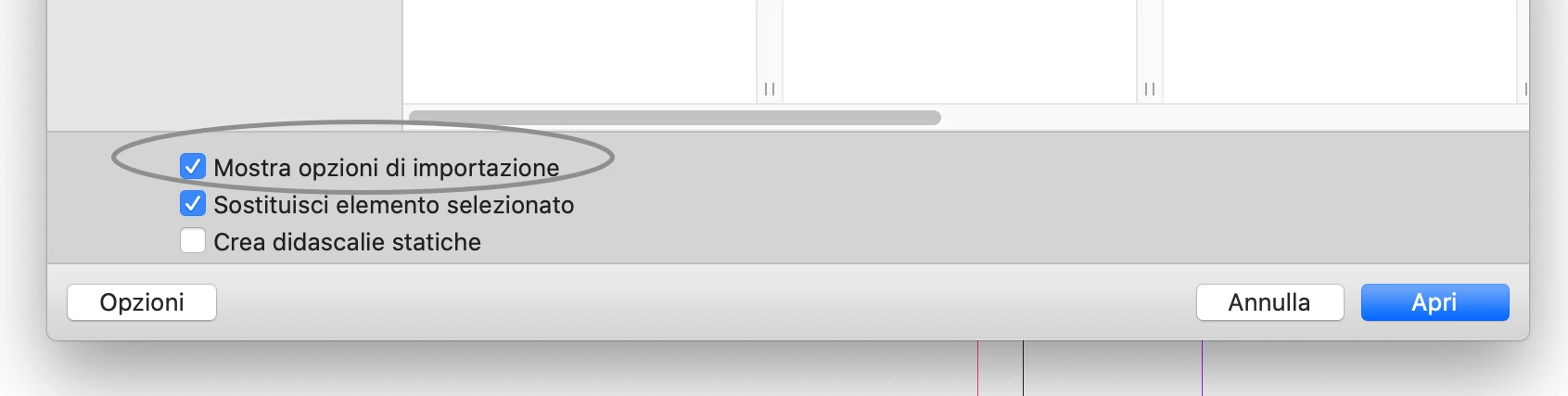
following an advice received in one of my previous posts I have now started to directly place .ai files instead of exported SVG inline with text as the document will eventually be printed.
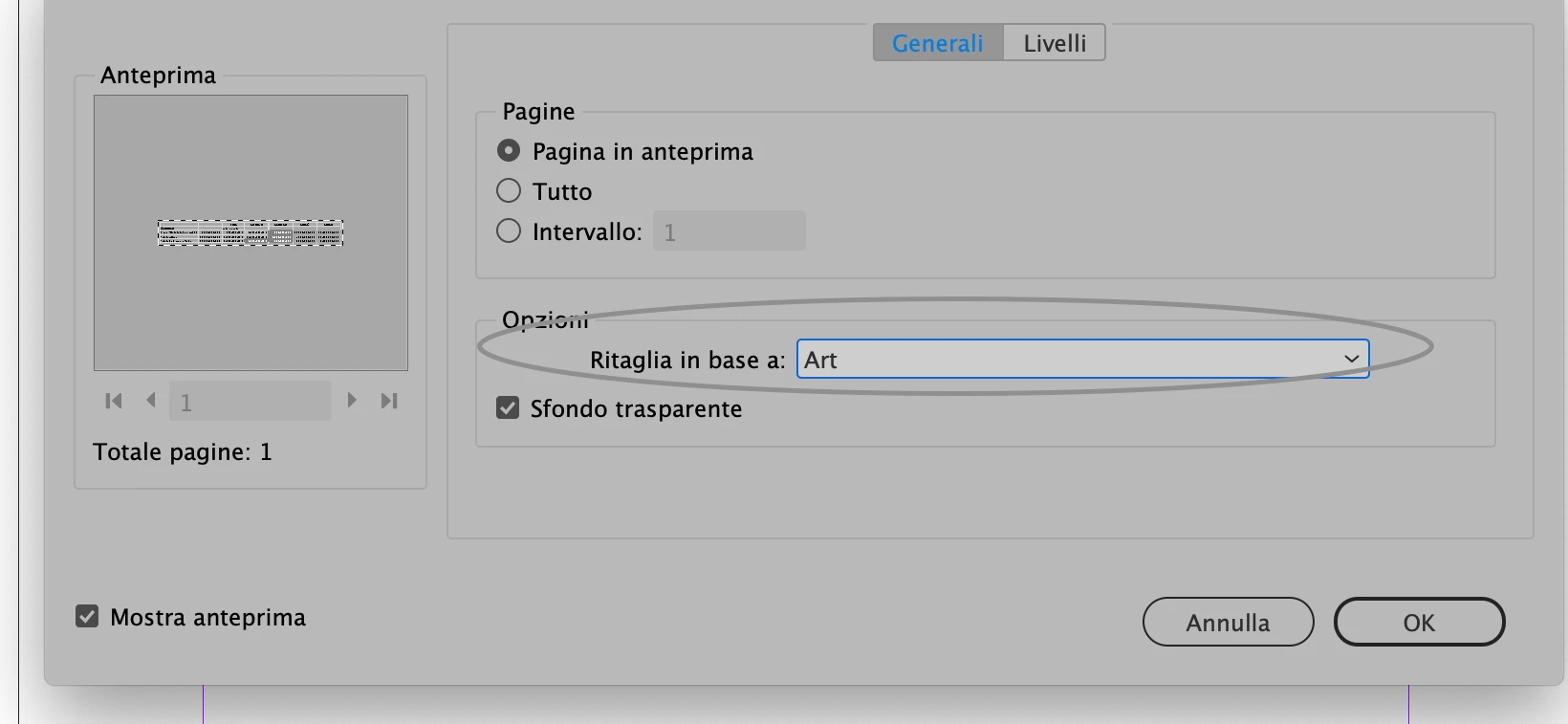
One downside I'm encountering right now is that the inserted .ai contains also the whole white area around instead of the single equation I was exporting as selection before.
My workaround by now has been to place the .ai file in the pasteboard, resize it there and then anchor it where needed but I was wondering if there was a better way to do that.
In a lesson from the Tutorials I recall inserting .ai files as vector images but now all the document is there. I am sure I am missing something trivial so I would really appreciate a small nudge in the right direction.
Thank you
Regards,
I.
 AdChoices