
Inspiring
July 28, 2021
Answered

Inch and foot marks

  • July 28, 2021
  • 2 replies
  • 6040 views

This must be a common question, but I haven't found an answer that fits my circumstances exactly. If it's out there, you can help me by just providing a link. 


Copy source in my workflow is MS Word. Source files use curly quotes for actual quotes and staight quotes for inch and foot marks. 


After ingestion to InDesign, the foot and inch marks are all curly. What's more, once they're fixed, if I copy the straight quotes from InDesign and paste them into a different InDesign document, they're curly again. 


So that's two different questions I guess. How do I keep straight quotes straight (and curly quotes curly) when ingesting copy, and how do I keep straight quotes straight and curly quotes curly when copying and pasting in InDesign?


Thanks

Jim 
This topic has been closed for replies.
Correct answer Eugene Tyson

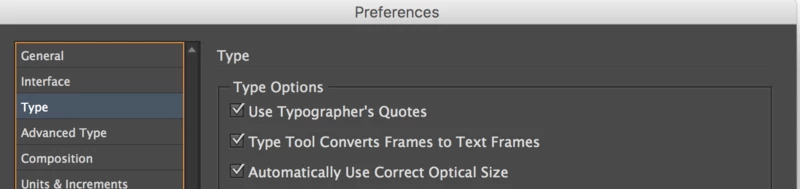
Edit>preferences and choose Type and toggle the Use Typographer's Quotes


2 replies

Diane Burns
Inspiring
July 28, 2021

Editing preferences is a good solution in the case of Placing or Copying text as you have in your case.

Just for reference, in case it comes up, when you're typing your own text, you can also leave the preferences as they are and type Command+Option+Shift+' on Mac Ctrl+Alt+Shift+' on Windows when you need the inch/foot mark. Or insert your cursor where you need the mark, and choose Type menu > Insert Special Character > Quotation Marks.

Eugene TysonCommunity ExpertCorrect answer
Community Expert
July 28, 2021

Edit>preferences and choose Type and toggle the Use Typographer's Quotes


Dan Rodney
Community Expert
Community Expert
July 29, 2021

There's also a keystroke to Toggle Typographer's Quotes preference:

  • Mac: Cmd–Option–Shift–'
  • PC: Ctrl–Alt–Shift–'


— Adobe Certified Expert & Instructor at Noble Desktop | Web Developer, Designer, InDesign Scriptor
Inspiring
January 5, 2023

Dan, I just tried that. I remember way back when this worked, but, and forgive me if I'm wrong, but I think they replaced it with Glyphs, but i noticed this special character doesn't exist in any font I'm looking at. Wow. But as easy as it is to create it manually with the pen tool and outline it, I feel like it is kinda silly harping about it.