Participant
May 15, 2020
Answered

Incorrect type size showing

  • May 15, 2020
  • 5 replies
  • 1630 views


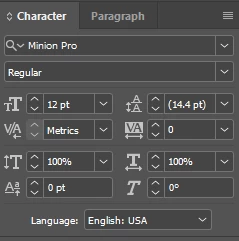
I'm wondering if anyone else has come across this issue? In the past week, the type size hasn't been displaying properly in any of my documents. In this example, I've highlighted a title which is actually 31pts, however it shows up as being 12pts, with the actual size of the type in brackets after. I have paragraph styles set up for all the type styles in the document, and I'm unsure whether the problem has started in there?


Thank you! 
This topic has been closed for replies.
Correct answer Whit.Bee

I did this once. No amount of overriding the style worked, even trying to make it go back to the [None] style worked. After much frustration, and many different tricks and workarounds, this was what worked for me.


I ended up having to:


  1. Copy the text
  2. Delete the text box
  3. Reset the default text settings, (it could be different for others, but this is my default)


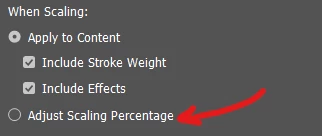
  4. Make sure the "Adjust Scaling Percentage" is NOT selected in preferences


  5. Redraw the text box
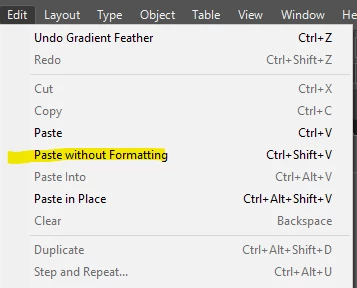
  6. Paste using the "Paste without formatting" option under the edit menu 


Hopefully that makes sense, I've always read the forums to learn and haven't posted much but since this was something that caused me much frustration, I thought I'd share what I'd learned through trial and error. 

5 replies

Participant
May 19, 2020

Thanks for all your help, this has worked for me 🙂

Community Expert
May 15, 2020

Hi Rob,

ok,  I have to admit:  "in deep trouble" is relative. Nothing one cannot fix:

If the text frame was not scaled proportionally the text scaling must be reset to 100% after you applied Redefined Scaling at 100%. Also: It would not hurt to check the text's skew value as well.


Regards,
Uwe Laubender

( ACP )

rob day
Community Expert
Community Expert
May 15, 2020

If the text frame was not scaled proportionally the text scaling must be reset to 100%


Hi Uwe, It does indeed get messy. When the text gets scaled because of the Adjust Scaling Percentage preference, the Styles don’t show as overridden! And the text horizontal and vertical scaling show as unchanged. This all could go unnoticed if the the transform was slight:


Redefining the scaling changes the text spec’s, and the Styles now show as overridden:


So if there are Styles applied, their Overrides could be cleared:


Whit.Bee
Whit.BeeCorrect answer
Inspiring
May 15, 2020

I did this once. No amount of overriding the style worked, even trying to make it go back to the [None] style worked. After much frustration, and many different tricks and workarounds, this was what worked for me.


I ended up having to:


  1. Copy the text
  2. Delete the text box
  3. Reset the default text settings, (it could be different for others, but this is my default)


  4. Make sure the "Adjust Scaling Percentage" is NOT selected in preferences


  5. Redraw the text box
  6. Paste using the "Paste without formatting" option under the edit menu 


Hopefully that makes sense, I've always read the forums to learn and haven't posted much but since this was something that caused me much frustration, I thought I'd share what I'd learned through trial and error. 

Community Expert
May 15, 2020

Hi Rob,

good idea, but with a possible problem.

If the scaling of the text frame was done not proportionally then you are in deep trouble.


To the OP:

I said: "Draw out a new text frame and copy the scaled contents to the new frame."

That's enough. No need to change the point size.

( I was not correct in my first advice. )


Changed my mind.


Regards,
Uwe Laubender

( ACP )

rob day
Community Expert
Community Expert
May 15, 2020

With the frame or text selected choose Redefine Scaling as 100% from the Transform panel’s flyout menu.

Community Expert
May 15, 2020

Hi,

you scaled the text frame with InDesign preferences changed for scaling that are not default.


Default is: Preferences > General > When Scaling: [x] Apply to Content

Your setting when scaling text frames was:

Preferences > General > When Scaling:

[    ] Apply to Content

[ x ] Adjust Scaling Percentage


Even if you turned this setting off after scaling the text frame you see this effect.


From the InDesign help files:

Select Adjust Scaling Percentage to display the original point size with the new point size in parentheses when you scale text. If this option is selected when you scale graphics frames, the percentage size of both the frame and image changes.


How can you solve this problem, if it is a problem to you:

Draw out a new text frame and copy the scaled contents to the new frame.

Change the point size to the desired value.


Regards,
Uwe Laubender

( ACP )