

AfnanSo
Participating Frequently
December 7, 2023
Answered

Indentation issue

  • December 7, 2023
  • 3 replies
  • 520 views

Hey everyone, as you can see in the picture, I am trying to fix the bullet points and numbering, look at number 3 for example the rest of the sentence is not idented.
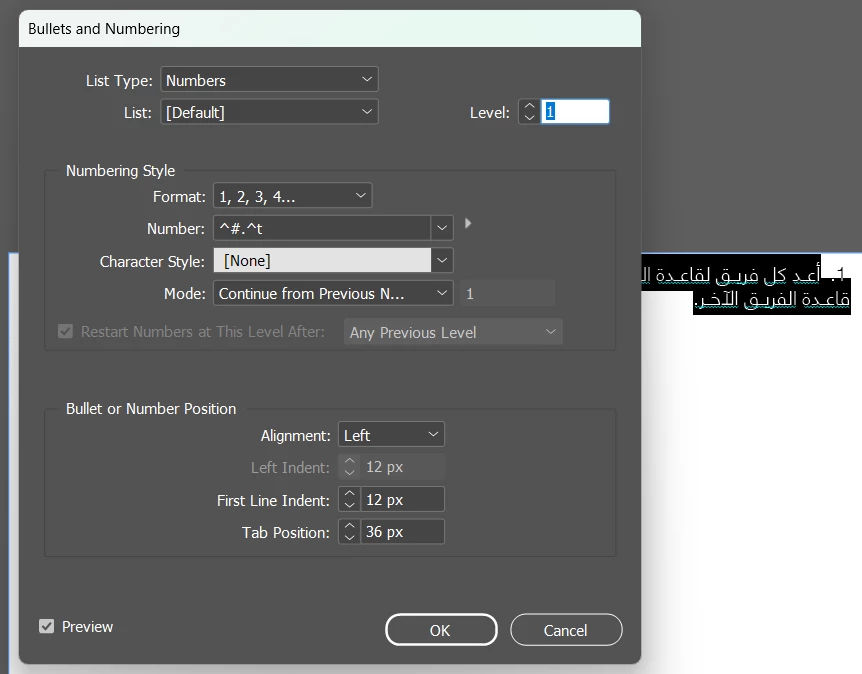
When I look at the setting the left ident option is not activated, I saw somewhere that you could fix it through these settings but I am not sure. Could someone help me out?


This topic has been closed for replies.
Correct answer BobLevine

First step is to set the first line indent and then using the identical negative value, set the indent for the rest of the paragraph.


For example: first line indent of .5" and (what I assume based on the Arabic) right indent of -.5"

3 replies

Willi Adelberger
Community Expert
Community Expert
December 7, 2023

Did you choose the WOrld Composer?

AfnanSo
AfnanSoAuthor
Participating Frequently
December 7, 2023

Yes I chose the adobe world-ready paragraph composer.

BobLevine
Community Expert
BobLevineCommunity ExpertCorrect answer
Community Expert
December 7, 2023

First step is to set the first line indent and then using the identical negative value, set the indent for the rest of the paragraph.


For example: first line indent of .5" and (what I assume based on the Arabic) right indent of -.5"

AfnanSo
AfnanSoAuthor
Participating Frequently
December 7, 2023

Thank you so much @BobLevine, It worked It didnt really occur to me to use a negative number; I dont usually work with arabic documents at all. Its a random number but I set the first line indent as -6 and then for the right indent I set it as 30 as you can see in the picture.

AfnanSo
AfnanSoAuthor
Participating Frequently
December 7, 2023

Sorry I meant number 1*