
Inspiring
October 22, 2024
Answered

InDesign 2025: Cursor Changes to Hand Icon. How to Switch Back to Arrow?

  • October 22, 2024
  • 1 reply
  • 6502 views

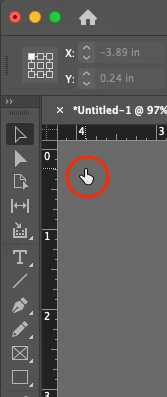
I updated to InDesgin V20.0 on a Mac and no matter what tool I select, the cursor/mouse pointer arrow changes to a hand with index finger pointing (see image below). This is very confusing and hard to adapt to. I also can't tell what tool I'm using by looking at the pointer as it's always the hand icon. I'd like to switch it back to the former arrow pointer or the tool that's being used but can't figure out how. Anyone else having htis issue or figured out a workaround?


<Title renamed by MOD>

Correct answer Abhishek Rao

Hello @MrMensah,


I understand how frustrating it can be to have the cursor change to a hand icon in InDesign 2025, as it makes it difficult to identify the selected tool. Here are some steps you can take to restore the default arrow cursor:

  1. Reset InDesign Preferences:

    • Close InDesign.
    • Relaunch InDesign while holding down Cmd + Opt + Shift (Mac) until you see the splash screen. This will reset your preferences and might resolve the cursor issue. Reference: https://adobe.ly/4e2p0zE
  2. Change Cursor Settings:

    • If the issue persists, try toggling between tools or selecting a different workspace. Sometimes, switching to a different workspace (like Essentials or Print) can reset the cursor appearance.

If none of these steps resolve the issue, please provide details about your operating system version and any specific circumstances under which the problem occurs. This information will help us investigate further.


Thank you for your patience, and I’m here to assist you further!


Best,

Abhishek Rao

1 reply

Abhishek Rao
Community Manager
Abhishek RaoCommunity ManagerCorrect answer
Community Manager
October 22, 2024

Hello @MrMensah,


I understand how frustrating it can be to have the cursor change to a hand icon in InDesign 2025, as it makes it difficult to identify the selected tool. Here are some steps you can take to restore the default arrow cursor:

  1. Reset InDesign Preferences:

    • Close InDesign.
    • Relaunch InDesign while holding down Cmd + Opt + Shift (Mac) until you see the splash screen. This will reset your preferences and might resolve the cursor issue. Reference: https://adobe.ly/4e2p0zE
  2. Change Cursor Settings:

    • If the issue persists, try toggling between tools or selecting a different workspace. Sometimes, switching to a different workspace (like Essentials or Print) can reset the cursor appearance.

If none of these steps resolve the issue, please provide details about your operating system version and any specific circumstances under which the problem occurs. This information will help us investigate further.


Thank you for your patience, and I’m here to assist you further!


Best,

Abhishek Rao

MrMensahAuthor
Inspiring
October 22, 2024

Amazing! Thank you. Reseting my InDesign preferences worked.