
Participating Frequently
March 17, 2026
Question

InDesign 2026 Docked Panel Icons Appear Oversized on External Display (Mac)

  • March 17, 2026
  • 6 replies
  • 125 views

When open InDesign 2026 on a screen with very high resolution, some icons get double size in docke panel:
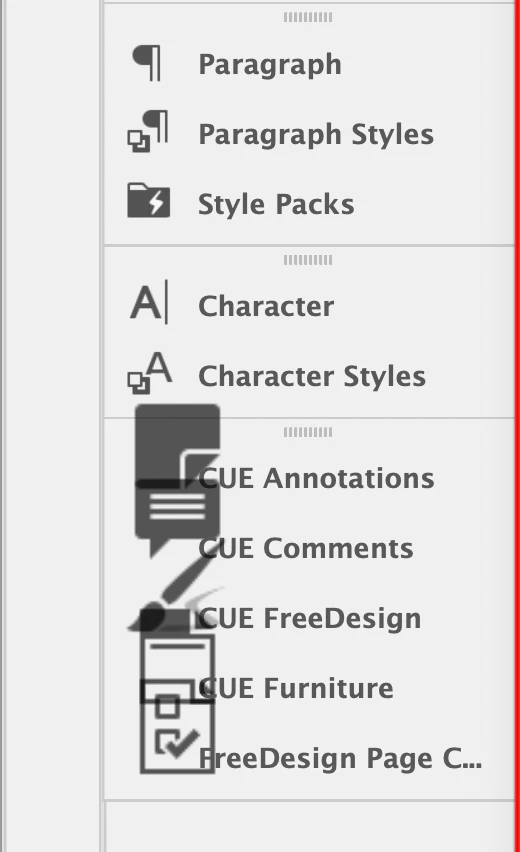
 

This is only seen on a Mac with arm-processor. When open InDesign on the build-in (retina) screen, everything looks fine.
I found the post “InDesign 2023: Big icon in docked panel”. But the solution described there, did not solve the problem.
Any ideas how to solve this?

    6 replies

    Legend
    March 25, 2026

    One thing to check - around that time I found other issues when I pinned the application to a specific screen using a feature of Mission Control » Separate Spaces. Check whether that applies in their setup.

    As wild theory, the responsible routine could find itself on the main screen (as controlled via the space), and pick up the desired resolution from the real main screen with retina resoluton thus the confusion.
    https://support.apple.com/de-de/guide/mac-help/mh14112/mac

    Participating Frequently
    March 26, 2026

    Thanks for your response, Dirk

    I just checked. They haven’t used “Separate Spaces” on the Mac

    Legend
    March 18, 2026

    Back in 2021 I filed a bug report ID-4226579, which has since disappeared.

    Culprit were CEP panels, so not mine anyway. First party? I don’t remember.

    Maybe Abishek can have a look how that case was resolved.


    Participating Frequently
    March 18, 2026

    Thanks for the prompt replies.

    This morning we tried:

    • Reset Preferences on Quit
    • Rename cache folder
    • Rename preferences folder
    • Rename CEP and UXP folders

    Non of the above had any effect. The MacOS version is:


    Notice, there are two screens.

    If InDesign is started on the build-in screen it works as a charm.

    If it is started on the external screen with higher resolution, we get the bigger icons in the docker.

    The plugin has defined two set of icons for Mac; normal and high resolution for retina screens.

    Everywhere except in the docker it works fine (and I assume using the high resolution version of the icons).

    Is there anything else we can try?

    Abhishek Rao
    Community Manager
    Community Manager
    March 23, 2026

    Hi ​@Morten Pinderup,


    Thanks for the update and the detailed insights. Could you please check if changing the scaling or resolution of the external display affects the behavior? Also, could you share how the display is connected, for example USB-C or HDMI?

    In the meantime, I’ll be checking this further with the product team and will update you as soon as I have more information.


    Looking forward to your update.

    Abhishek

    Abhishek Rao
    Community Manager
    Community Manager
    March 24, 2026

    Hi ​@Morten Pinderup,


    Thanks again for sharing all the details so far.

    I checked this further with the product team, and we have noticed that the affected icons look like third-party (plugin) icons, while the native InDesign icons appear to be rendering correctly.

    Could you please confirm if you’re seeing the issue specifically with icons from a plugin/extension, or does it also affect the default InDesign panel icons?


    Looking forward to your update.

    Abhishek

    Participating Frequently
    March 17, 2026

    Thanks for both replies. 
    It is on a customers Mac, so I there is a bit of turn around time.
    We already tried renaming both “~/Library/Caches/com.adobe.indesign” and “~/Library/Preferences/Adobe InDesign” as suggested in “InDesign 2023: Big icon in docked panel”.
    We will try out the other suggestions tomorrow morning and update the ticket (including specific MacOS version)

    Bill Silbert
    Community Expert
    Community Expert
    March 17, 2026

    In addition to resetting preferences you might also try deleting your InDesign cache files. This process specifically is designed for fixing issues within the interface itself.

    To delete InDesign cache files:

    For Macintosh Users: The User Library folder in which InDesign’s cache files are stored is hidden by default on most Macintoshes. To access it make sure that InDesign is closed and click on the desktop to launch a Finder Window (Command-N). With this window in column view follow the path User>Home folder (it’s the folder with an icon that looks like a house—it may have the user’s name rather than “Home”) and click on the Home folder. With the Option Key pressed choose Library from the Finder Go Menu. “Library” will now appear within the Home folder. Within the Library folder find the “Caches” folder. Within the Caches folder find and delete the entire folder “Adobe InDesign”. I find that deleting the InDesign cache folder completely leads to a lasting change.

    For Windows Users: On Windows 7 and above the caches files are hidden. To find them go to the Control Panel and open Folder Options and then click the View tab. Then select “Show hidden files and folders” or “Show hidden files, folders or drive options” in Advanced Settings. Then delete (or rename) the folder at the end of this path: C:\Users\[User Name]\AppData\Local\Adobe\InDesign\Version [#]\<Language>\Cache.

    Abhishek Rao
    Community Manager
    Community Manager
    March 17, 2026

    Hi ​@Morten Pinderup,


    Sorry to hear you’re running into this issue with the panel icons. Could you please confirm the exact macOS version you’re using so we can check this more closely on our end?

    In the meantime, I’d recommend manually resetting the InDesign preferences by following the video at the bottom of this article: https://helpx.adobe.com/indesign/using/setting-preferences.html

    If the issue still persists after that, please try renaming the CEP and UXP folders. First, go to /Library/Application Support/Adobe on your Mac and rename the CEP folder to CEP.old. If that does not help, then rename the UXP folder to UXP.old from both /Library/Application Support/Adobe and ~/Library/Application Support/Adobe.

    Please try these steps and let me know how it goes.


    I’ll be happy to check further based on your update.

    Abhishek