
Known Participant
Nov 13, 2026 9:01 PM UTC
Question

indesign 2026 - how do i combine two threaded text frames into one frame on the page

Hi everyone,

I’m working on recreating a long form in InDesign, and I’ve run into an issue with the text frames.

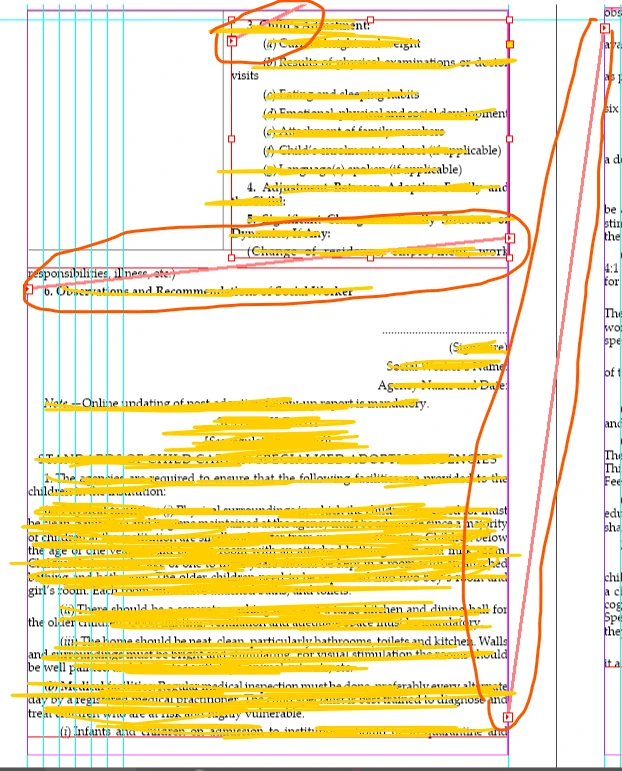
Most of the document uses one text frame per page, but on this particular page there are two separate text frames stacked vertically on the same page. The two frames are threaded to each other:

Previous page → Top frame → Bottom frame → Next page

I would like this page to have one single text frame, like the other pages:

Previous page → One large frame → Next page

The two existing frames contain continuous text, so I don’t want to lose or duplicate any text when changing the structure.

I tried enlarging the top frame to occupy the full text area of the page. However, the bottom frame is still part of the thread, so the text starts overlapping rather than simply flowing into the enlarged frame.

What is the correct way to:

  1. Combine these two threaded frames into one frame on the page?

  2. Preserve the existing text flow from the previous page and into the next page?

  3. Remove the now-unnecessary second frame without breaking the thread?

I’ve attached a screenshot showing the current setup. The top and bottom frames are clearly threaded, and I want to end up with just one large frame on this page.

I’d really appreciate the correct InDesign workflow for doing this safely, as I don’t want to disturb the text flow of the surrounding pages.

Thanks!
 

    2 replies

    CORCTON34033231
    Community Expert
    Community Expert
    Nov 13, 2026 9:11 PM UTC

    Hi — good news: you don’t need to cut and paste any text. You were one step away — the order matters.

    First enlarge the top frame so it covers the full text area of the page, exactly as you tried. Then select the bottom frame with the Selection tool and press Delete. Deleting a frame in the middle of a thread doesn’t take its text with it: the text reflows through the remaining frames, so your enlarged top frame takes the text and the rest continues to the next page, and the thread stays intact. You end up with Previous page → One large frame → Next page, with no text lost or duplicated.

    That’s why enlarging alone didn’t work: the bottom frame was still part of the thread, so it kept holding its share of the text and overlapped the enlarged frame.

    You can check the result with View > Extras > Show Text Threads — you should see the thread running from the previous page into your single large frame and out to the next page.

    Adobe’s help page on threading text frames (see “Delete a frame from a thread”):https://helpx.adobe.com/indesign/desktop/add-and-manage-text/add-and-import-text/thread-text-frames.html


    Translate
    s_009Author
    Known Participant
    Nov 13, 2026 9:19 PM UTC

    Thank you! Your reply gave me the key hint I needed — that deleting the frame would cause the text to automatically flow into the next frame.

    I tried it, and the solution was to delete the bottom frame first. The text then automatically flowed into the next frame, and after that I enlarged the top frame to fill the page.

    So I ended up with exactly what I wanted: one single text frame on the page, with the text thread continuing normally to the next page.

    Thanks again for pointing me in the right direction — that was the crucial part I was missing!

    Translate