
InDesign 2026 — Table column/cell structure problem
Hi everyone,
I’m working on a large table in InDesign 2026, and I’m having trouble with the column structure in one section.
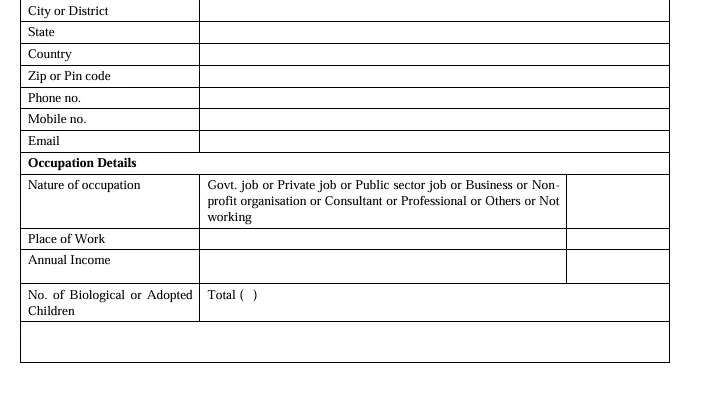
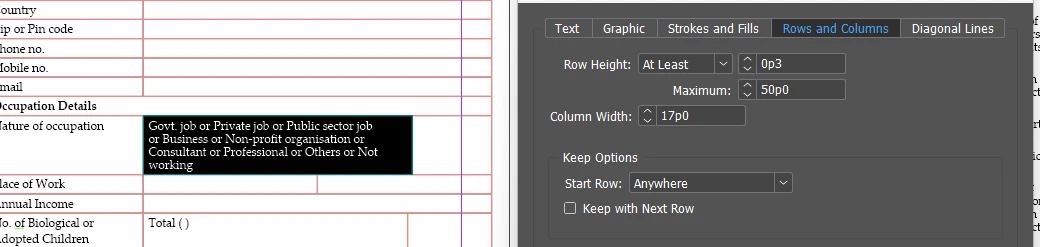
I need the table to look like the reference image below. The rows Nature of occupation, Place of Work, Annual Income, and No. of Biological or Adopted Children should all have the same three-column structure:
Column 1: label
Column 2: large/main text area
Column 3: narrow blank area
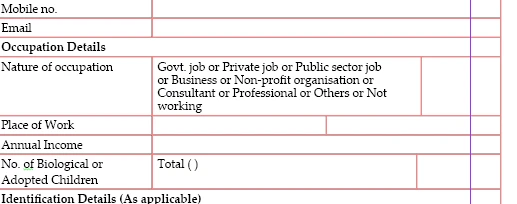
The problem is that the Place of Work row does not line up with the rows above and below. Its vertical column boundary is in a different position.
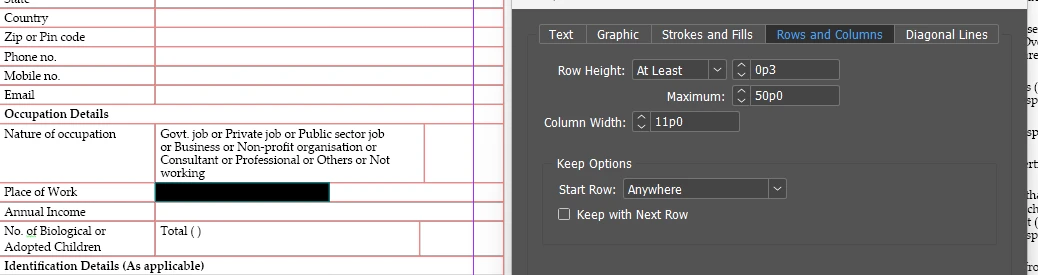
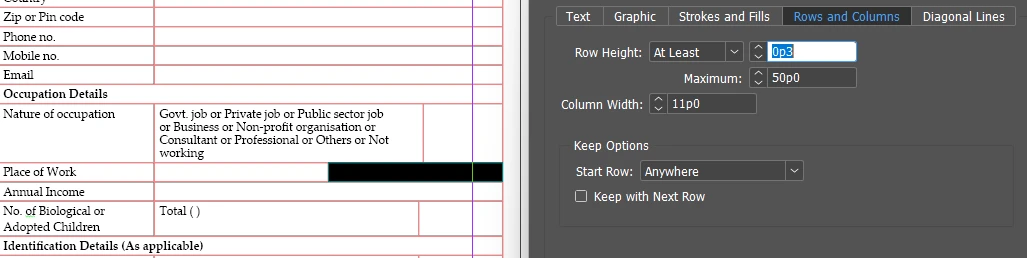
For example, when I click in the large middle cell of Nature of occupation, InDesign's Cell Options → Rows and Columns shows a column width of 17p0.
However, when I click in the corresponding middle cell of Place of Work, InDesign shows 11p0.
If I try to change the Place of Work cell to 17p0, other cells/rows change or text disappears. So I suspect the table has a different underlying column structure because some cells were previously merged/split.
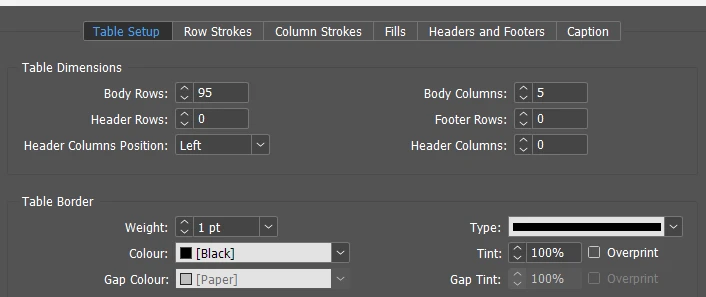
I cans ee the table tohave 3 columns but when i select table setup it shows me 5 body columns.
I simply want the column boundaries in these rows to line up exactly.
I have attached screenshots showing:
-
What the table is supposed to look like.
-
The current problematic row.
-
The Cell Options → Rows and Columns settings showing the different widths.
-
the table set up
What is the correct way to repair the underlying table structure in InDesign so that these rows all use the same column boundaries?
Is there a way to split/merge the cells correctly, or otherwise reset the column structure for just these rows without affecting the rest of the table?
Thanks!

 AdChoices