Participating Frequently
October 21, 2026
Answered

InDesign 2026 - table splits across pages despite large amount of empty space — how can I keep it together

What is happening

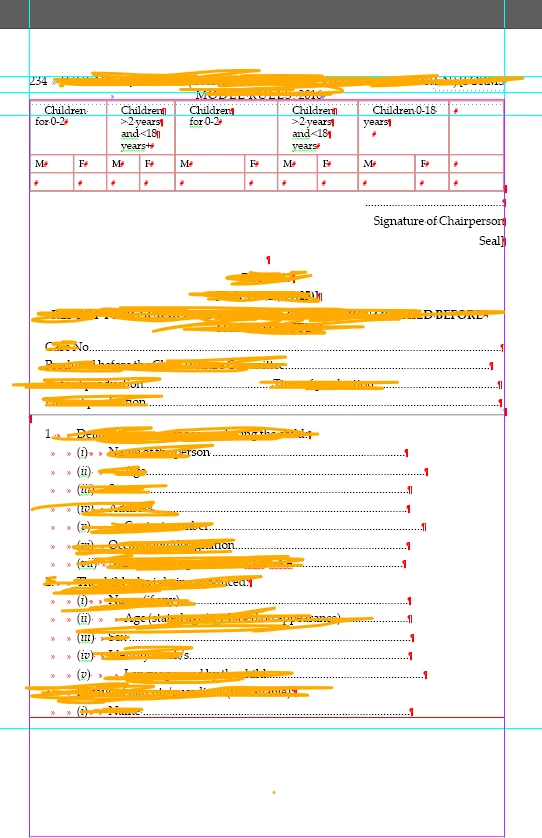
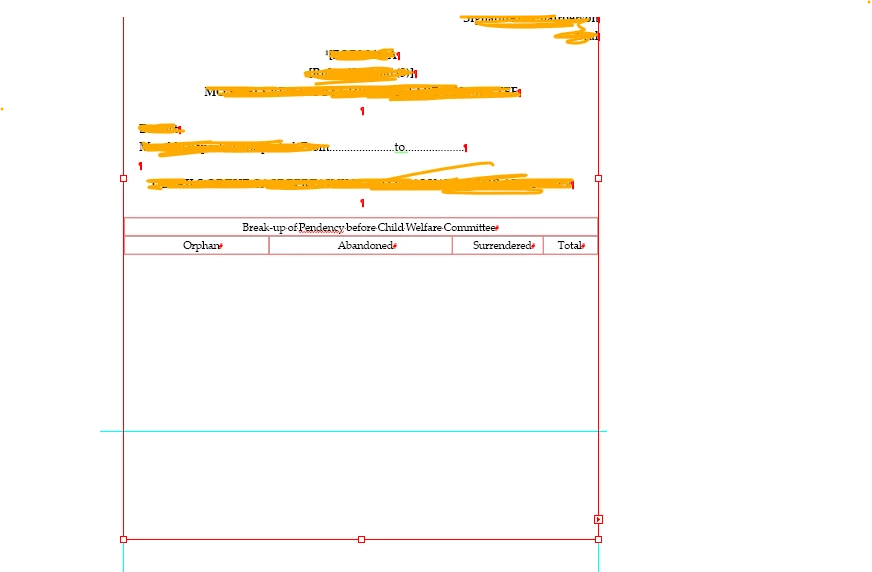
The table starts at the top of a large text frame, but only a few rows appear on the page. The remaining table content continues on the following page, even though there is a very large amount of unused space underneath the first part of the table.

I would like the table to flow together properly and, if possible, keep it on one page rather than having it split across pages unnecessarily.

What I've tried


  • Checked Object → Text Frame Options. Vertical Justification is already set to Top.

  • Checked Cell Options → Rows and Columns. Row Height is set to At Least, with a minimum of 0p3 and a maximum of 50p0.

  • Turned on Show Hidden Characters but could not identify anything obvious that would explain the problem.

  • Removed the footnote that was previously at the bottom of the frame, but the issue remained.

  • Tried cutting and pasting part of the table to rearrange it, but this caused unexpected behaviour, so I stopped to avoid damaging the table.

How can I make the table fit together correctly, preferably on one page, without rebuilding it or disrupting the rest of the document?

I've attached screenshots showing the table across the pages,


the table with a lot of empty space 
the next part of the table that comes ontot he next page


    CORCTON34033231
    CORCTON34033231Correct answer
    Community Expert
    October 21, 2026

    Hi! When a table breaks early even though the frame still has plenty of room, it's usually Keep settings doing it, not the frame itself. Two places worth checking:


    1. Select all the rows and open Table > Cell Options > Rows and Columns. Make sure "Keep with Next Row" is switched off — with it on for every row, InDesign tries to keep whole blocks together and pushes them to the next page. Also check that Start Row is set to "Anywhere".


    2. Click in the paragraphs inside the cells around the break — and also in the empty paragraph return right after the table — then open the Paragraph panel menu > Keep Options and turn off "Keep with Previous" and "Keep with Next", and avoid "Keep Lines Together: All Lines in Paragraph". A return after the table with "Keep with Previous" on is a classic cause of exactly this kind of big gap.


    Once those keeps are cleared, the rows should flow back and fill the first page. Let us know how it goes!

    3 replies

    henryhyde
    Participant
    October 23, 2026

    This worked for me too, so thank you, would never have unravelled this mystery alone!

    Translate
    CORCTON34033231
    Community Expert
    CORCTON34033231Community ExpertCorrect answer
    Community Expert
    October 21, 2026

    Hi! When a table breaks early even though the frame still has plenty of room, it's usually Keep settings doing it, not the frame itself. Two places worth checking:


    1. Select all the rows and open Table > Cell Options > Rows and Columns. Make sure "Keep with Next Row" is switched off — with it on for every row, InDesign tries to keep whole blocks together and pushes them to the next page. Also check that Start Row is set to "Anywhere".


    2. Click in the paragraphs inside the cells around the break — and also in the empty paragraph return right after the table — then open the Paragraph panel menu > Keep Options and turn off "Keep with Previous" and "Keep with Next", and avoid "Keep Lines Together: All Lines in Paragraph". A return after the table with "Keep with Previous" on is a classic cause of exactly this kind of big gap.


    Once those keeps are cleared, the rows should flow back and fill the first page. Let us know how it goes!

    Translate
    s_009Author
    Participating Frequently
    October 21, 2026

    Hi! Thnak you so much! as soon as i set start row to anywhere immediately the table came together! thank you so much!

    Translate