tami jt17830887
Participant
Apr 2, 2019 11:20 PM UTC
Answered

InDesign Accessibility and tab order

I've got an InDesign CC file that I'm working on making into an accessible PDF. When I export as PDF, open in Adobe Acrobat DC, and run the accessibility check, I get a "tab order failed" error for every page. I don't know what tab order is, and a quick Google of tab order leads me to believe that this has to do with forms. My document is not a form and has no fields to fill in. Does anyone know how I can clear this error? Is it possible that there are relics of fields or a form in here, and if so, how can I get rid of those? Thank you so much in advance.

This topic is closed to new replies. Start a new post to keep the conversation going.
Bevi Chagnon - PubCom.com
Legend
Apr 3, 2019 5:01 AM UTC

Yes, the "Tab Order" is used in forms, letting us hop from one form field to the next.

But Tab Order is also used in regular PDF documents by many assistive technologies (AT). A user could press the Tab key on the keyboard to advance from one section to the next, but other assistive technologies might use another key input, button or user action to do the same thing. Whether or not the actual Tab key is involved, all of these actions use the "tab order."

So that's why the standards require that the Tab Order be set, regardless of whether there are form fields in the PDF or not.

It's easy to set it in Acrobat:

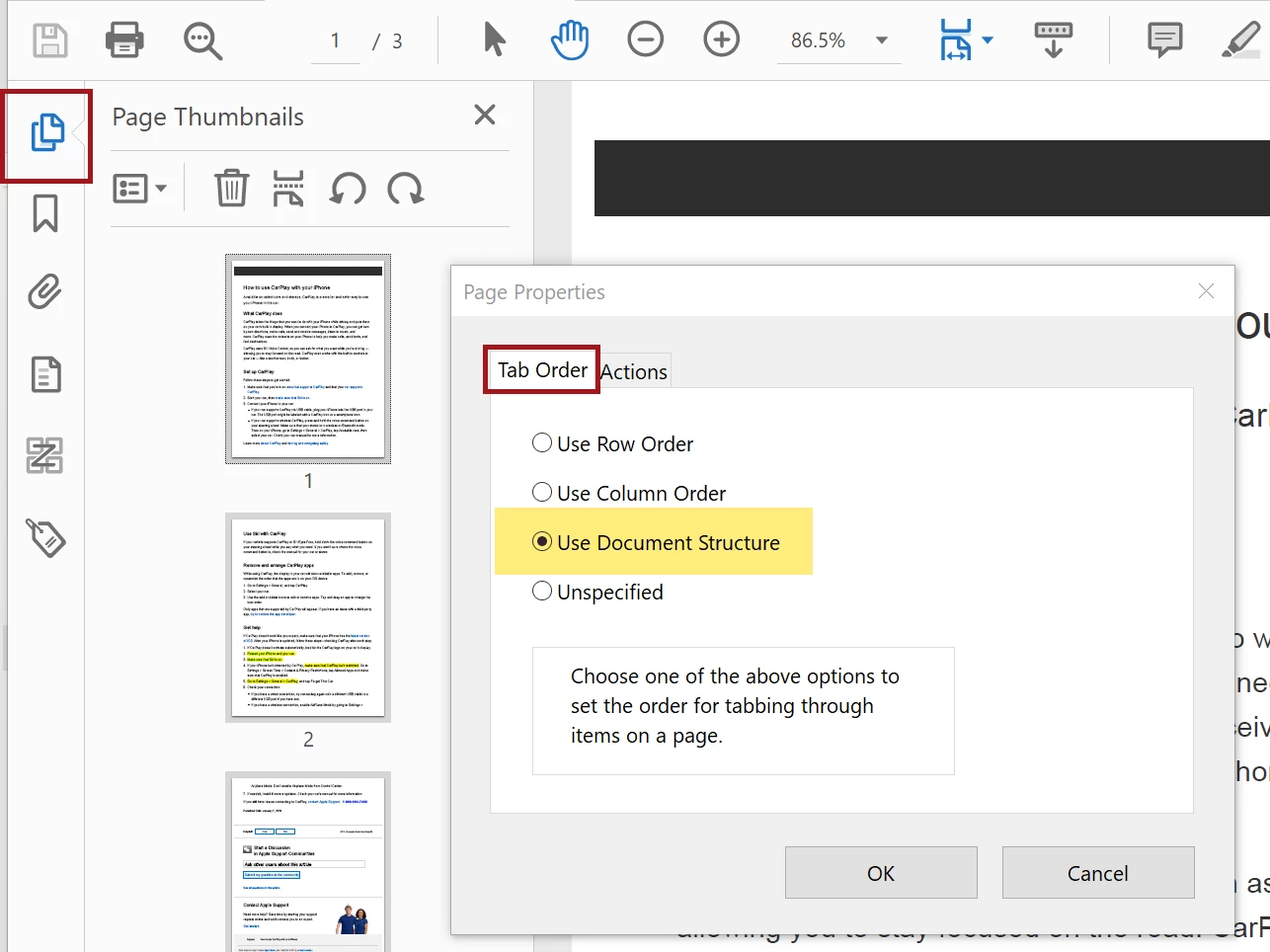
  1. Open the Thumbnails/Pages panel in Acrobat.
  2. Select all of the pages in the document. Control/Command + a will select them all in the panel.
  3. Right-click on one of the pages and select Properties.
  4. Select Use Document Structure under the Tab Order tab.
  5. Save the PDF and rerun the checker. The error should now be gone.
You also can set this in your InDesign layout and when you export to Interactive PDF.

  1. Structure your document so that it has a logical reading order: threaded stories, sequenced items in the Articles panel, and correct the stacking order in the Layers panel.
  2. Then, export to Interactive PDF and check the option to Use Structure for Tab Order.

Hope this helps.

—Bevi Chagnon

|    Bevi Chagnon   |  Designer, Trainer, & Technologist for Accessible Documents ||    PubCom |    Classes & Books for Accessible InDesign, PDFs & MS Office |

8 replies

Participant
Oct 26, 2020 10:57 AM UTC

This was so helpful, thank you!

Translate
Frans v.d. Geest
Community Expert
Community Expert
Apr 3, 2019 6:16 PM UTC

In this case the tab order is for the pages (not forms), you will get this warning always. Simply right-click on the warning and choose ‘fix’, Acrobat will fix it for you :-) Don’t forget to save the PDF after that ;-)

Translate
Participant
Jul 18, 2022 9:49 PM UTC

How do you know if it's really "fixed," though? We've been choosing "fix," but I don't know what it's doing.

Translate
Bevi Chagnon - PubCom.com
Legend
Jul 18, 2022 10:18 PM UTC

"Tab Order" is sort of an outdated term, but the concept is still relevant. It refers to the order in which some assistive technologies navigate or process the content, especially when the user hits whatever key or shortcut or action they use to "skip" from section to section or paragraph to paragrah.


Long ago, it was the tab key, hence the name "Tab Order," but today it can be anything that is defined by the technology or the user.


To be compliant with the PDF/UA-1 standards, you want to ensure that the Tab Order follows the Tag tree's order. To check it:

  1. Open the Pages Panel in Acrobat
  2. Select all of the page icons in the panel (Control + A can do this).
  3. Right-click and select Page Properties.
  4. Check Use Document Structure.
  5. Save and close the PDF.


If Use Document Structure is grayed out, then it's already been done.


Translate
|    Bevi Chagnon   |  Designer, Trainer, & Technologist for Accessible Documents ||    PubCom |    Classes & Books for Accessible InDesign, PDFs & MS Office |
Bevi Chagnon - PubCom.com
Legend
Apr 3, 2019 5:01 AM UTC

Yes, the "Tab Order" is used in forms, letting us hop from one form field to the next.

But Tab Order is also used in regular PDF documents by many assistive technologies (AT). A user could press the Tab key on the keyboard to advance from one section to the next, but other assistive technologies might use another key input, button or user action to do the same thing. Whether or not the actual Tab key is involved, all of these actions use the "tab order."

So that's why the standards require that the Tab Order be set, regardless of whether there are form fields in the PDF or not.

It's easy to set it in Acrobat:

  1. Open the Thumbnails/Pages panel in Acrobat.
  2. Select all of the pages in the document. Control/Command + a will select them all in the panel.
  3. Right-click on one of the pages and select Properties.
  4. Select Use Document Structure under the Tab Order tab.
  5. Save the PDF and rerun the checker. The error should now be gone.

You also can set this in your InDesign layout and when you export to Interactive PDF.

  1. Structure your document so that it has a logical reading order: threaded stories, sequenced items in the Articles panel, and correct the stacking order in the Layers panel.
  2. Then, export to Interactive PDF and check the option to Use Structure for Tab Order.

Hope this helps.

—Bevi Chagnon

Translate
|    Bevi Chagnon   |  Designer, Trainer, & Technologist for Accessible Documents ||    PubCom |    Classes & Books for Accessible InDesign, PDFs & MS Office |

tami jt17830887
Participant
Apr 3, 2019 5:25 PM UTC

Thank you so much! I'll try this today and hopefully get the results I want. I really appreciate the time you took to answer.

Translate