Participating Frequently
July 10, 2017
Answered

InDesign CC - Export document to PDF and the colored rectangles become transparent

  • July 10, 2017
  • 4 replies
  • 2885 views

Greetings,

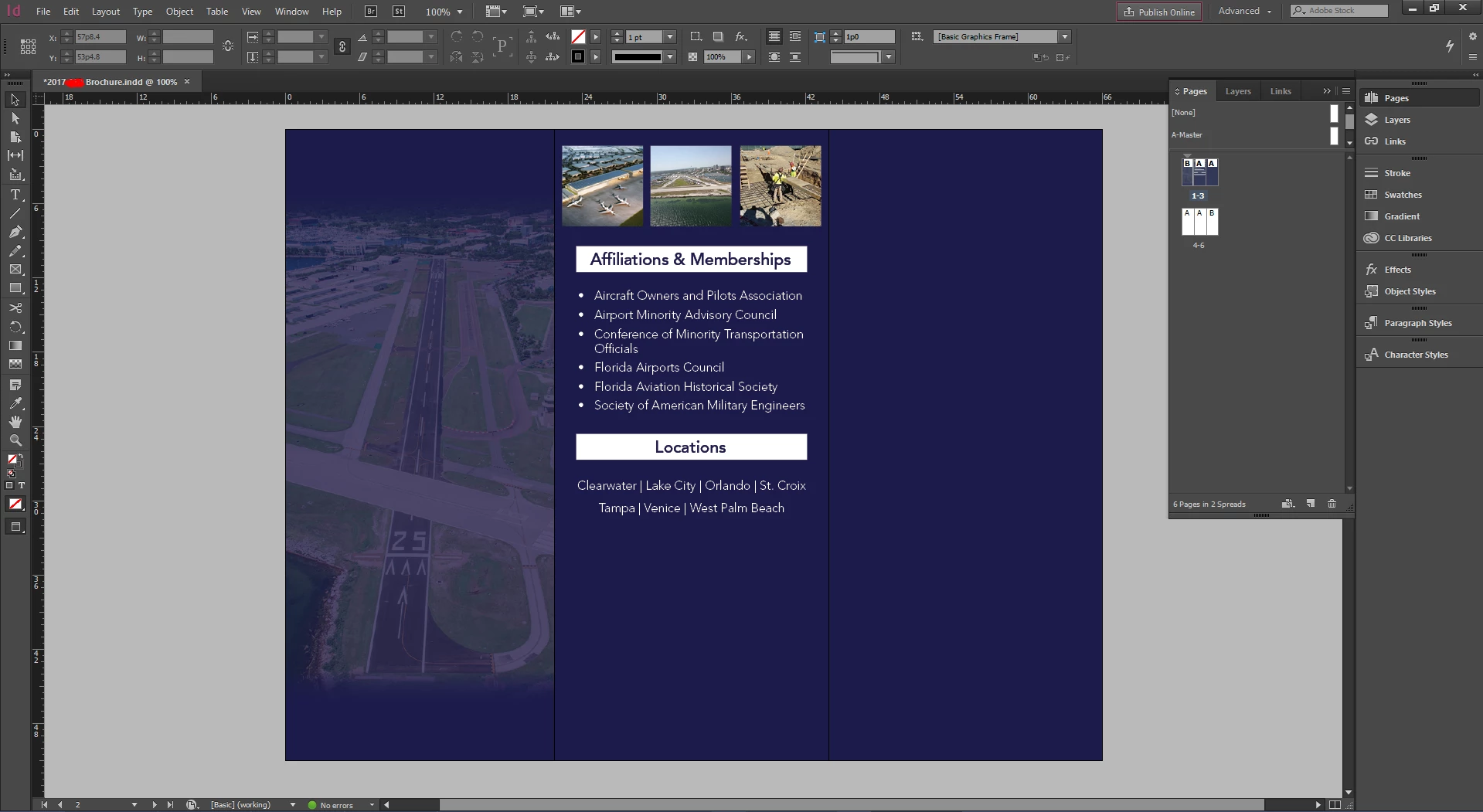
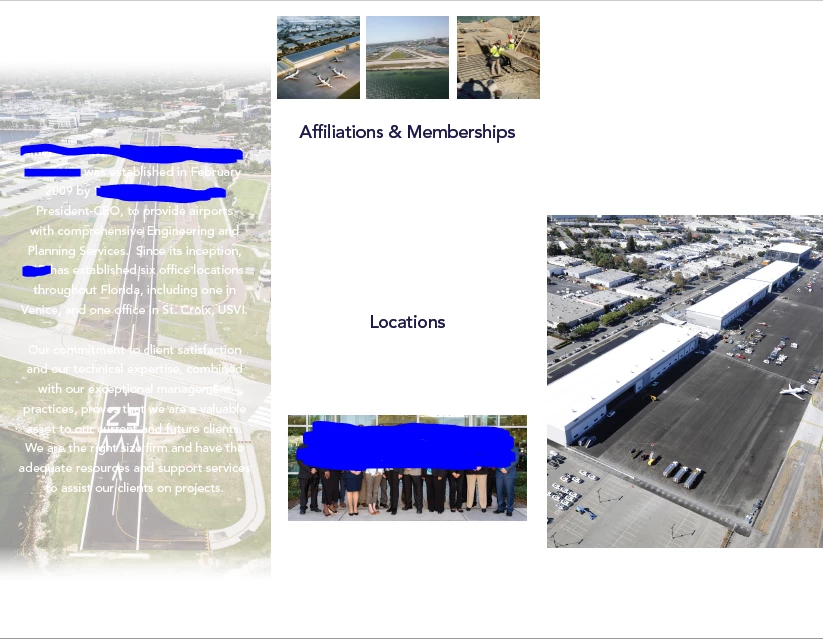
I am currently creating a brochure on InDesign CC. For some reason when I export the document to a PDF, the color rectangles that I am using as a background turn transparent. This happens when I have the background in either the A-Master pages or the regular pages. At first, it seemed like the solution was to change the layers around to make sure that the background is in a layer for it to be visible. But, this temporary solution is no longer working. I read other forums where people said it might be because the color I am using is a paper swatch or paper color. However, I do not think the color is a paper swatch color. Below you can see what the InDesign layout looks like versus the PDF that I recently exported.

Thank you in advance for your help! I'm looking forward to hearing solutions

P.S. I was required to block out an identifying information to protect my client. Thank you for understanding!

Layout in InDesign Document
PDF Export of InDesign Document
This topic has been closed for replies.
Correct answer barbara_a7746676

It looks like you have 2 master pages applied to your 3-page spread. Try drawing three separate blue rectangles, one on each page, and then export to PDF.

4 replies

jane-e
Community Expert
Community Expert
July 10, 2017

AIDzebrina  wrote

Thank you in advance for your help! I'm looking forward to hearing solutions

P.S. I was required to block out an identifying information to protect my client. Thank you for understanding!

Thank you for your PostScript with your reason and please understand that you are approaching this the wrong way, and you should be glad you method failed. When you draw a box on top of something and make a PDF, someone else can move or delete that box and see the content you were trying to protect.


http://milyli.com/5-epic-fails-redaction-software/

Instead, the correct solution is to use one or more of these techniques:

  • Delete the text in InDesign
  • Blur the people in Photoshop or another image editor
  • Learn to properly Redact using Acrobat Pro to permanently delete the sensitive information
  • Search for Hidden Information using Acrobat Pro and permanently delete it

Do not make the text invisible and do not draw something on top to hide something else. The Acrobat forum can answer your questions on Redaction. Let us know if you want to move this thread there.

I hope this helps!

Best,

Jane

Participating Frequently
July 10, 2017

Hi Jane,

Thank you for letting me know the proper ways to redact information on a document. I will make sure to remember this moving forward. I do want to clarify that I the redaction does not affect the export issues that I am currently dealing with on InDesign as I try to export my document to a PDF. I crossed out the information using a screenshot on a separate application.

Also, as a clarification, this forum post isn't intended for asking about redactions. It is more focused on export complications on InDesign.

Thank you again!

Zebrina

jane-e
Community Expert
Community Expert
July 10, 2017

Okay, good to know! I read so many horror stories in the newspapers.

Try this: copy one of your shapes to a new document and export to PDF. Does that work?

Also, check your Effects panel and confirm there are no effects or blending modes.

barbara_a7746676
Community Expert
Community Expert
July 10, 2017

Also, double check if the blue is "Paper". If it is, then when you select the blue rectangle, Paper will be highlighted.

Participating Frequently
July 10, 2017

Hi Barbara,

I just checked the document and the "nonprinting" box is not checked so I don't think the blue rectangle is set to nonprinting.

I also checked to make sure the blue is "Paper" and it isn't. The blue is set to the color swatch I created.

barbara_a7746676
Community Expert
barbara_a7746676Community ExpertCorrect answer
Community Expert
July 10, 2017

It looks like you have 2 master pages applied to your 3-page spread. Try drawing three separate blue rectangles, one on each page, and then export to PDF.

barbara_a7746676
Community Expert
Community Expert
July 10, 2017

By any chance is the blue rectangle set to Non-Printing? You'll find that setting in the Attributes panel.

Steve Werner
Community Expert
Community Expert
July 10, 2017

What PDF export setting did you use when you made the PDF? What PDF reader are you using to view the PDF file?

Participating Frequently
July 10, 2017

Hi Steve,

I used the following PDF export settings and I am using Adobe Acrobat Pro DC to view the PDF File.