
Answered
InDesign cuts part of logo circle. Why?
I created a logo in Illustrator. It has a circle as a background. No problem:

The logo needs to go into a Brand Guide so I need to use InDesign which is a shame because it can't handle something as simple as moving an image from Illustrator.
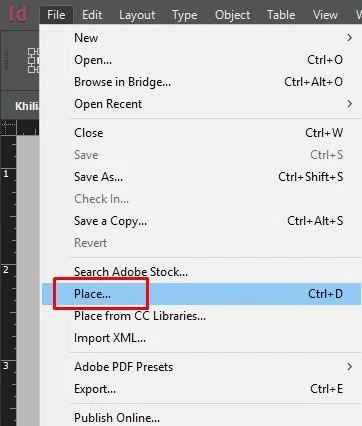
When I drag the logo into InDesign (or 'Place' or 'Paste in Place' or indeed any other way of trying to get it over to InDesign, it ends up like this:

I have moved logos from Illustrator to InDesign in the past with no problem. This is weird.
I have seen all the posts online, settings to adjust etc, and none fix it. I've wasted days on this and just want it to be over now.
Any ideas appreciated.
 AdChoices