Participant
August 2, 2017
Answered

InDesign Direct Selection not moving anchor points

  • August 2, 2017
  • 4 replies
  • 31467 views

My Direct Selection tool is not moving individual anchor points from objects that I draw with the Pen Tool. It should function the same as Illustrator and allow you to select an anchor point and move the individual point. Is there a setting that I am missing somewhere for this? InDesign 17.1 Creative Cloud.

Thanks!

Austin

Correct answer Barb Binder

I'm going to chime in with an additional clarification, because I see this question from my students all the time. Even if you know this, it may help the next person reading this...the anchor points have two states: hollow (deselected) and solid (selected), just like AI. To move an individual anchor point, click outside the object to deselect it, and then select one or more anchor points.

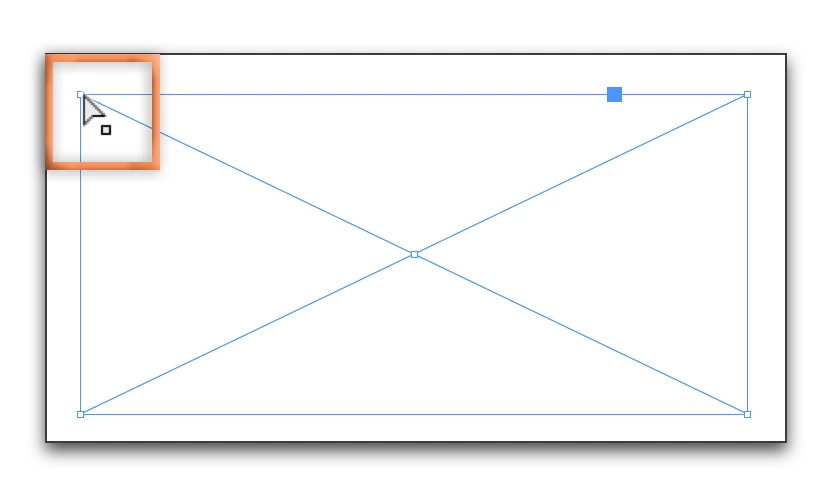
Place the very tip of the arrow on the anchor point, and watch for the cursor to alert you that you are about to select the anchor point (with the hollow square hanging off the cursor.) The way I see this, InDesign is having a running conversation with us at all times, but without a voice, we have to learn watch the cursors to hear what it is telling us.

Direction Selection tool (white arrow) on the anchor point (hollow square under cursor):
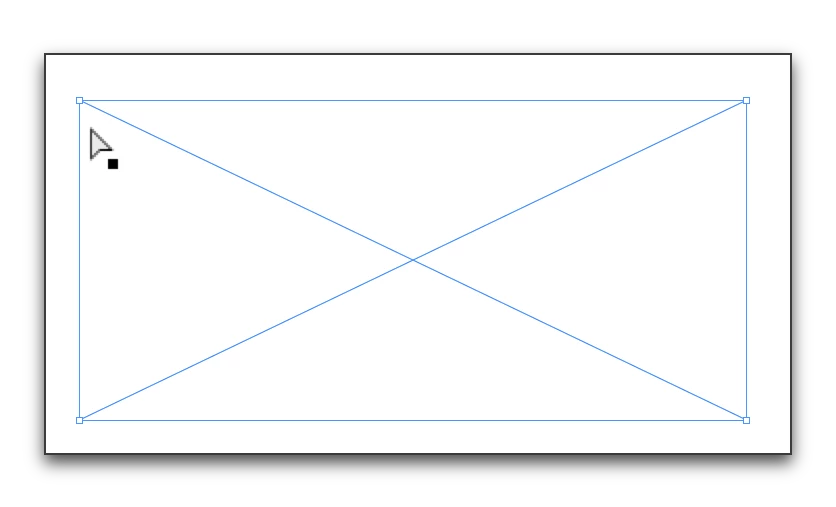
Direction Selection tool (white arrow) not yet on the anchor point (solid square under cursor, or sometimes just a plain black arrow):
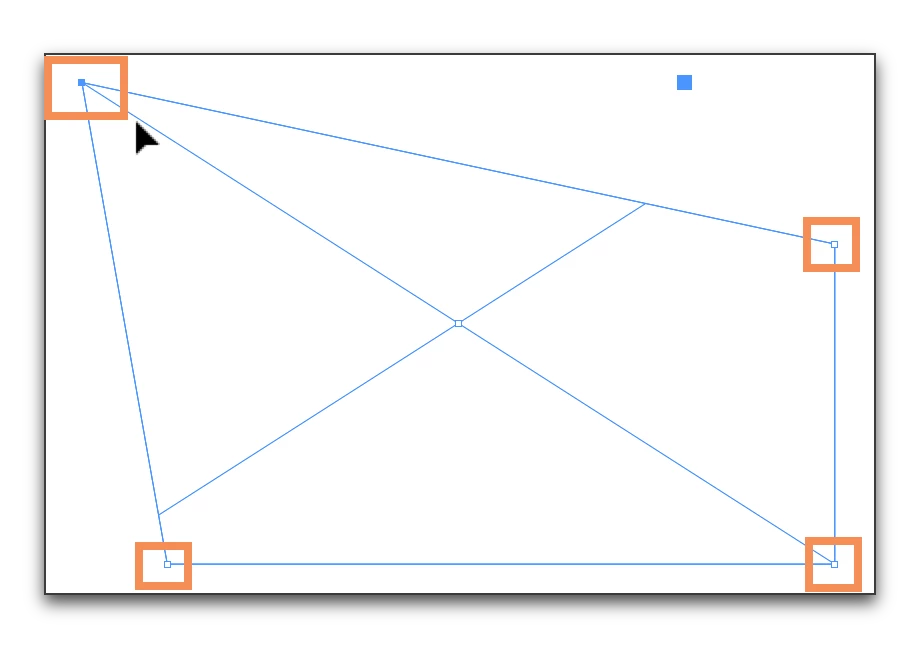
Once selected, you can move the selected anchor point and the hollow/deselected ones stay still. I've never seen this feature misbehave and I've used it and taught it for all of InDesign's life. If it does, reset preferences.
One more thought. Anchor points are tiny, and unlike in AI you can't enlarge them via Prefs. Zooming in doesn't enlarge them either. One can use accessibility commands built in to the OS to magnify, but that's the number one reason my students struggle to select anchor points in InDesign—on a HiDPI display they just can't see them very well.

4 replies

Inspiring
August 2, 2017

Maybe it is a simple difference in Illustrator and InDesign. If you have an object selected in Illustrator then use your direct selection tool on an anchor point all other points will be deselected so only the one point will change. On the other hand, if you have an object selected in InDesign and change to your direct selection tool to choose an anchor point, all the points will still be selected so the entire object will move. If the problem is your object is selected when you have changed to the direct selection tool just deselect all (Edit>Deselect All) and then select the point or segment within the object you want to move.

Hope that helps.

winterm
Legend
August 2, 2017

Before trying to move any anchor point be sure your drawing is NOT selected in 'normal' way (with Selection Tool). Use Direct Selection tool on a figure that is not selected (or selected with Direct Selection tool). Switching directly from Selection to Direct Selection won't work.

Participant
August 2, 2017

This is a really valid point as well, it wasn't the issue this time, but I did learn that the hard way a while back after coming from Illustrator where these tools are a little more precise and capable. Thanks!

Barb Binder
Community Expert
Barb BinderCommunity ExpertCorrect answer
Community Expert
August 2, 2017

I'm going to chime in with an additional clarification, because I see this question from my students all the time. Even if you know this, it may help the next person reading this...the anchor points have two states: hollow (deselected) and solid (selected), just like AI. To move an individual anchor point, click outside the object to deselect it, and then select one or more anchor points.

Place the very tip of the arrow on the anchor point, and watch for the cursor to alert you that you are about to select the anchor point (with the hollow square hanging off the cursor.) The way I see this, InDesign is having a running conversation with us at all times, but without a voice, we have to learn watch the cursors to hear what it is telling us.

Direction Selection tool (white arrow) on the anchor point (hollow square under cursor):

Direction Selection tool (white arrow) not yet on the anchor point (solid square under cursor, or sometimes just a plain black arrow):

Once selected, you can move the selected anchor point and the hollow/deselected ones stay still. I've never seen this feature misbehave and I've used it and taught it for all of InDesign's life. If it does, reset preferences.

One more thought. Anchor points are tiny, and unlike in AI you can't enlarge them via Prefs. Zooming in doesn't enlarge them either. One can use accessibility commands built in to the OS to magnify, but that's the number one reason my students struggle to select anchor points in InDesign—on a HiDPI display they just can't see them very well.

~Barb at Rocky Mountain Training
amaarora
Inspiring
August 2, 2017

Hi,

There no setting. By default your direct selection tool should move anchor points.

Below are the ways that help you move anchor points.

1. Using the Direct selection tool

     a. I created the below figure using pen tool


     b. Changed to direct selection tool and was able to drag each point separately.


2. Using the Direction point tool

     a. Created a straight line this time


     b. Changed my tool to Direction point tool


     c. Was able to move each point separately.


Let me know if any of the above work for you.

Otherwise, you can try cleaning your cache and preferences. Troubleshooting 101: Replace, or "trash" your InDesign preferences

-Aman

Participant
August 2, 2017

Hello Aman,

Thanks for the reply! I have been using Adobe for 15 years and understand how the tool works. My issue is that is does not work as it is supposed to function. So if there is not a setting that I missed to effect the performance of this tool, then I will try cleaning cache and preferences next.

Thanks!

Austin

Steve Werner
Community Expert
Community Expert
August 2, 2017

Moving to InDesign forum