sebastiand49063797
Participant
July 20, 2018
Answered

InDesign Drop Shadow affecting objects that shouldn´t be affected

  • July 20, 2018
  • 3 replies
  • 3701 views

Hey dear community,

I ran into an issue that i don´t know hoe to solve...

Ive got multiple images with the same Drop Shadow applied, but now they affect each other, how can i solve this issue?

I already tried changing the blending options ....

(The 3 boxes should have the the same "height" as if they were floating on the same level)

Thanks in advance

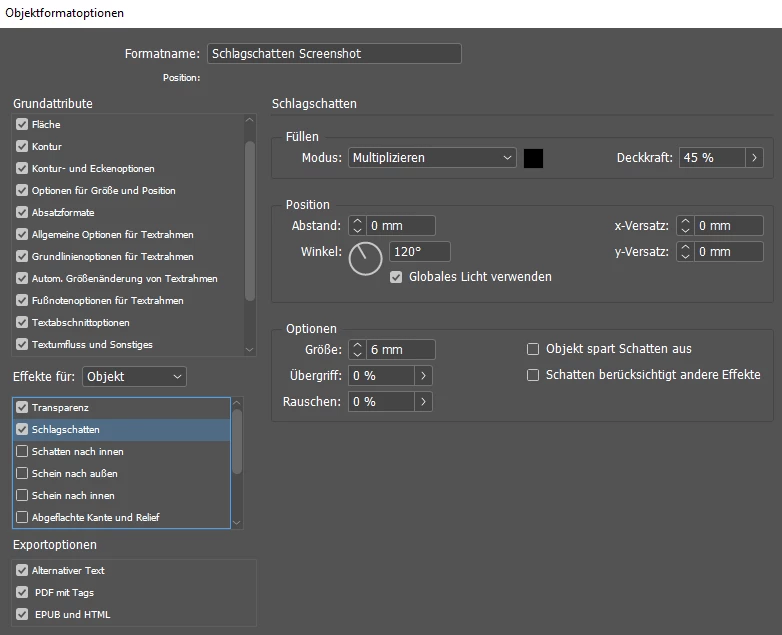
These are my settings:
This topic has been closed for replies.
Correct answer Laubender

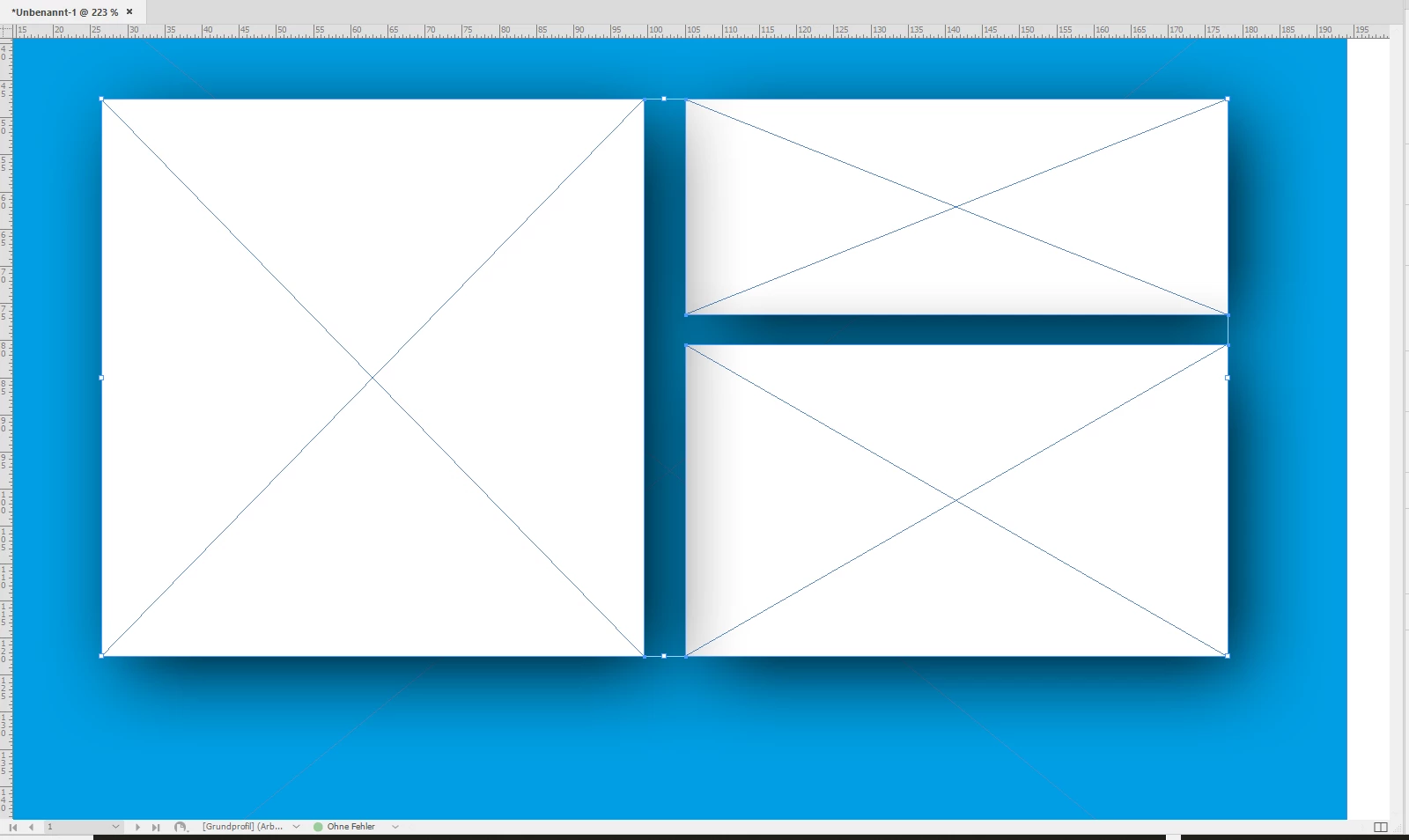
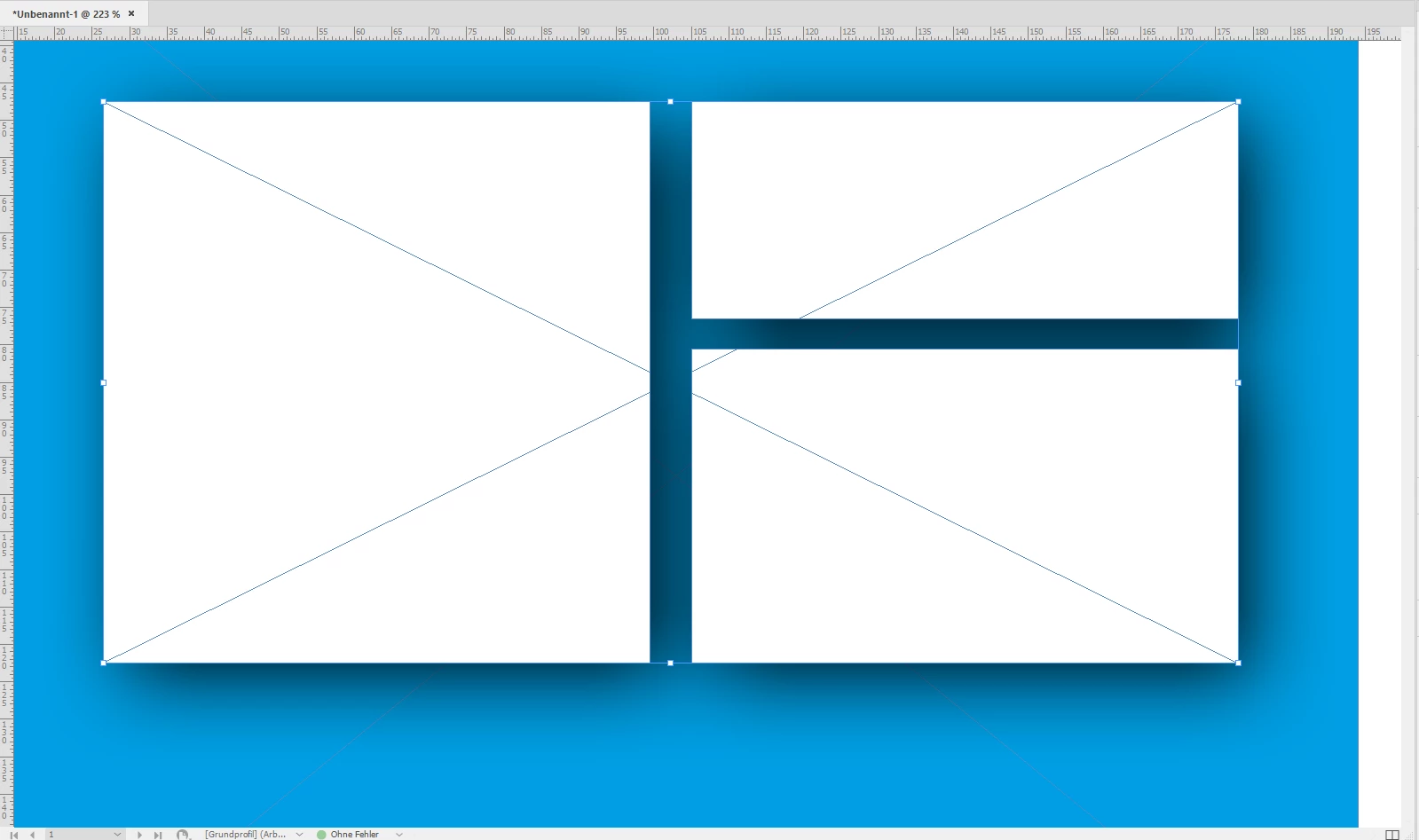
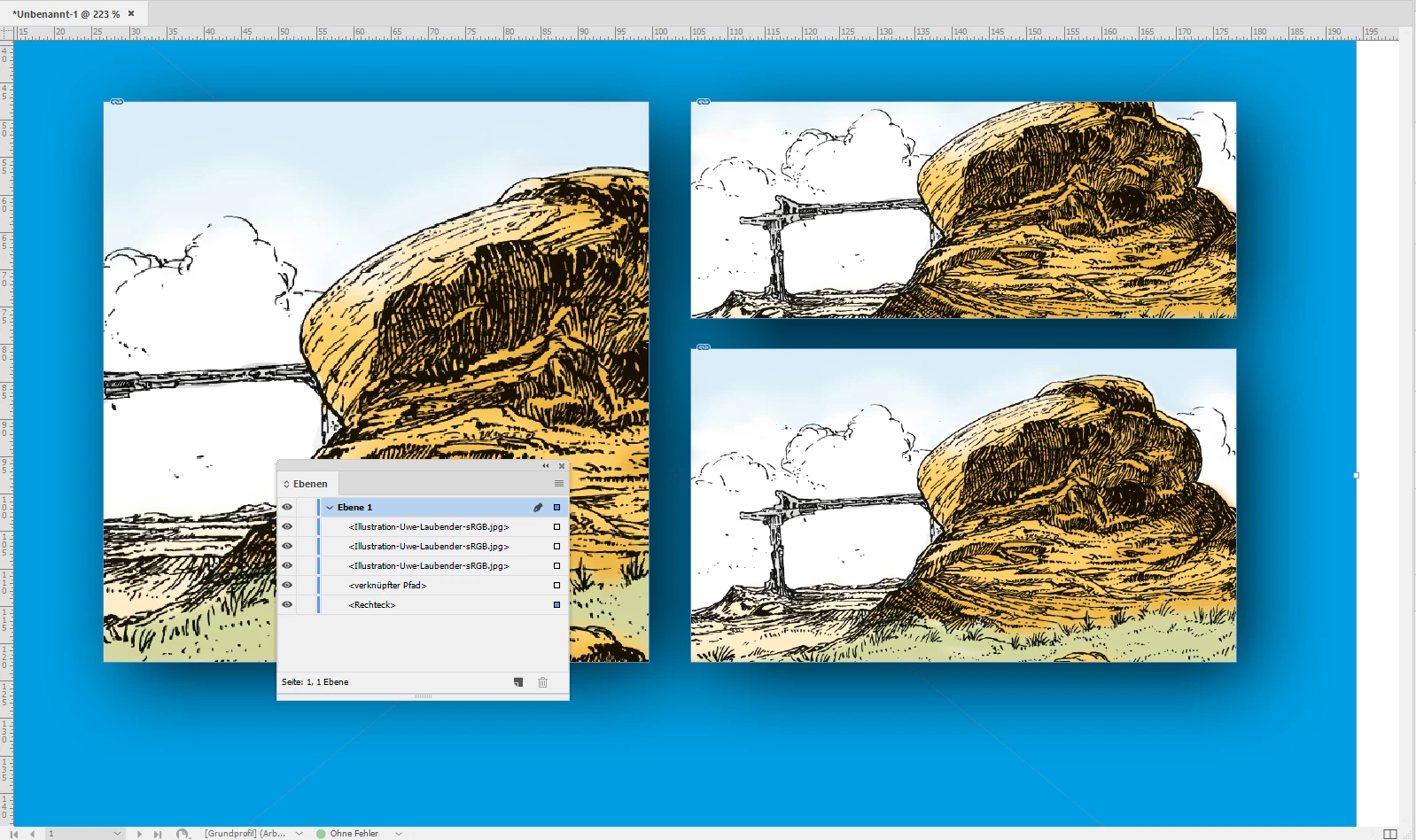
Here the three phases:

Three rectangles with drop shadow.

Drop shadow affects other objects:

Composite path with drop shadow. Now technically we have one single object. All paths of the object are on the same level:

Positioned above the images:

Regards,
Uwe

3 replies

sebastiand49063797
Participant
July 20, 2018

Thank You both for your fast and well explained answers, i owe you one

The last way uwe showed does the trick for me, the grouping as scott suggested wont work for me somehow. But this would be easier...

Thanks again

Scott Falkner
Community Expert
Community Expert
July 20, 2018

You have to apply the shadow to the group. If the shadows have already been applied it won’t fix anything. Remove the shadows, group the frames, then apply the shadow to the group.

sebastiand49063797
Participant
July 20, 2018

Okay maybe im doing something wrong here, let me show you what happens when i do it like this:

I maybe have to add that i am not just using the dropshadow icon, but a custom defined style to apply the effect on the object, i dont know if it is relevant tho

Scott Falkner
Community Expert
Community Expert
July 20, 2018

Group them. Apply the effect to the group and the shadows won't show on the objects in the group. In the image below the top objects are not grouped, the bottom ones are.

Community Expert
July 20, 2018

Hi Sebastian,

do all three objects as composite path object.

Select them all.

Go to: Objekt > Pfade > Verknüpften Pfad erstellen

Regards,
Uwe

Community Expert
July 20, 2018

Ah. You said you have three images.

Position the three images above the composite path object with the drop shadow.

Do not apply drop shadow to three images.

Regards,
Uwe

LaubenderCommunity ExpertCorrect answer
Community Expert
July 20, 2018

Here the three phases:

Three rectangles with drop shadow.

Drop shadow affects other objects:

Composite path with drop shadow. Now technically we have one single object. All paths of the object are on the same level:

Positioned above the images:

Regards,
Uwe