
jürgens52292429
Participant
May 23, 2018
Question

Indesign Pen Tool automatically closes paths

  • May 23, 2018
  • 7 replies
  • 1024 views

When we create a clipping path in InDesign CC 2017 using the Pencil tool, sometimes we have the problem that the path automatically closes.
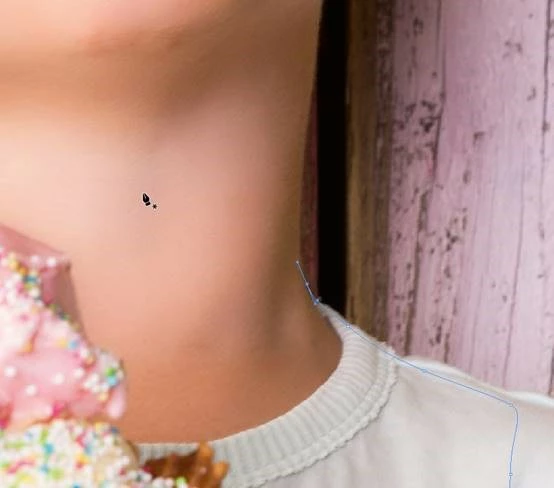
From one click to another, the path suddenly closes on its own.

It usually happens when a path is placed around an image that is magnified in full resolution and across the screen. Our computers are equipped with 16 GB of RAM, an external graphics card (GeForce GTX 745) and should actually handle this. Does anyone have an idea?

This topic has been closed for replies.

7 replies

Barb Binder
Community Expert
Community Expert
May 24, 2018

Thank you for clarifying. Until you figure out why the path is closing itself, you could either right click the image and edit in Photoshop, or use the Pencil button in the Links panel to jump to Photoshop. Once there you could create a reliable path, save and close and it will be available as a clipping mask back in InDesign. Not ideal, but it would only be a few more clicks and it would avoid this undesirable behavior.

~Barb

~Barb at Rocky Mountain Training
Scott Citron
Legend
May 23, 2018

Why are you creating clipping paths in the first place? In the old days designers were forced to make clipping paths in Quark to cut objects out of their backgrounds. Once InDesign showed up on the scene with transparency support, Adobe preached the gospel of  layer masks in Photoshop, and then placing native .psd files.

I haven't made a clipping path in nearly 20 years, and suggest you do the same.

Barb Binder
Community Expert
Community Expert
May 23, 2018

Continuing on Chad's thought, Ctrl+click on the document (Cmd+click on a Mac) tells InDesign (and Photoshop and Illustrator) that you have completed a path. The next click or drag will start a new one.

~Barb

~Barb at Rocky Mountain Training
hammer0909
Community Expert
Community Expert
May 23, 2018

That’s actually the Pen tool, not the Pencil tool but nonetheless are you holding down any modifier keys when this happens?

Barb Binder
Community Expert
Community Expert
May 23, 2018

I think we are all hung up on your wording. Your images show the use of the Pen tool—so I think your title is correct—but a closed path is one that completes itself (like a circle) and an open path does not (like a line). From your screenshots, it looks like InDesign didn't close the path, it started a new path. Is this correct?

~Barb

~Barb at Rocky Mountain Training
jürgens52292429
Participant
May 24, 2018

Thanks for the answers! I am sorry! "Pencil" was of course the wrong designation. I meant the "pen tool". In German the tool is called "Zeichenstift" :-)
And Barb is right, too. Without double-clicking, the path is completed and the next click starts a new path.
@ Chad: We actually do not keep any modifier keys while that's happening.

We use Logitech optical mouse, but here we have already checked everything and are up to date here. Where the impulse to end the path and at the same time to start a new, is a mystery to us.

Why are we ever creating clipping paths in InDesign? That's a good question! We use this fast, dirty clipping paths only when layouting, to roughly present the later effect. The final, detailed cropping will be done later in Photoshop and then replaced as PSD.

If anyone has an idea, I'm looking forward to an answer.

Jürgen

hammer0909
Community Expert
Community Expert
May 24, 2018

You provide a good explanation for using clipping paths the way that you are. It's a temporary use of the paths and probably makes sense.

Have you tried a different mouse just to see if that could be the problem? Is it happening on more than one computer or only one? Using the Pen tool (Zeichenstift tool), the Pen tool should just keep on going like connect the dots. The only way typically to stop it is to press the escape key or cmd/ctrl click off of the path to terminate the drawing of the path.

Steve Werner
Community Expert
Community Expert
May 23, 2018

Are you talking about the Pen tool or the Pencil tool. The title of your posting says "InDesign Pen Tool automatically closes paths". The text says, "When we create a clipping path in InDesign CC 2017 using the Pencil tool..."

Bill Silbert
Community Expert
Community Expert
May 23, 2018

First of all, if you want to create an accurate path I would suggest using the pen tool rather than the pencil tool. Secondly, what you are showing appear to be open paths. A closed path is one that becomes a closed shape (for example: a square is a closed path). Also a clipping path is something that is created in Photoshop. It can be utilized in different ways using Object>Clipping Path in InDesign or at the moment of importing using Import Options. You can define a shape for silhouetting in InDesign and use InDesign's Paste Into feature to put the image inside that silhouette. That is the closest that I can think of to creating a clipping path in InDesign. If I am misunderstanding your intent here then please provide more details as to why you've chosen this method to silhouette images.