
Participating Frequently
August 12, 2025
Answered

InDesign – Prevent background images from shifting when pages are inserted

  • August 12, 2025
  • 2 replies
  • 430 views

Hi everyone,
I know the issue has been discussed multiple times and I’ve already searched through existing posts on this topic but haven’t found a clear solution (assuming there is one) or a best practice to follow.
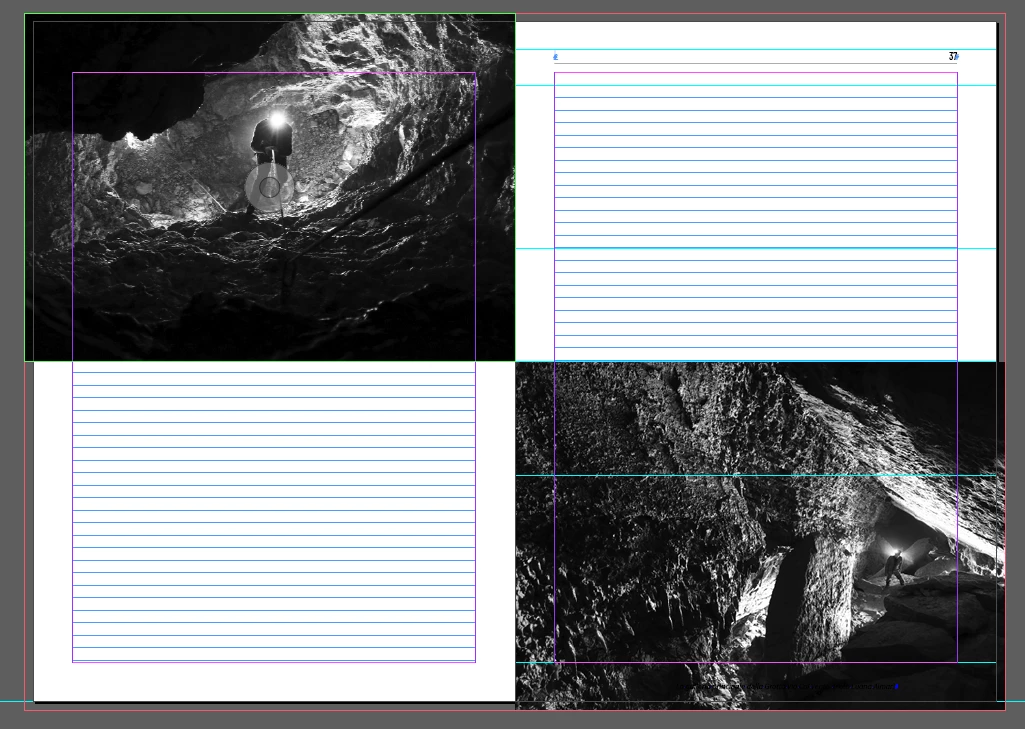
I have a document like in (pic.1), where the images are placed on a “Background” layer and extend to the page bleed.

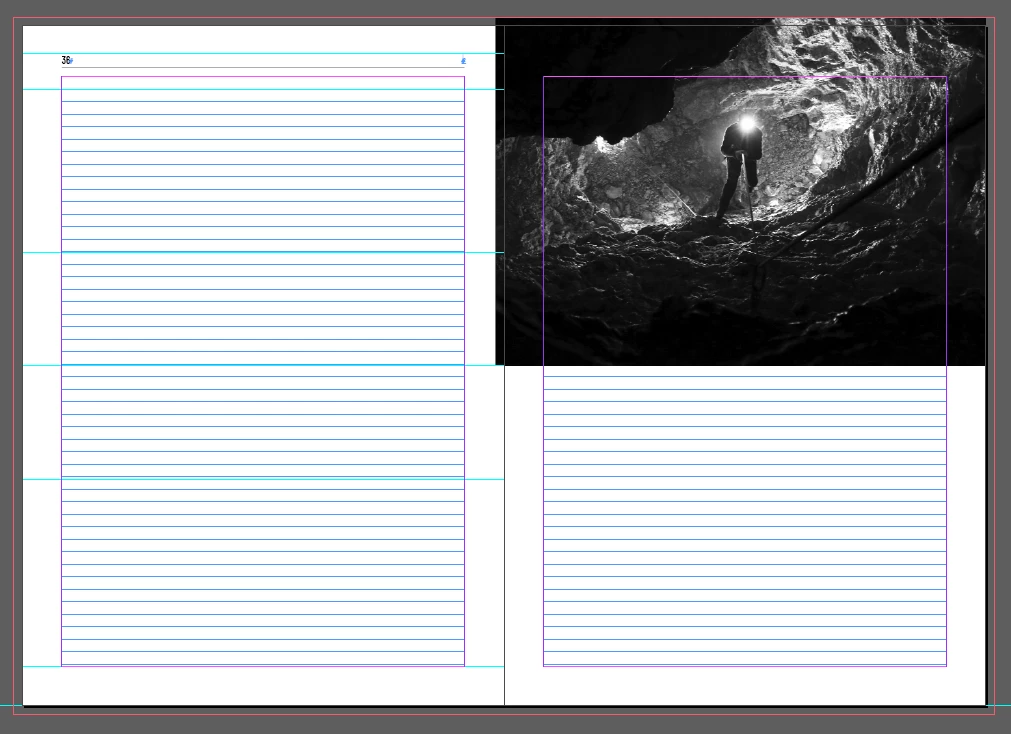
When I insert a single page before these, the result is that the image ends up out of place and has to be manually adjusted (pic.2).

What I’d like is a way to make sure the image always stays centered (or even aligned to the bleed would be a suitable option) regardless of whether the page is on the left or right.

As far as I know there's no way to do this using Object Style. I also read this article 
https://creativepro.com/adjust-position-of-objects-when-pages-reflow/

about the AdjustPageItem script, but I only need to move the images, not the text frames, which are already correctly placed.
I’d appreciate advice on the best way to proceed, considering I have no control over where the pages will fall.

Thanks in advance,
Davide

Correct answer Laubender

Added: Also check the alignment of the paragraph that holds the anchor character in my sample document attached in my reply above.


Regards,
Uwe Laubender
( Adobe Community Expert )

2 replies

rob day
Community Expert
Community Expert
August 15, 2025

Hi @DavideB838 , I assume this is for print? One approach might be to add spreads rather than single pages. If you add a single page to a document containing 8 pages, and now have 9 pages where is the page that would have to back up to the new page? You can’t bind a document with an odd number of pages:


Adding a spread


Participating Frequently
August 15, 2025

Hey Rob, thanks for your help.
Unfortunately, I don’t think I can manage the pages that way. I’m laying out a magazine that contains various articles of different lengths and — unfortunately — these articles don’t arrive in sequential order.
I go ahead with the layout, but once all the material is collected, it may turn out that an article starts on a right-hand page instead of a left-hand one.
That’s why I was looking for a way to position the objects so they stay aligned to the spine.

rob day
Community Expert
Community Expert
August 16, 2025

I don’t think I can manage the pages that way. I’m laying out a magazine that contains various articles of different lengths


Before you add the single page, is the page count showing in the Pages panel odd or even? If I add a single page to this document I’ll get an odd page count—another page has to be added before this can be printed. Where would it be added?


Community Expert
August 12, 2025

Hi Davide,

to make items on a page aligned to bleed, also graphic frames that contain images, you have to use anchored frames to text frames. Hard to explain, easy to do. See my attached IDML file:


AnchoredFrameAtSpine.idml


You could add a page before the second page of the document and the anchored frame's position will be right according to the spine and bleed when the page with the frame will move on in the document. Check the anchoring options of the empty graphic frame.


From my German InDesign:


Regards,
Uwe Laubender
( Adobe Community Expert )

LaubenderCommunity ExpertCorrect answer
Community Expert
August 13, 2025

Added: Also check the alignment of the paragraph that holds the anchor character in my sample document attached in my reply above.


Regards,
Uwe Laubender
( Adobe Community Expert )