
Participating Frequently
July 21, 2022
Answered

InDesign Swatch color change

  • July 21, 2022
  • 2 replies
  • 759 views

Hy everyone, I'm having some trouble with the InDesign swatch panel. I'm working in a document for print in Pantone color. I have my Pantone swatch properly configured (as shown in the attached image nº1),
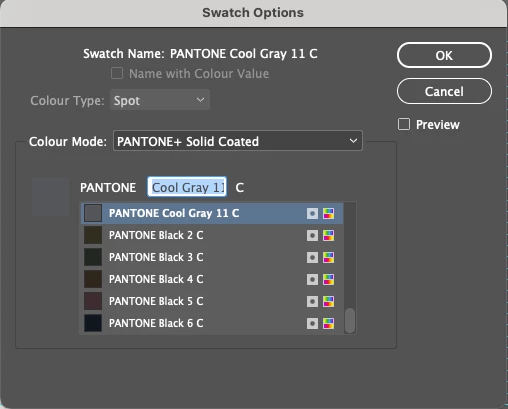
but when I import a pdf file that that has a drawing with the same pantone color (that I previously exported to print), the swatch changes to a spot color and doesn't let me change ou edit (as shown in the attached image nº2).
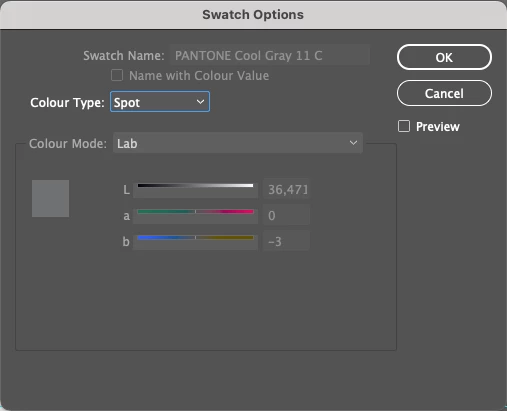
What am I doing wrong and how cat a fix it?
Thanks in advace.

This topic has been closed for replies.
Correct answer rob day

Is there any chanse the Pantone values from Illustrator are diferent from the ones is InDesign, and when I send it to print, it coud mess up the color I really want printed (witch is the Panotene Cool Grey 11)?


Hi @romeuo21308036 , Yes it would be possible to define a Spot color with the same name, but a different Color Mode and values in Illustrator. When you place the Illustrator file in InDesign, the InDesign definition is going to be used to resolve the conflict.


But, the Spot color’s defined Color Mode and values are only used for the Spot’s screen preview—the Lab values you are showing in your capture are the most accurate way to define the custom Pantone solid ink’s preview.


The color on press depends on the press person correctly mixing the named Pantone ink, and Lab or CMYK soft proof values have nothing to do with the ink formula. The ink mixing formulas are listed in the Pantone swatch books e.g., PANTONE Black 15.4, PANTONE Blue 072 6.6, PANTONE Trans Wt. 78.00 for Cool Gray 11.

2 replies

rob day
Community Expert
Community Expert
July 22, 2022

Hi @romeuo21308036 , Spot colors imported with placed files cannot be edited or deleted—they can be set to Process.


Is the output of PANTONE Cool Gray 11 C really going to be a Spot color—an additional plate running on an offset press? If it is, and you want to change the Spot color definition you can Alias the imported Spot color to a different Spot Color swatch using Ink Manager.


Here I’ve brought PANTONE Cool Gray 11 into my document via a placed PDF, and the color definition is not editable:


I can make a new Spot color with the Color Mode and values I want:


And then use Ink Manager to Alias PANTONE Cool Gary 11 to CustomCoolGray. You can toggle CustomCoolGray to Spot or Process depending on how you want it to output—turn on Overprint Preview to preview the output color:


Participating Frequently
July 22, 2022

Hy rob, thank you for your tip, in this specific case, is not what I was looking for (the color really must be a spot color), but I'll take it for future reference.

rob day
Community Expert
Community Expert
July 22, 2022

the color really must be a spot color


If you could edit the Spot color what would the changes be? The color you alias to would also be a Spot.


So with no Alias PANTONE Cool Gray outputs to the PANTONE Cool Gray plate in Separation Preview, or it can be aliased to output to the PANTONE 409 C plate:


Rishabh_Tiwari
Community Manager
Community Manager
July 22, 2022

Hi @romeuo21308036 ,


Thanks for reaching out. I found this article that explains how to use colors from the imported graphics, so please refer to this article https://helpx.adobe.com/indesign/using/using-colors-imported-graphics.html and let us know if this helps or if you need any further assistance.


Regards

Rishabh

Participating Frequently
July 22, 2022

Hy Rishabh, thank you for your answer. The article helps but does not exactly clarify my doubt. Let me try to specify what my doubt is (sorry english is not my first language). My document was created (all text) with de color Pantone Cool Grey 11, that I configured when I created the document. Then I created a graphic in Illustrator, with the same Pantone Cool Grey 11 and imported it to InDesign. It was then that the swatch changed, and acording to the article that you shared with me, if I understood correctly, because the swatch have the same name, it merged. My doubt is, are these values, the Pantone values I configured when I created the swatch? Is there any chanse the Pantone values from Illustrator are diferent from the ones is InDesign, and when I send it to print, it coud mess up the color I really want printed (witch is the Panotene Cool Grey 11)?

rob day
Community Expert
rob dayCommunity ExpertCorrect answer
Community Expert
July 22, 2022

Is there any chanse the Pantone values from Illustrator are diferent from the ones is InDesign, and when I send it to print, it coud mess up the color I really want printed (witch is the Panotene Cool Grey 11)?


Hi @romeuo21308036 , Yes it would be possible to define a Spot color with the same name, but a different Color Mode and values in Illustrator. When you place the Illustrator file in InDesign, the InDesign definition is going to be used to resolve the conflict.


But, the Spot color’s defined Color Mode and values are only used for the Spot’s screen preview—the Lab values you are showing in your capture are the most accurate way to define the custom Pantone solid ink’s preview.


The color on press depends on the press person correctly mixing the named Pantone ink, and Lab or CMYK soft proof values have nothing to do with the ink formula. The ink mixing formulas are listed in the Pantone swatch books e.g., PANTONE Black 15.4, PANTONE Blue 072 6.6, PANTONE Trans Wt. 78.00 for Cool Gray 11.