efki8
Participant
February 16, 2026
Question

InDesign Table Border Issue: Row Strokes Extending Beyond Borders in PDF

  • February 16, 2026
  • 3 replies
  • 60 views

Hello,

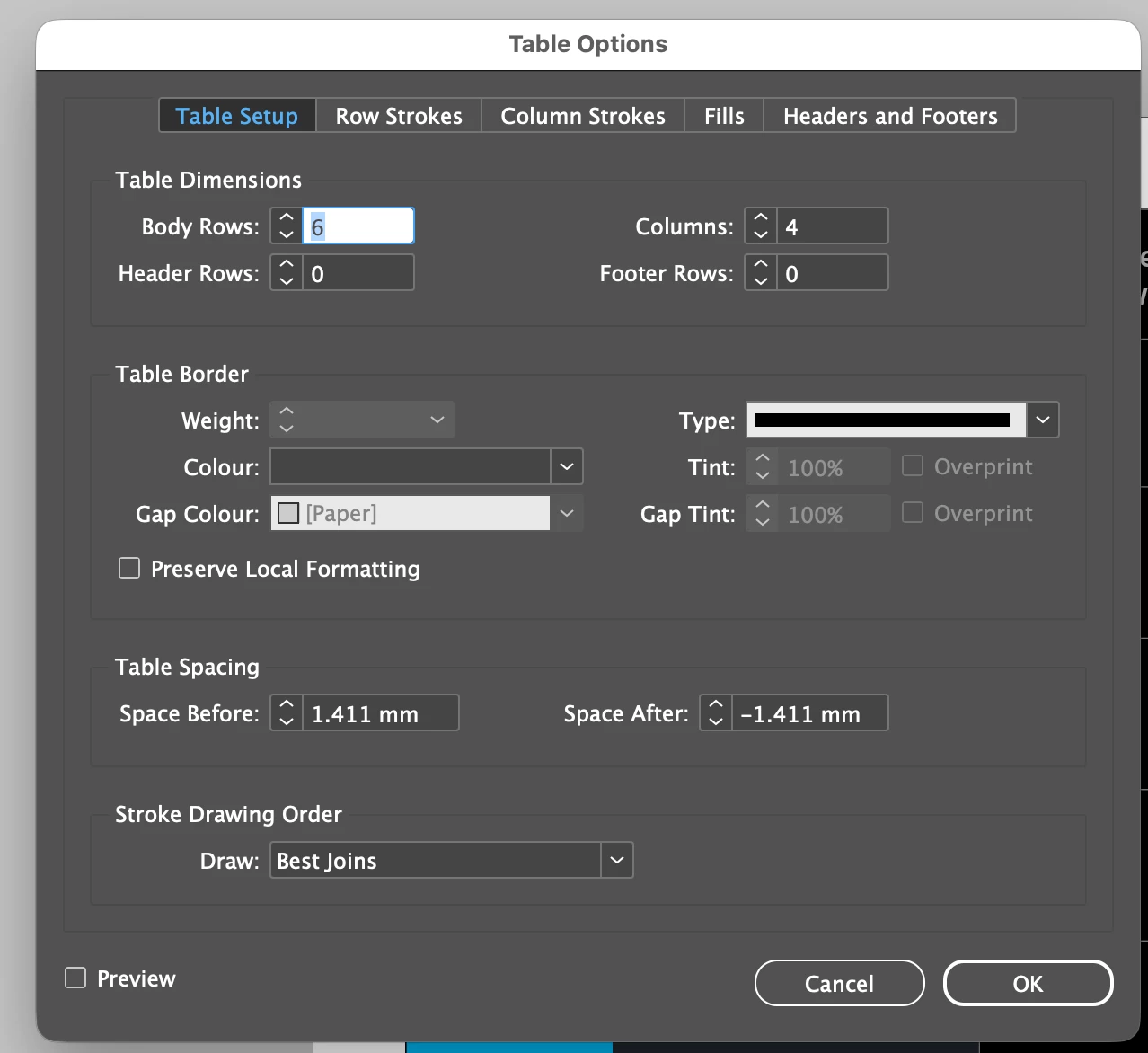
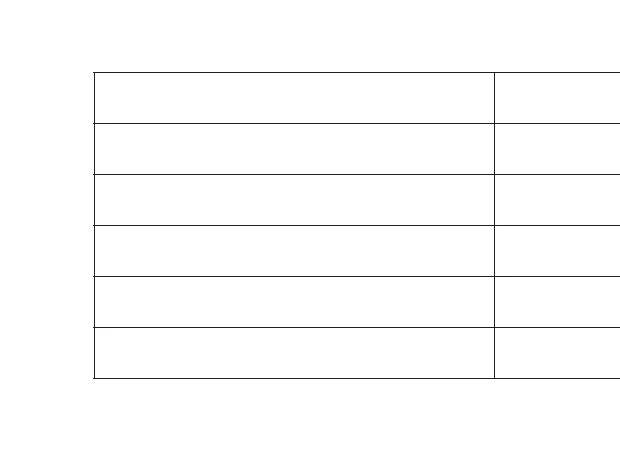
I have set up a table to have a 0.25 pt border around the table and all strokes (rows and columns).

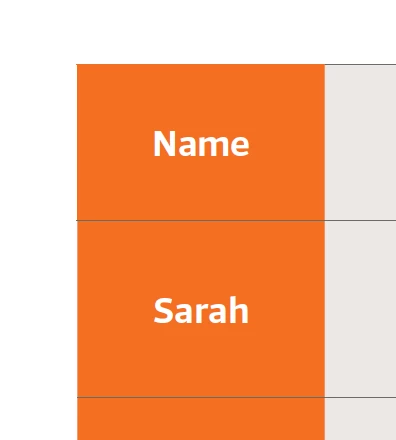
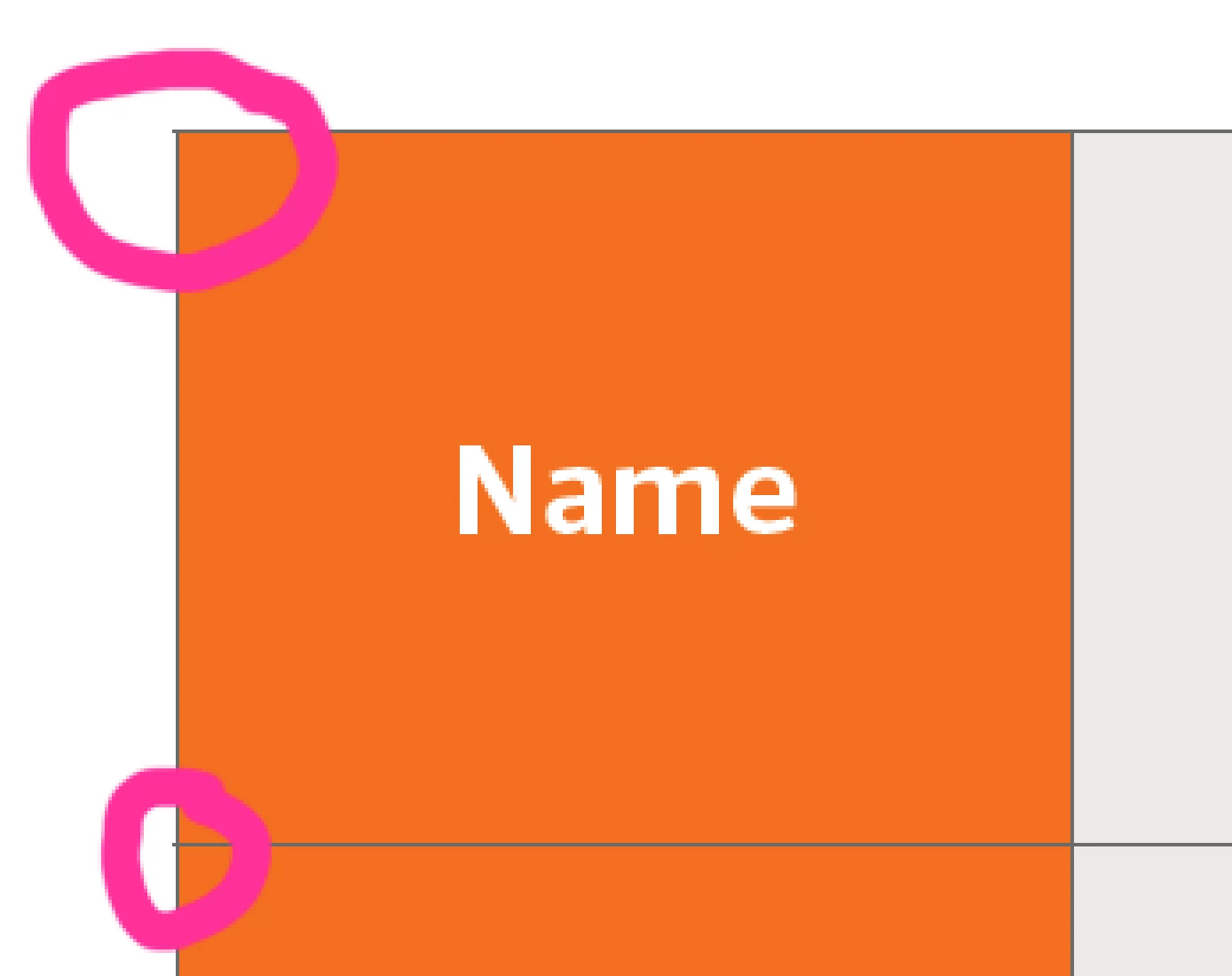
Unfortunately the row stroke does not stop at the edge of the table border.
I have tried a fresh document (with new table) and I am still getting the same results.

I am using the “Best joins” settings but it doesn’t appear to be working?

Also… when I zoom in on the pdf the table border looks fine. The stroke only appears to go beyond the border when viewed as a pdf at 100%. It also prints normally.

Any ideas why this is happening and a fix please?


    3 replies

    Mike Witherell
    Community Expert
    Community Expert
    February 16, 2026

    Hi E,

    I recommend not using the Table > Table Options > Table Setup dialog box to define the strokes. Instead, in Table > Table Options > Table Setup, set them to 0. To make strokes on the cells, create and apply Cell Styles (usually coordinating your cell styles with a table style.

    https://helpx.adobe.com/indesign/using/table-cell-styles.html

    Another massive-yet-subtle trick with tables is to build your table and cell styles without touching the table. Next, in the upper left corner, select the whole table, and click the Table Style to apply it cleanly. Finally, glance at the top line entry in Cell Styles: the one labeled [None]. If it has a + sign next to it, then click either of the two buttons at the bottom of the Cell Styles panel that remove attributes not defined by the style. It should come up clean and consistent looking.

    Mike Witherell
    efki8
    efki8Author
    Participant
    February 17, 2026

    Thanks Mike, I’ll test this out 

    Abhishek Rao
    Community Manager
    Community Manager
    February 16, 2026

    Hi ​@efki8

    Thanks for your patience. I was able to reproduce this behavior on my end as well, and I’m currently checking this with the product team for further clarification. I’ll keep you posted as soon as I have an update from them. In the meantime, please feel free to let me know if you notice any changes or if the issue appears differently on your side.


    Best,

    Abhishek


    efki8
    efki8Author
    Participant
    February 17, 2026

    Thanks Abhishek, let me know what you discover

    Community Expert
    February 16, 2026

    What’s happening is a screen redraw / PDF preview issue.

    What you’re seeing is not actually a problem with your table or printing. It’s a screen rendering artifact.

    Many apps (Adobe InDesign, Illustrator, Acrobat) display thin strokes differently depending on the zoom level. At 100%, strokes of 0.25 pt can appear to “bleed” past edges due to anti-aliasing and sub-pixel rendering.

    When you zoom in, the rendering engine can better align the stroke with the grid, so it looks correct. Printing also ignores this display artifact and outputs correctly.

    The “Best joins” setting controls how line corners meet but doesn’t fix screen rendering issues.

    Thin strokes (<1 pt) are especially prone to appearing outside the boundary on screen even if they are perfectly inside the table in the file.

    How to fix or minimise it

    Adjust stroke alignment

    In your table stroke settings, check if you can align the stroke to inside rather than center or outside.

    For a 0.25 pt stroke, aligning it inside the table boundary might stop it visually spilling outside.

    Increase stroke slightly

    Sometimes a 0.25 pt stroke is too thin for consistent screen rendering. Increasing to 0.5 pt may reduce the visual artifact.

    Use PDF zoom testing

    Confirm by zooming in PDF to 200% or viewing in Acrobat’s “Print Preview”. If it looks correct at higher zoom and prints correctly, it’s safe to ignore the 100% view glitch.

    efki8
    efki8Author
    Participant
    February 16, 2026

    Hi Eugene, 

    Thanks for your speedy reply.
    I wondered if it might be a display / rendering issue.

    This pdf will be viewed digitally and my client can see the overhang too.

    So would be great to find a solution.

    I made the outside border wider (0.5pt) and it still pokes out at 100% but not at 200%.
    At 1pt it looks too heavy.

    Can you please provide more information on aligning a stroke on a table, ie. to the outside or inside?  I can’t find a way to do this.

    If this is a screen render issue that’s great but it’s strange because this is the first time it has happened… I installed the latest InDesign and restarted my mac.

    Thanks


    Community Expert
    February 16, 2026

    Apologies - I must be thinking of Illustrator for stroke inside/outside/centred. 

    InDesign, table strokes don’t have an inside/center/outside alignment option like Illustrator. 

    This is almost certainly a screen rendering / PDF display issue, not a problem with your file. Different PDF viewers, zoom levels, and monitors can all interpret thin strokes differently. That’s why it looks fine at 200% zoom and prints correctly.

    All I can think of is:

    Slightly thicken strokes 0.5 pt is usually the best compromise between visibility and weight. If it’s the slight overhang, I wonder if you thickened the left stroke a bit more to compenstate for it… but that could cause issues on screen later on...

    Preview in Acrobat with smoothing – In Acrobat: Edit > Preferences >  Page Display > Smooth Line Art / Smooth Text. This can help thin strokes display more consistently across viewers - but this a User Setting and not everyone is going to have the same setup.

    You could forget about the outer bounding stroke, and set the table in a separate text frame and put the border on the text frame itself - you’d then need to anchor the text frame into place (if you want it to flow with the text) this would mean it’s not drawing the table stroke and might not show misalignment.

    ----------------------------

    Unfortunately, because of how PDF viewers and screen rendering handle sub-pixel strokes, it may not be possible to make a 0.25 pt stroke appear perfectly aligned at 100% on all screens. But the file itself is correct, and printing or zooming in will always render it accurately.


    Everyones setup will be different, not everyone will use Acrobat as a pdf viewer, and most certainly will not have preferences setup correctly to fix the viewing. 


    Usually in these scenarios as it’s onscreen viewing is paramount, then I’d suggest the Fake method, and add a bounding box around the table instead of using table strokes as mentioned earlier.