Known Participant
December 6, 2021
Answered

Indesign table to PDF

  • December 6, 2021
  • 5 replies
  • 1775 views

How do I make acrobat recognize cells as fields?

I tried export as interactive PDF, that didn't work.

I also tried convert cells to graphic cell that also didn't work.

I

This topic has been closed for replies.
Correct answer Dave Creamer of IDEAS

Easier to create the table in InDesign and the fields in Acrobat. 


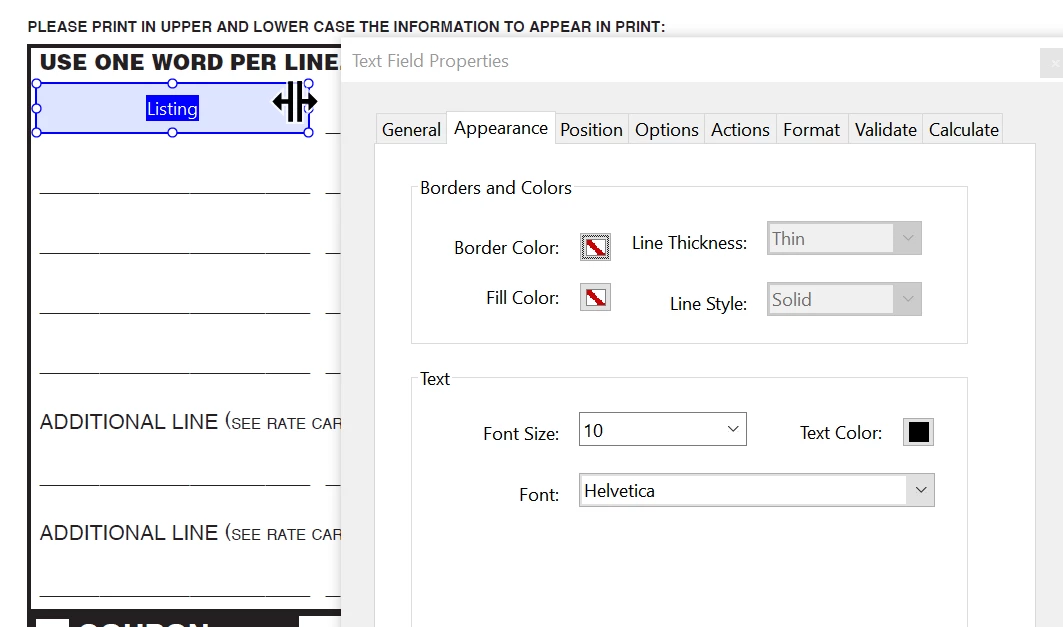
In Acrobat, place one field in the upper left corner of the table. Format exactly the way you want it.
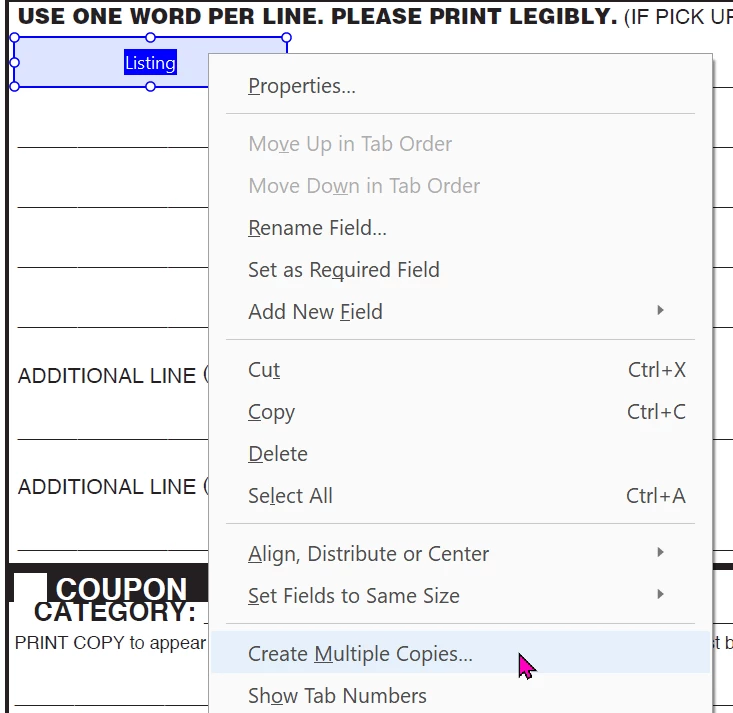
Right-click on field and select Create Multiple Copies
Adjust the settings to match the underlying table.
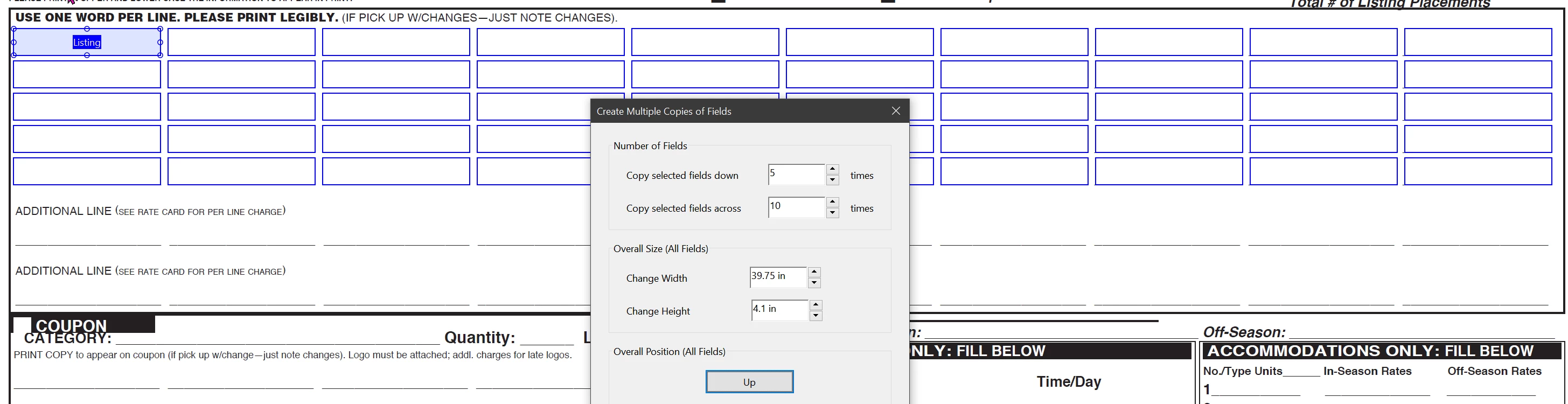
Done!

5 replies

Community Expert
December 7, 2021

EDIT: I missed one step in my suggestion.

The target cells for the Paste action must be also converted to graphic cells.

If not the Paste command is not available ( it's grayed out ).


Hi Marietaa,

what could also work for you:


Convert one text cell to a graphic cell.

Convert the graphic container frame of that graphic cell to a form field.


Select that single graphic cell with the form field.

Copy.


Select all cells you want to have the form field in.

Paste.


Regards,
Uwe Laubender

( ACP )

TᴀW
Legend
December 9, 2021

Very nice idea!

id-extras.com | InDesign tools & scripts for typesetters, form designers, and translators
TᴀW
Legend
December 7, 2021

There are a lot of advantages to getting this done in InDesign rather than Acrobat. The biggest is that if anything changes, you want have to redo the work again in Acrobat, just make the change in ID and then export again.

So, InDesign has no built-in way of converting table cells to form fields. You'll need to do it manually, but it's really not hard.

I'm presuming that all the cells in the table are the same size.

Create a text frame in ID that is the size of the cell.

Turn this frame into a text field in the Buttons and Forms panel, as usual.

Select and cut the frame (Ctrl-X) so that it's in your clipboard.

Now, click into the first cell in the table, so that the text cursor is in the cell, flashing.

Paste the text field you've created into the cell (Ctrl-V).

Move on to the next cell, and paste again. Paste as many times as needed into as many cells as needed.

The text fields will now be sitting inside the table cells, and will be there when you export to interactive PDF.

HTH,

Ariel

id-extras.com | InDesign tools & scripts for typesetters, form designers, and translators
Dave Creamer of IDEAS
Community Expert
Dave Creamer of IDEASCommunity ExpertCorrect answer
Community Expert
December 6, 2021

Easier to create the table in InDesign and the fields in Acrobat. 


In Acrobat, place one field in the upper left corner of the table. Format exactly the way you want it.

Right-click on field and select Create Multiple Copies

Adjust the settings to match the underlying table.

Done!

David Creamer: Community Expert (ACI and ACE 1995-2023)
Luke Jennings3
Community Expert
Community Expert
December 6, 2021

The auto detect form fields preference in Acrobat should be on, it does not always do a perfect job, but I found if you add some text to the top row, it might detect the other table cells, (and add a few other unwanted fields), delete the unwanted text and unwanted fields in Acrobat, then copy and paste and re-name to fill in the needed fields.

BobLevine
Community Expert
Community Expert
December 6, 2021

Why not just create the fields in InDesign? Otherwise, pop over to the Acrobat forum and ask there.