
Inspiring
September 18, 2021
Answered

InDesign Won't Allow me to create a Primary Text Frame on Recto AND Verso Pages on Master Spread

  • September 18, 2021
  • 2 replies
  • 1909 views

Hi

I've run into a strange issue. I created a new Facing Pages document from scratch, as I have many times, with Primary Text Frame (PTF) on both pages.


I accidentally deleted one of the PTFs at some point, so I created a new text frame, and tried to set it to be a PTF.


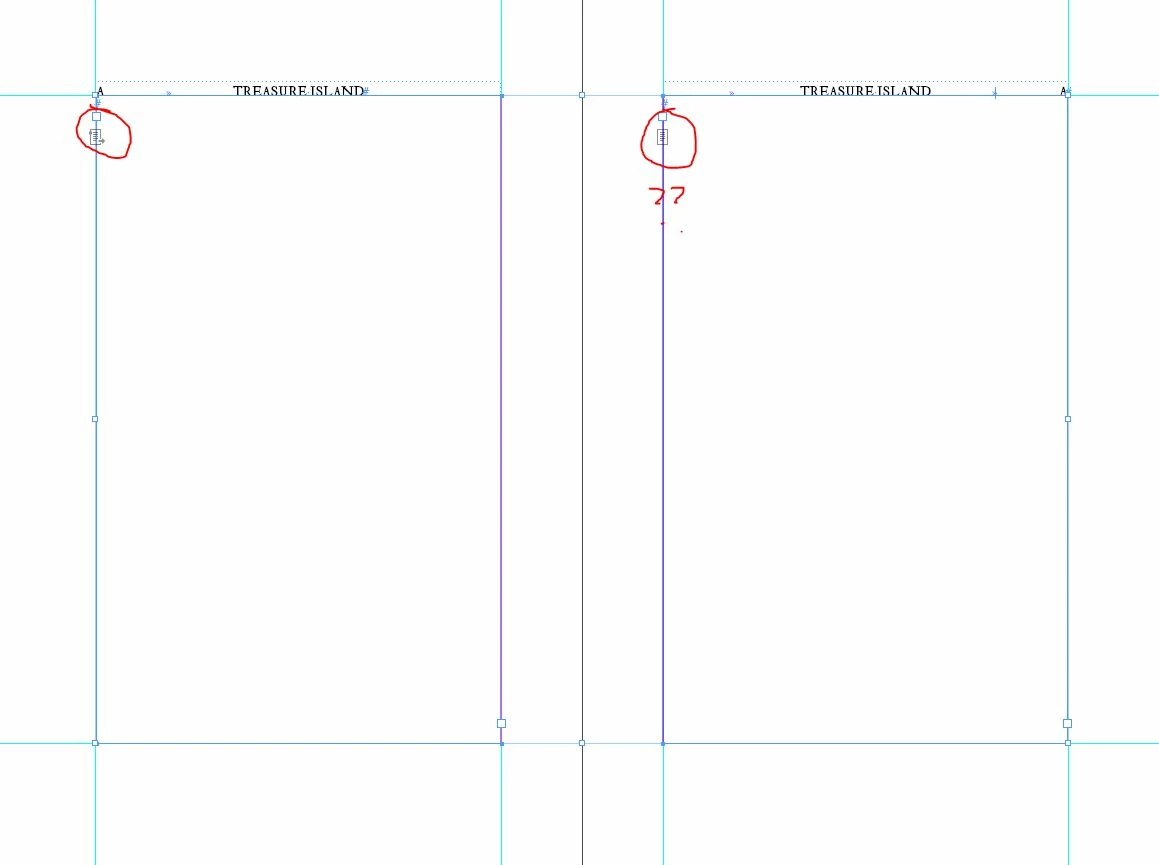
However, InDesign won't let me create a PTF on both Recto and Verso pages. If I set the Recto one to be a PTF, the Verso one reverts to a normal text frame and vice versa.


If I create a new file, with Facing Pages and PTF ticked, it's fine - both recto and verso text frames are PTFs.

What is happening here? Can I repair this broken file, or is it corrupted\bugged, and should I start again?


Thanks for your help!

Richard
This topic has been closed for replies.
Correct answer Randy Hagan

You can only create one primary text frame. Though you can extend it far past the first text frame.


  1. Create your first text frame on the left-hand page of a master-page spread. Go to your Arrow/Selection Tool and place the cursor over the Entry Icon near the top left corner of the text frame.
  2. Right-click your mouse while the cursor is over the icon and select the Primary Text Frame menu option from the flyaway menu.
  3. Move your cursor to the Exit Icon at the lower-right of the text frame, then click on it with the left mouse button. This "picks up" the Primary Text Frame.
  4. Go to the right-hand page of your spread and click or drag-select to create your text frame for that page. It looks like two text frames, but you'll see that there will be a diagonal line from the two frames connecting them, and if you right-click on the Entry Icon on the right-hand page, you'll see it also is your Primary Text Frame on your master page spread in your flyaway menu.


So you're not able to create another primary text frame. But you can extend your primary text frame to entail multiple text frames. The steps above should get you past your issue.


Hope this helps,


Randy


2 replies

rob day
Community Expert
Community Expert
September 18, 2021

Make sure there isn't a hidden text frame set to primary somewhere on the right master page.


There can only be one primary text frame per page, but each page of a spread can contain a primary frame-- a two page spread could have two threaded primary frames.

Inspiring
September 20, 2021

Hi Rob


Thanks for your reply.


However I haven't been able to replicate that setup on a two page spread - it seems I can only have one PTF per two page spread. Any attempt I've made to convert a second text frame into a PTF on the 2 page spread reverts the existing PTF to a normal text frame, which was what confused me and prompted the original post.


I may be doing something wrong of course ... but I was not able to get InDesign to do anything different from what I've described.


Thanks

Richard

rob day
Community Expert
Community Expert
September 20, 2021

Make sure the two frames are threaded:


Randy Hagan
Community Expert
Randy HaganCommunity ExpertCorrect answer
Community Expert
September 18, 2021

You can only create one primary text frame. Though you can extend it far past the first text frame.


  1. Create your first text frame on the left-hand page of a master-page spread. Go to your Arrow/Selection Tool and place the cursor over the Entry Icon near the top left corner of the text frame.
  2. Right-click your mouse while the cursor is over the icon and select the Primary Text Frame menu option from the flyaway menu.
  3. Move your cursor to the Exit Icon at the lower-right of the text frame, then click on it with the left mouse button. This "picks up" the Primary Text Frame.
  4. Go to the right-hand page of your spread and click or drag-select to create your text frame for that page. It looks like two text frames, but you'll see that there will be a diagonal line from the two frames connecting them, and if you right-click on the Entry Icon on the right-hand page, you'll see it also is your Primary Text Frame on your master page spread in your flyaway menu.


So you're not able to create another primary text frame. But you can extend your primary text frame to entail multiple text frames. The steps above should get you past your issue.


Hope this helps,


Randy


Inspiring
September 18, 2021

Hi Randy ...


This explains things perfectly, and I've got it working now using your steps. I had read that each Master PAGE can only have one PTF, but hadn't clocked that this also applies to Master SPREADS.


Many thanks!
Richard

Randy Hagan
Community Expert
Community Expert
September 18, 2021

Glad I could help. If you get in a bind working with InDesign — or heck, any Adobe program — don't hesitate to come back here and call for help. There are lots of sharp folks around here who can lend a hand.


Hope you enjoy the weekend,


Randy