

muskoka lake
Inspiring
March 17, 2019
Question

Inserting photo and caption in text box

  • March 17, 2019
  • 1 reply
  • 5537 views

I am using an HP Z book laptop and windows 7 OS. Using InDesign CC 2019

I am a beginner tackling a big project. I have figured out how to place a photo and Generate static or live captions.I selct Jump for the text Wrap option.

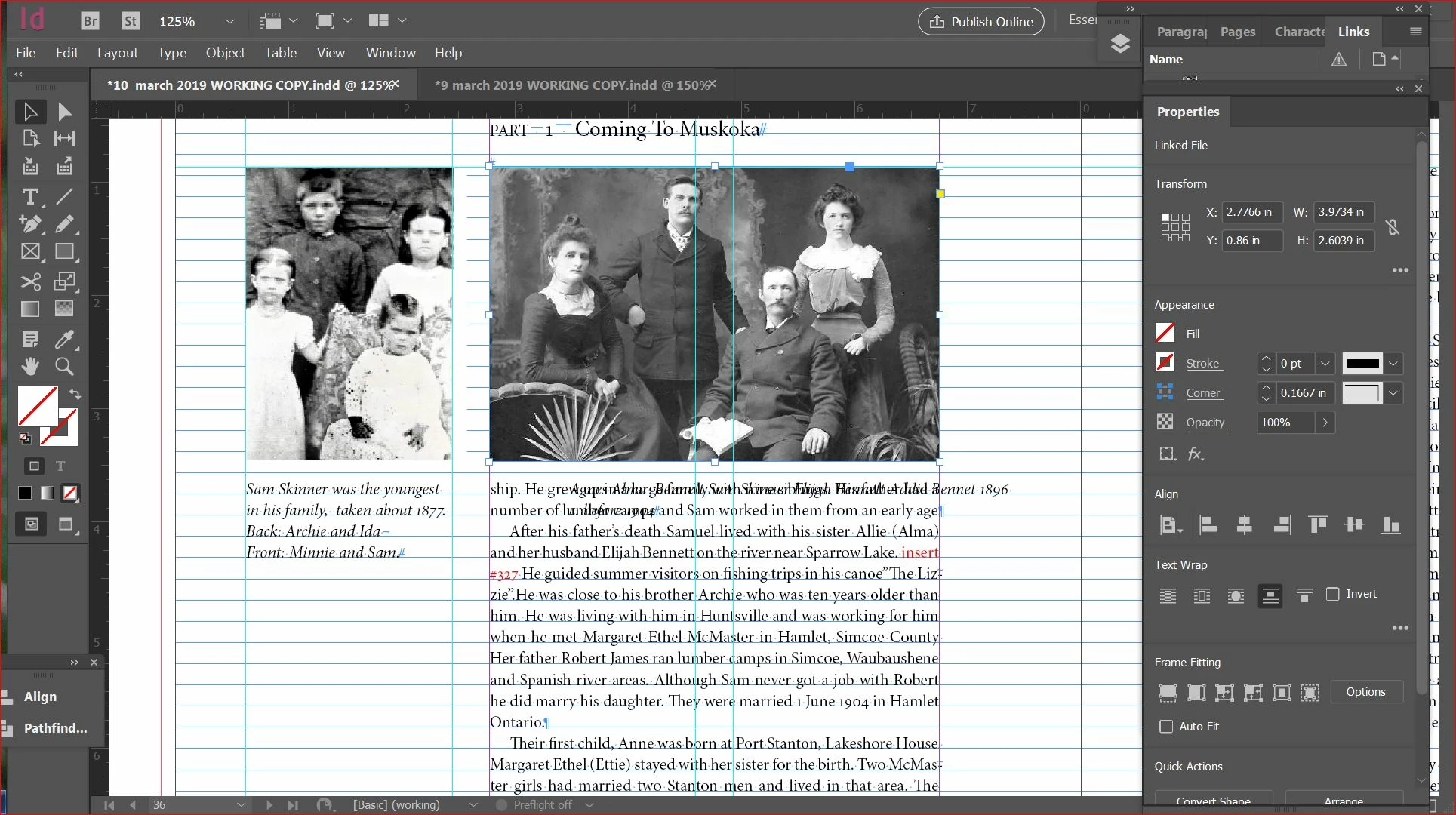
When I make a text box and insert the photo it seems to work well. But if I place a photo in a text box the caption is over the pre-exist ing text.

Do I always have to place a placeholder frame for photos? Do I have to make a placeholder frame for the caption as well. I have tried the tutorils but they always deal with perfect scenarios, not what goes wrong.

Please help me figure out how to move a photo from another spot and still have the caption box attached without it going over text.
This topic has been closed for replies.

1 reply

BobLevine
Community Expert
Community Expert
March 17, 2019

Just place the photos on the page; there no need for a frame first. And don’t place them in text frames…that turns them into inline objects that are very difficult to move around.

muskoka lake
Inspiring
March 17, 2019

Thanks Bob, I did not know about inline objects.

I have a text frame on my master. Sometimes I want to use that space for

photos.

1) Can I just shorten the text frame in order to make space for the photo?

2) What about when I want the photo to appear directly below some text?

or in the midst of a column of text. ?

Scott Citron
Legend
March 18, 2019
  1. Don't bother using Master pages. They tend be more trouble than they're worth. Yes, you can shorten (or resize) the text frame however you choose.
  2. When you want a photo or image to appear directly below some text, your best bet is to paste or place the image on the page and use the Text Anchor feature to force the image to always appear in a specific location in relation to your text. This way, if the text moves the image with move with it.

There are MANY tutorials available online that go into this feature in great detail. For starters, I recommend searching on the excellent InDesignSecrets.com for answers.