Known Participant
August 29, 2011
Answered

Interactive buttons not working when exporting to PDF

  • August 29, 2011
  • 7 replies
  • 139917 views

I have been trying all morning to get buttons to work in my PDF. I make an object a button and then give it some actions but when I export to PDF I get a message saying that the Go To actions have been disabled. This is so simple. Why is it not working?

Correct answer Schiemer

SOLUTION TO THIS ISSUE !!!

1.  Make a Bookmark for each page in the document using the Bookmarks window.

2. Use the "Go To Destination" action under Buttons and Forms. This then shows a dropdown for Destinations and shows all the Bookmarks you make.  Select the page book mark you want per button.
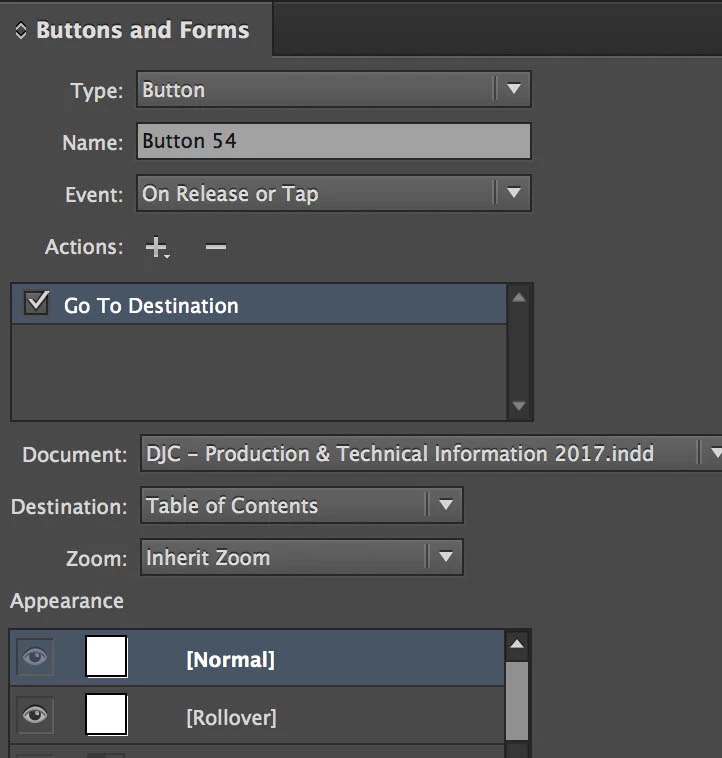
3.  In this window you can also set you button states.

4.  Export as interactive and the PDF will work perfectly.

Here is an example that has a button at the bottom of each page for easy navigation through the document and a full Table of Contents on page 2. 

Download this file and you can see how it works after it is exported using this method:

http://dejoriacenter.com/clone/DJC-Production_&_Technical_Information_2017.pdf

7 replies

gökçekozak07
Participant
July 19, 2019

Hello there

buttons do not work when I export interactive pdf. I choose go to destination as a button. Can you help me.

versiyon: Indesign 14.0.2

Derek Cross
Community Expert
Community Expert
July 20, 2019

Use hyperlinks.

Inspiring
February 4, 2019

I had the same issue, for me the problem turned out to be that the document name may not contain spaces in order for "Go to destination" to work in a interactive pdf.

SchiemerCorrect answer
Inspiring
December 14, 2016

SOLUTION TO THIS ISSUE !!!

1.  Make a Bookmark for each page in the document using the Bookmarks window.

2. Use the "Go To Destination" action under Buttons and Forms. This then shows a dropdown for Destinations and shows all the Bookmarks you make.  Select the page book mark you want per button.

3.  In this window you can also set you button states.

4.  Export as interactive and the PDF will work perfectly.

Here is an example that has a button at the bottom of each page for easy navigation through the document and a full Table of Contents on page 2. 

Download this file and you can see how it works after it is exported using this method:

http://dejoriacenter.com/clone/DJC-Production_&_Technical_Information_2017.pdf

creativedharma
Participating Frequently
April 16, 2017

THANK YOU! THANK YOU! THANK YOU!

Was losing my mind when I found your solution.

Participant
December 14, 2016

Same problem. I'm using InDesign on the Creative Cloud.

Buttons not working when I export as an interactive PDF.

Oddly enough, when I use the "Publish online" option, they do work.

BobLevine
Community Expert
Community Expert
December 14, 2016

What are these button supposed to be doing? How are you testing the PDF?

Participant
December 14, 2016

They're supposed to be nav buttons for slideshows I'm creating. I'm testing the PDF by viewing it in Adobe Reader.

Participant
May 8, 2016

If you make each of the pages into a hyperlink destination using the Hyperlink palette, you can then use "go to destination" instead of "go to page" and select one of the destinations you've just created. This worked fine when exported to PDF.

Inspiring
November 14, 2016

I figured I would respond to this since I found a solution.  Rachela is right and you can use "Go To Destination", but instead of using a Hyperlink, go to each page and make a bookmark for each page (a bit annoying) but this works to make the PDF advance to the correct page that you named in your bookmarks, just like the "Go To Page" should work.  Then, export as Interactive and it's all good.

tobya18487493
Participant
December 15, 2015

Had the same issue. Didn't have any luck with the hyperlink solution (and the hyperlink destination appeared to refer to my own desktop etc so may not have worked elsewhere).
I solved it by working within Acrobat (on the finished PDF) and using the 'Go to View' button action. This prompts you to choose a page as well as a zoom level then set the 'link'.

Pity this can't be set in InDesign though

Steve Werner
Community Expert
Community Expert
August 29, 2011

First tell us what operating system you're using and what version of InDesign.

Known Participant
August 29, 2011

I'm on 10.6.8 and CS5.

Peter Spier
Community Expert
Community Expert
August 29, 2011

In CS5 you must export to PDF (interactive) to preserve button functionality...
