
InaLandCalledHonahlee
Known Participant
January 21, 2019
Answered

Intersecting Crop Marks: Are they a thing? If so, how do I make them? If not, why?

  • January 21, 2019
  • 4 replies
  • 4590 views

Every time I export a layout and select the option to include crop marks...

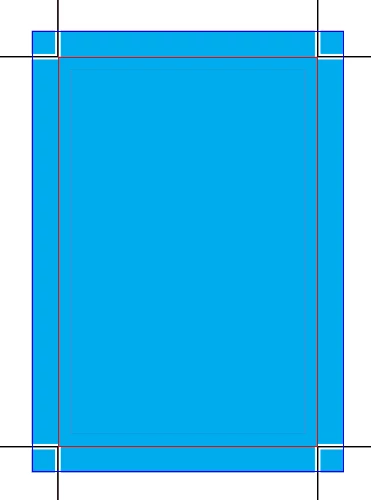
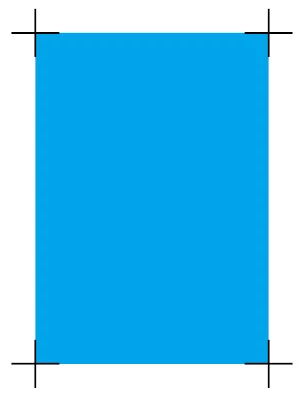
I get the same style of crop mark: 2 small lines at a 90 degree angle to one another in each corner of the page that DO NOT come to a point or intersect one another, and that (if continued) would come to a point that faces in towards the center of the document, as pictured below.

Top

Bottom

The issue I keep running into is this: no matter what order I trim the sides in, trimming any 2 sides cuts-off the marks indicating the edge of the other 2 sides. This problem would be fixed if...

A. The lines intersected and continued into an X shape.

B. The point where they would intersect faced out towards the edge of the page.

Basically, if you imagine both lines continue until they form an X, it is giving me the top of the X and I need the bottom. Is there a different option or setting I should be selecting to accomplish crop marks that will allow me to trim all 4 sides without cutting off the mark for an adjacent side?
This topic has been closed for replies.
Correct answer winterm

FWIW: crop marks can come to a point, just set Offset to zero in PDF Export dialog Marks section.

If you want to intersect them, try CropMarks script, which is bundled with InDesign. It allows you to set negative Offset value, what effectively makes crop marks intersected:

4 replies

InaLandCalledHonahlee
Known Participant
January 21, 2019

Thank you all for your help! I genuinely appreciate you all ^_^ I think I will just have to stick with winterm's suggestion for now and use crop mark script to create crop marks for a frame around my page. At least now I understand why they are the way they are. I always wondered why this wasn't an issue for most people.

winterm
Legend
January 21, 2019

You're welcome, and don't wait another year with your next question

InaLandCalledHonahlee
Known Participant
January 21, 2019

Ok, so what I am gathering is that professional printers use a trimming machine that avoids this issue. I would like to encourage Adobe to develop a more amateur friendly option for folks who don't have access to this professional equipment so that we can easily create crop marks that work for a guillotine cutter because this very frustrating lol. I will try Winterm's suggestion of applying the crop mark script to a full-page frame, that seems to be my best option for now. This would be an easy fix if I could just create a negative offset when exporting.

BobLevine
Community Expert
Community Expert
January 21, 2019

FWIW, the printers I’ve dealt with the last few years don’t want any crop marks at all. They add their own using the data in the PDF.

Bevi Chagnon - PubCom.com
Legend
January 21, 2019

Agree with Bob.

Been about 15+ years since one of our printers wanted any printer marks at all.

Today's prepress station works with the data embedded into the press-quality PDF that we supply (IIRC, it's the "trimbox" data that they use). If they want crop marks, bleed marks, registration marks, color bars, etc., they'll add what they need through their prepress software.

Our recommendation:

  1. Don't change the crop marks unless you've talked it through with your printer.
  2. Ask your printer if they want any of the print marks at all, and if so, which ones.
  3. Always ensure in InDesign's page setup that you define the final trimmed size of the document because that dimension is eventually built into the PDF for automated prepress to use.
|    Bevi Chagnon   |  Designer, Trainer, & Technologist for Accessible Documents ||    PubCom |    Classes & Books for Accessible InDesign, PDFs & MS Office |
rob day
Community Expert
Community Expert
January 21, 2019

I'm not following. The reason crop marks are offset is so they are all removed in the trimming.

Is there a different option or setting I should be selecting to accomplish crop marks that will allow me to trim all 4 sides without cutting off the mark for an adjacent side?

Unless you are trimming a dummy by hand? If that's the case don't completely cut off the sheet, start and end your cuts just outside of trim marks. If you are using something like a RotaTrimmer try rotating the sheet clockwise as you make the cuts.

InaLandCalledHonahlee
Known Participant
January 21, 2019

I'm not sure how lack of an offset would mean that your crop marks don't all get cut off. Before asking this question I would make my own with the line tool all the time and they work perfectly as long as you are needing to trim all 4 sides. I am using a mechanical cutter for large quantities of paper so it makes a complete cut all the way across the page. When you have an offset, no matter which side you trim and in what order you trim them, cutting off the excess right at the mark on one side removes the mark for the adjacent side along with it.  I am self-taught and not an expert by any means so maybe there is something common-sense I am missing here, but until reading the answer above and adjusting my offset to 0 or a negative amount I have always encountered this problem and the only solution I knew of was to create my own custom intersecting crop marks using the line tool.

winterm
Legend
January 21, 2019

Just a note:

actually, rob day is quite right, it’s all OK with InDesign’s crop marks, and you shouldn’t feel the need to invent something different on your own, or even draw them manually.

However, it was your query, that’s doable, and I did my best trying to answer a question asked.

It doesn’t mean professionals work that way though

winterm
wintermCorrect answer
Legend
January 21, 2019

FWIW: crop marks can come to a point, just set Offset to zero in PDF Export dialog Marks section.

If you want to intersect them, try CropMarks script, which is bundled with InDesign. It allows you to set negative Offset value, what effectively makes crop marks intersected:

InaLandCalledHonahlee
Known Participant
January 21, 2019

OMG, you're wonderful! This has been an ongoing minor irritation that I have not been able to answer for over a year now. So your first suggestion worked perfectly to make them come to a point, but I am not sure where to access CropMarks Script. That is a feature I have never used or stumbled upon before. Can you tell me where to find it?

winterm
Legend
January 21, 2019

Open a panel in Windows:

Window > Utilities > Scripts

then follow a screen shot: