

Participant
April 23, 2018
Answered

Invisible objects and options for textboxes

  • April 23, 2018
  • 3 replies
  • 473 views

Two questions

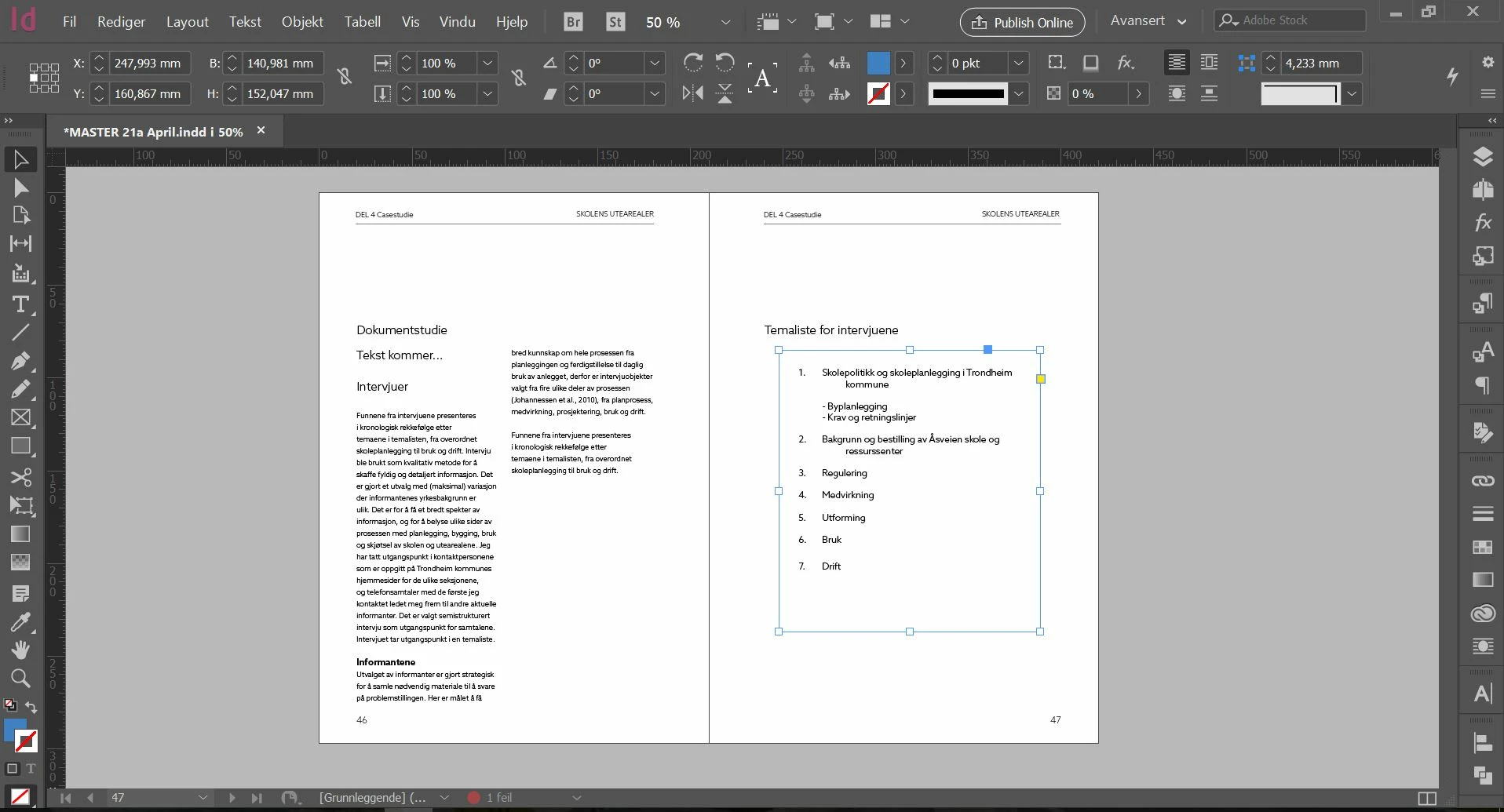
1: Why is this blue square invisible? Both text and square are on the same layer.
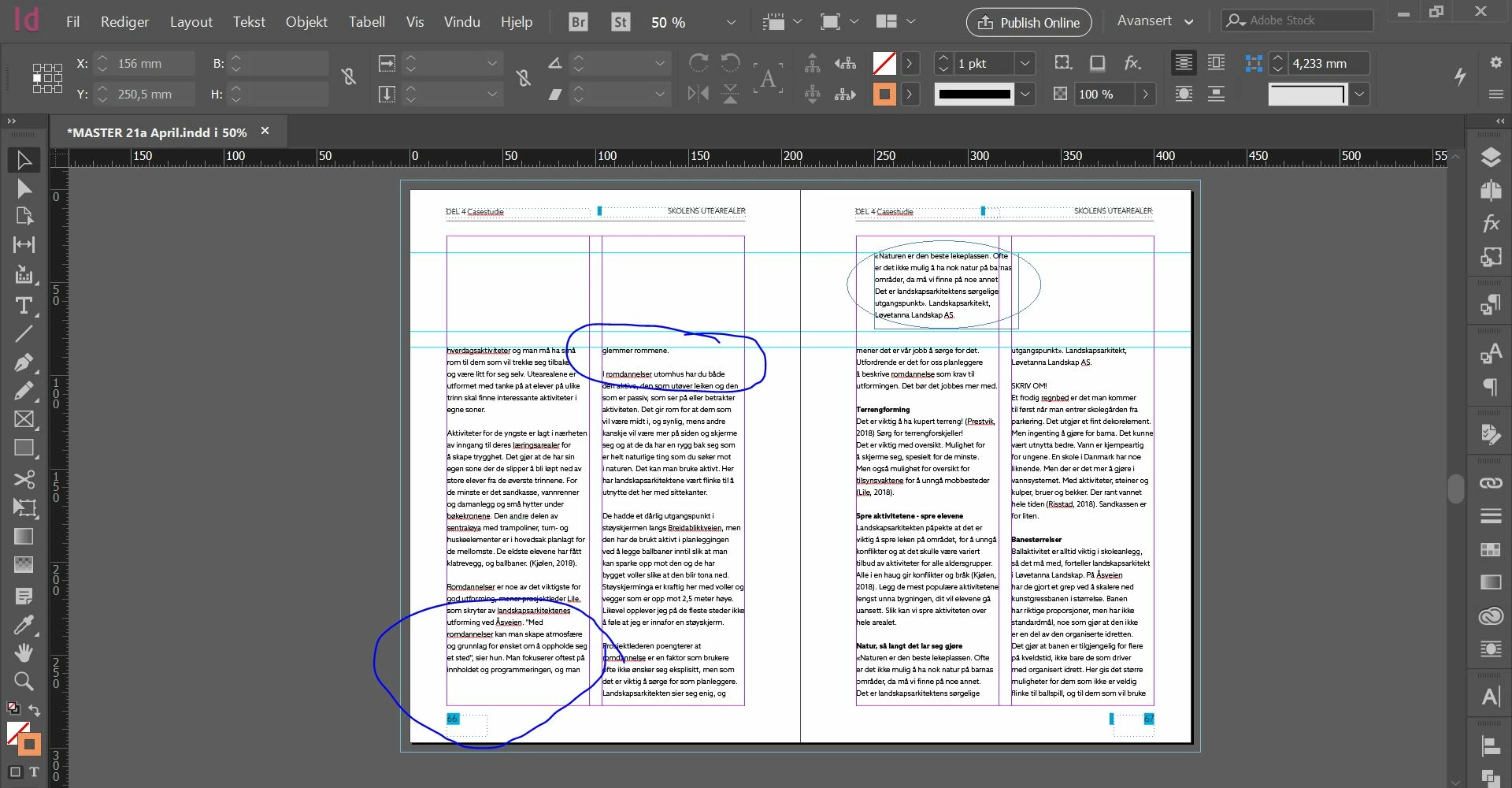
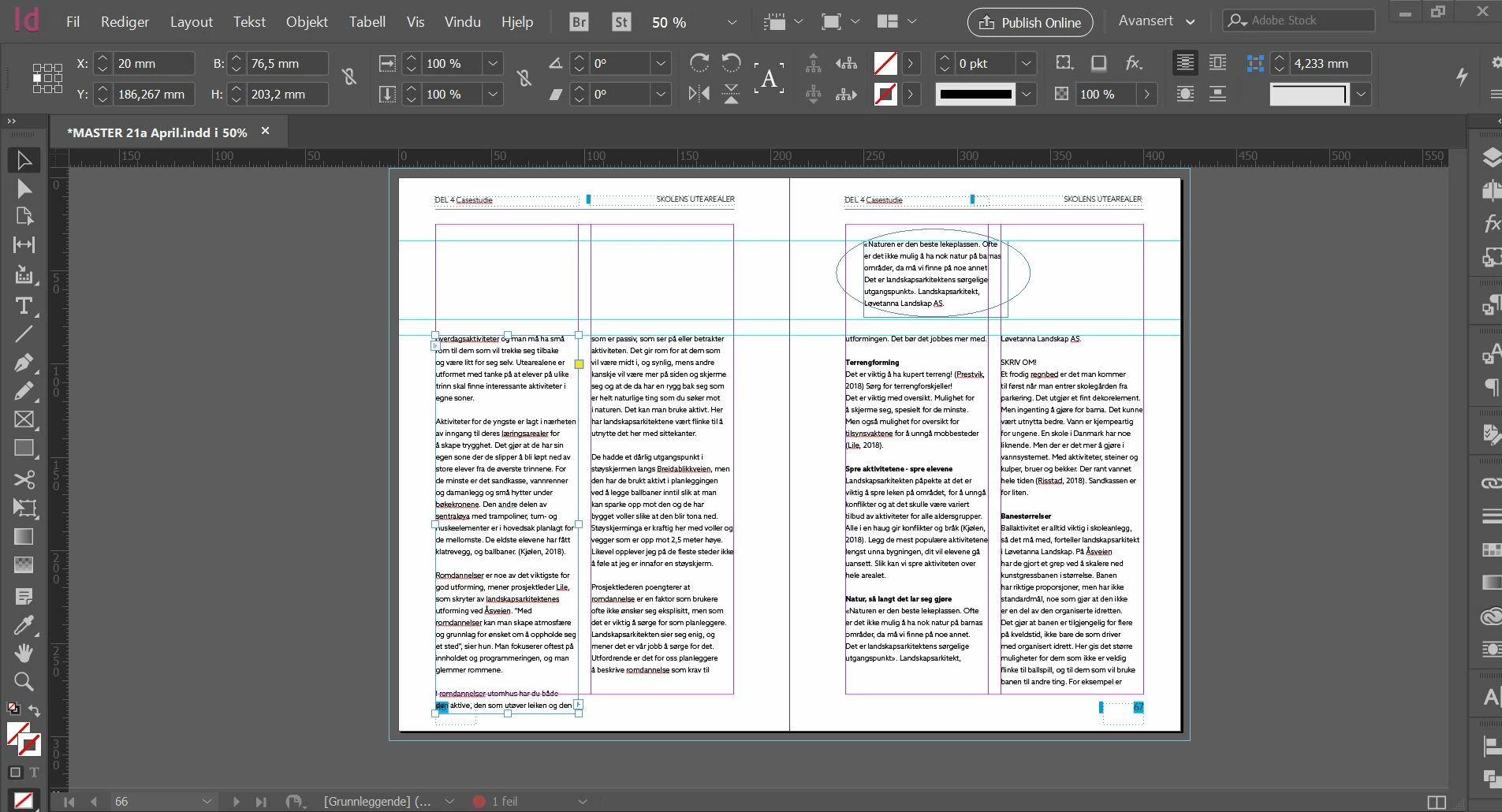
2: How can I change the settings so that the text dosn't move?
This topic has been closed for replies.
Correct answer Geоrge

>> How can I change the settings so that the text dosn't move?
Format paragraphs in Adobe InDesign

  • Choose Keep Options in the Paragraph panel menu. (You can also change keep options when creating or editing a paragraph style.)

  • Select any of these options and then click OK:

    • Select Keep With Previous to keep the first line of the current paragraph with the last line of the previous paragraph.
    • For Keep With Next _ Lines, specify the number of lines (up to five) of the subsequent paragraph that the last line of the current paragraph stays with. This option is especially useful for making sure that a heading stays with the next few lines of the paragraph that follows it.
    • Select the Keep Lines Together option and select All Lines In Paragraph to prevent the paragraph from breaking.
    • Select the Keep Lines Together option, select At Start/End Of Paragraph, and specify the number of lines that must appear at the beginning or ending of the paragraph to prevent orphans and widows.
    • For Start Paragraph, choose an option to force InDesign to push the paragraph to the next column, frame, or page. If Anywhere is selected, the start position is determined by the Keep Line Settings option. For other options, they will be forced to start from these positions.

3 replies

Barb Binder
Community Expert
Community Expert
April 23, 2018

As a default, frame edges appear in blue (though they can be any color, because they are tied to the defined layer color).

It looks like you are in Preview mode in the first screen shot, with your cursor hovering over a text frame. Preview mode  hides all non-printing visual aids like margins, columns, guides and frame edges, but frame edges will appear if your mouse passes over them. To show all visual aids:

You can also control the visibility of frame edges in Normal mode via View > Extras > Show/Hide Frame Edges.

In your second screen shot, I'm guessing you have Keep with next 1 lines activated—which tells InDesign to keep the final line of the last paragraph with the 1 line of the next paragraph.

To deactivate it, select the text (that paragraph or perhaps the entire story) and choose Window > Type & Tables > Paragraph. Select Keep Options from the Paragraph panel menu, and change Keep with Next to 0 lines.

~Barb

~Barb at Rocky Mountain Training
Participant
April 24, 2018

The blue square is not the textbox, but a square behind it wich is supposed to have blue fill colour. There is no colour neighter in preveiw or in normal mode.

Geоrge
Legend
April 24, 2018

Sorry, can you somehow to re-ask you question by other words? As I see your screenshot - this is frame edges. What are you want to have with this edges?

Remember, never say you can't do something in InDesign, it's always just a question of finding the right workaround to get the job done. © David Blatner
Geоrge
GeоrgeCorrect answer
Legend
April 23, 2018

>> How can I change the settings so that the text dosn't move?

Format paragraphs in Adobe InDesign

  • Choose Keep Options in the Paragraph panel menu. (You can also change keep options when creating or editing a paragraph style.)

  • Select any of these options and then click OK:

    • Select Keep With Previous to keep the first line of the current paragraph with the last line of the previous paragraph.
    • For Keep With Next _ Lines, specify the number of lines (up to five) of the subsequent paragraph that the last line of the current paragraph stays with. This option is especially useful for making sure that a heading stays with the next few lines of the paragraph that follows it.
    • Select the Keep Lines Together option and select All Lines In Paragraph to prevent the paragraph from breaking.
    • Select the Keep Lines Together option, select At Start/End Of Paragraph, and specify the number of lines that must appear at the beginning or ending of the paragraph to prevent orphans and widows.
    • For Start Paragraph, choose an option to force InDesign to push the paragraph to the next column, frame, or page. If Anywhere is selected, the start position is determined by the Keep Line Settings option. For other options, they will be forced to start from these positions.
Remember, never say you can't do something in InDesign, it's always just a question of finding the right workaround to get the job done. © David Blatner
Geоrge
Legend
April 23, 2018

>> Why is this blue square invisible?

Press "w" on the keyboard.

If you press w again than will be invisible again. (Switch between Normal View and Preview Mode)

Remember, never say you can't do something in InDesign, it's always just a question of finding the right workaround to get the job done. © David Blatner