



dublove
Legend
September 15, 2026
Answered

Is there any way to know if I am currently using the 'selection tool' or 'direct selection tool' using a script?

  • September 15, 2026
  • 38 replies
  • 250 views

Hello everyone.
I need to distinguish whether I am currently using the 'selection tool' or the 'direct selection tool'.
Is there any way to implement it using scripts?

Or, how to distinguish which tool I am currently using to select "object", "path", or content.
Both of the following are true.

alert(item.constructor.name == 'Rectangle');
alert(item.parent.constructor.name == 'Spread');

It seems like there's nothing I can do.
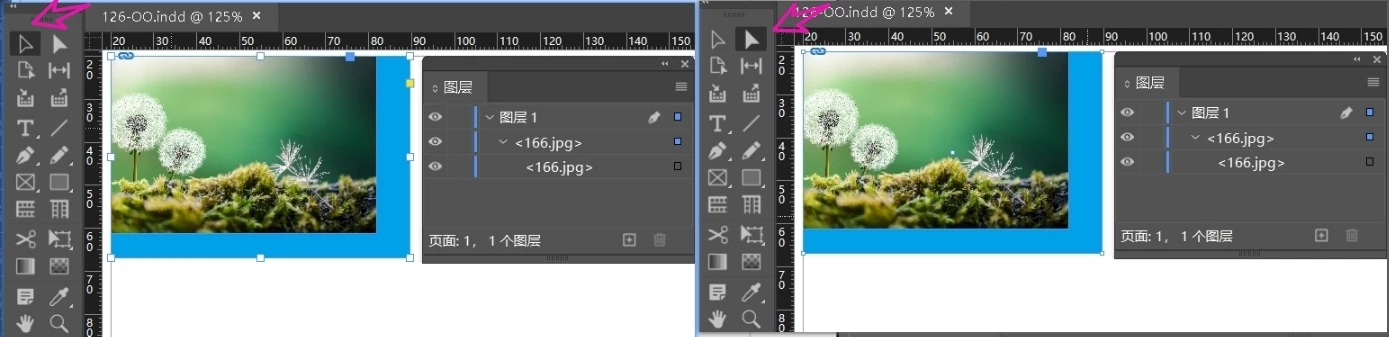
Thank you very much.

    Correct answer Nick Passmore

    The JavaScript sysntax seems to be:

            app.toolBoxTools.currentTool


    38 replies

    Participating Frequently
    September 22, 2026

    I don’t know that this will help but, in AppleScript at least, this will tell you what tool is active:


    tell application id "com.adobe.InDesign"
    set CurrentTool to (current tool of tool box tools)
    end tell


    dublove
    dubloveAuthor
    Legend
    September 22, 2026

    ​@Nick Passmore 

    I cannot understand or try your ideas.

    Nick PassmoreCorrect answer
    Participating Frequently
    September 22, 2026

    The JavaScript sysntax seems to be:

            app.toolBoxTools.currentTool


    rob day
    Community Expert
    Community Expert
    September 16, 2026

    Hi ​@dublove , The active tool in the Tools panel would never be a reliable test for a selection’s constructor:


    dublove
    dubloveAuthor
    Legend
    September 16, 2026

    All right.

    It seems that I almost got into a 'dead end' again.
    It seems that I need two scripts to implement two operations.

    rob day
    Community Expert
    Community Expert
    September 16, 2026

    It seems that I need two scripts to implement two operations.


    You can do it with one script—your attached example is hiding a 2nd rectangle, but it is there.


    If I reduce the image a bit we can see both container rectangles (see my attached file). So your code from the other thread works in this case, but you will have to call the function twice:


    var d = app.activeDocument;
    var item = d.selection[0];

    if (item.constructor.name == "Image") {
    //your image’s container
    contentFitToFrame(item.parent)
    //the container’s container—try in case it’s not there
    try {
    contentFitToFrame(item.parent.parent)
    }catch(e) {}

    }

    function contentFitToFrame(s) {
    s.frameFittingOptions.fittingAlignment = AnchorPoint.TOP_LEFT_ANCHOR;
    s.fit(FitOptions.FILL_PROPORTIONALLY);
    }


    Before and after


    m1b
    Community Expert
    Community Expert
    September 16, 2026

    ​@dublove you’re on the right track. You don’t need to worry about which tool you have active. It doesn’t matter *which tool you have active”, it only matters “what type of item you have”.

    When you check the “constructor.name” string, if it is “Graphic”, “Image”, “PDF”, “SVG”, “EPS” then it is a graphic. If “constructor.name” is “Rectangle”, “Oval”, “Polygon” then you have a container. If you check the container’s “graphics[0].length” you can check if it has any graphics in it, and if you do “graphics[0]” you can get the graphic.

    That's all you need I think. Ignore the “which tool I have” part.

    (Edit: if “constructor.name” is “Group” then you can look at its “pageItems”.)

    dublove
    dubloveAuthor
    Legend
    September 16, 2026

    Hi ​@m1b 

    I don't understand what you mean. What I need to distinguish now is when selecting images (which may be images pasted inside, with two frames outside the image).
    At this point, the containers are all Rectangle, item. graphics. length==0?
    They are not different.
     

    var d = app.activeDocument;
    var items = d.selection;
    var item = d.selection[0];
    alert(item.constructor.name); //Rectangle
    alert(item.graphics.length); //0


    m1b
    Community Expert
    Community Expert
    September 16, 2026

    ​@dublove ah, I see what you mean. I left out an important edge-case: when the container (eg. a Rectangle) contains *another container*. In your case you have a Rectangle-containing-an-Image inside a Rectangle. So if you look at your item and “graphics.length === 0” try also “pageItems.length” to see if another item (that isn’t a graphic) is inside it. In your case “sel.pageItems[0].graphics.length === 1” so your image is “sel.pagesItems[0].graphics[0]”.

    Much better is to use my “getGraphics” function (which I gave you before) because it does the fiddly work for you. Just do something like:

    var graphic;

    // this line does the hard work
    var graphics = getGraphics(app.activeDocument.selection);

    // did we find any graphics?
    if (graphics.length > 0)
    graphic = graphics[0];

    if (graphic) {
    // do something with the graphic
    }


    For convenience, here is the getGraphics function:

    /**
    * Returns graphics derived from `items`.
    * @author m1b
    * @version 2025-08-20
    * @param {Array|PageItem} items - array or collection or page item.
    */
    function getGraphics(items) {

    var graphics = [];

    if ('Array' === items.constructor.name) {

    for (var i = 0; i < items.length; i++)
    graphics = graphics.concat(getGraphics(items[i]));

    }

    else if (
    items.hasOwnProperty('allGraphics')
    && items.allGraphics.length > 0
    )
    graphics = graphics.concat(items.allGraphics);

    else if (
    items.hasOwnProperty('allPageItems')
    && items.allPageItems.length > 0
    )
    graphics = graphics.concat(getGraphics(items.allPageItems));

    else if ('Image' === items.constructor.name) {
    graphics.push(items);
    }

    return graphics;

    };

    Note: this function doesn’t get graphics from anchored items. It can be done if necessary.