Sasha dal Ponte
Participating Frequently
April 29, 2019
Question

Jagged images in InDesign and PDF

  • April 29, 2019
  • 4 replies
  • 3170 views

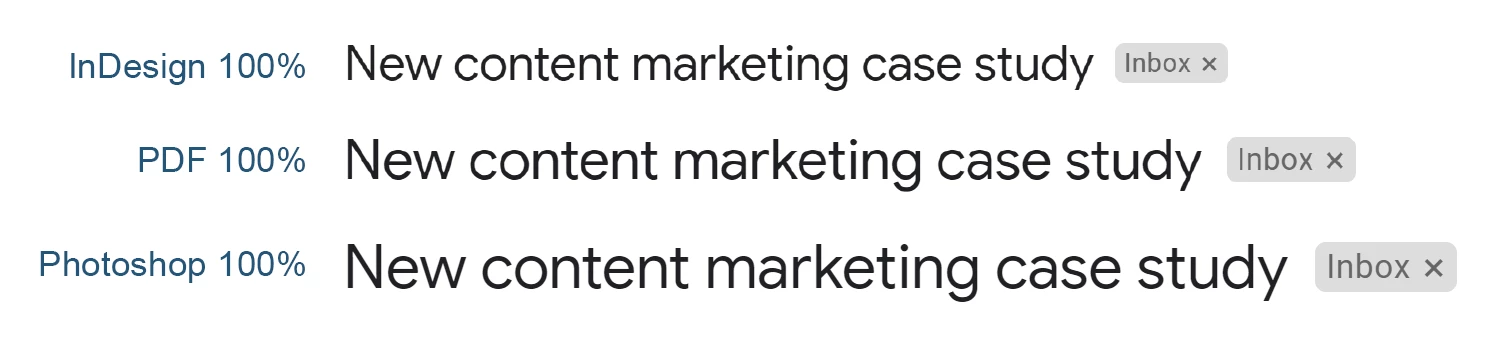
OK, so here's the sample:

I do a screenshot of my screen at high resolution, crop it in Photoshop, paste it to InDesign and scale it down. That's when I get jagged edges that can also be seen in exported PDF but not in Photoshop original.

Why does InDesign reduce quality on scaled down images? Doesn't it know how to handle them properly?

    This topic has been closed for replies.

    4 replies

    John Mensinger
    Community Expert
    Community Expert
    April 29, 2019

    https://forums.adobe.com/people/Sasha+dal+Ponte  wrote

    I do a screenshot of my screen at high resolution, crop it in Photoshop, paste it to InDesign and scale it down. That's when I get jagged edges...

    Frankly, that isn't surprising. I'm not sure how you "do a screenshot...at high resolution."

    In any case, pasted, scaled screenshot is a surefire recipe for low on-screen fidelity, and always has been. One of the first rules of screenshot-to-page-layout workflow is don't resize. But you really don't offer any explanation as to why you're working this way.

    Furthermore, this:

    my actual PPI is 96 and effective is 121

    ...conflicts with this:

    I scaled it down about 25% from 121 PPI to 96 PPI.

    One of them is backward in your thinking.

    It's an email screenshot I got from client.

    Okay, but that doesn't really explain your ultimate objective and why you expect to achieve it via the methods you're using.

    Why does InDesign reduce quality on scaled down images?

    It doesn't. It, in fact, can't "reduce quality". It's simply putting out the result of that which you put in. InDesign is ruthless in that regard.

    So what's the solution? Resizing images to exact size I want them in InDesign and PDF? But whats the point of having high resolution source image? None?

    But you don't have a high resolution source image; it's a screenshot—of text—perhaps one of the worst possible scenarios.

    Again, please explain exactly what you're trying to accomplish.

    Sasha dal Ponte
    Participating Frequently
    April 29, 2019

    https://forums.adobe.com/people/John+Mensinger  wrote

    Frankly, that isn't surprising. I'm not sure how you "do a screenshot...at high resolution."

    Using Chrome Inspect option you can actually capture very high resolution screenshots of web pages and this was screenshot of a Gmail email.

    Furthermore, this:

    my actual PPI is 96 and effective is 121

    ...conflicts with this:

    I scaled it down about 25% from 121 PPI to 96 PPI.

    One of them is backward in your thinking.

    My point was that I scaled down the image for about 25% and I need 125% zoom in InDesign or Acrobat Reader to get the image to display properly.

    But you don't have a high resolution source image; it's a screenshot—of text—perhaps one of the worst possible scenarios.

    Again, please explain exactly what you're trying to accomplish.

    Yes, I do. I have screenshots of web pages that are up to 4000 pixels wide and my InDesign page is 1920x1080.

    I'm trying to create a PDF file that will contain pages with text and images (screenshots) and get it to display properly without jagged edges. 

    John Mensinger
    Community Expert
    Community Expert
    April 29, 2019

    https://forums.adobe.com/people/Sasha+dal+Ponte  wrote

    I have screenshots of web pages that are up to 4000 pixels wide

    That's a dimension. Its pixel density is still only that of your screen.

    Well, that's the problem then - InDesign doesn't re-sample and can't display scaled down images correctly.

    You can blame InDesign all you want, but the bottom line is a re-sampled screenshot simply won't re-render nicely; they never do, no matter what software is involved. When you capture any amount of pixels from a screen, and then re-align them on the (pixel) grid (resampling), the process applies interpolation that results in distortion. It's inescapable. As I mentioned earlier, people who routinely work with screenshots know this and fashion their workflow to avoid any form of scaling or resampling.

    rob day
    Community Expert
    Community Expert
    April 29, 2019
    Why does InDesign reduce quality on scaled down images? Doesn't it know how to handle them properly?

    The 100% zoom view in InDesign and Acrobat is different than the 100% view in Photoshop. The default in ID and Acrobat for 100% is the print output actual size view, but in Photoshop it is a 1:1 ratio of monitor to image pixels, so that combined with the InDesign scaling means the zoom preview is likely to be very different between the apps.

    Also InDesign uses a FPO proxy for the preview, so you can’t judge output quality from the screen preview even when the Display Performance is set to High Quality

    If you zoom in you’ll see a more accurate view of the output pixels. Here PS top left, ID bottom left, the PDF export right:

    Sasha dal Ponte
    Participating Frequently
    April 29, 2019

    Hmm, yes I can see that the issue gets "fixed" when I zoom to 125% in InDesign and Acrobat Reader because that gets my image to roughly original size since I scaled it down about 25% from 121 PPI to 96 PPI.

    So what's the solution? Resizing images to exact size I want them in InDesign and PDF? But whats the point of having high resolution source image? None?

    Derek Cross
    Community Expert
    Community Expert
    April 29, 2019

    Why are you placing rasterised text into InDesign rather that typesetting it?

    Sasha dal Ponte
    Participating Frequently
    April 29, 2019

    Hi Barb,

    my actual PPI is 96 and effective is 121

    Display is set to high quality.

    Have in mind that same issue transfers to PDF export so it isn't display issue but InDesign downscale issue.

    Barb Binder
    Community Expert
    Community Expert
    April 29, 2019

    Hi Sasha:

    What is the effective ppi of the image that was placed (not copied into InDesign)? Click the filename in the Links panel—it appears in the lower half of the panel.

    https://www.rockymountaintraining.com/adobe-indesign-why-do-my-images-look-so-bad/

    What is your display performance set to? High quality display or typical display?

    https://www.rockymountaintraining.com/adobe-indesign-display-performance-controls-theyre-everywhere/

    ~Barb

    ~Barb at Rocky Mountain Training