

yl22304983
Participant
March 16, 2026
Answered

Keep the Stroke Width of a Placed Object Consistent Despite Scaling in InDesign

  • March 16, 2026
  • 3 replies
  • 120 views

I am new to InDesign (& Illustrator); I am hoping there is just something basic I am not understanding.


I am trying to follow the general advice to create my vector graphics in Illustrator and then place them in InDesign.  I am putting together my overall layout (graphics, text, page organization, etc.) in InDesign.


To maintain a consistent visual style, I would like all of my strokes to be exactly the same width as each other.  This is easy to achieve for, e.g., borders on text frames or other simple objects I create directly in InDesign.  However, for more complicated graphics—which I created in Illustrator—I am having difficulty.  


Specifically, the width of the stroke on the object I designed in Illustrator but then placed into InDesign seems to depend on the overall scale of the object in InDesign.  This leads to the strokes of different objects to appear (in InDesign) to be different in width than my other objects in InDesign, breaking the visual consistency I am aiming for.  This is the behavior I am seeking to change.


This frustrating stroke-width-changing-as-I-change-the-object-size behavior of placed objects in InDesign (objects created in Illustrator and then placed in InDesign) is not how objects created directly in InDesign behave.  If I create an object using, e.g., the polygon tool in InDesign with 5pt stroke width, I can subsequently scale the object in InDesign to be smaller or bigger; yet, the stroke width stays at 5pt regardless.  This is how I wish the objects I placed into InDesign from Illustrator would behave when scaled in InDesign.  I need to be able to scale placed objects in InDesign because I can’t predict 100% accurately in advance what size exactly I want each placed graphic to be (I need to see how the overall spread looks in InDesign & adjust the scale of individual placed objects in InDesign accordingly).


In InDesign, I have tried selecting the object I placed from Illustrator and then going (in InDesign) to the Transform window (Window > Objects & Layout > Transform) and checking/unchecking “Adjust Stroke Weight when Scaling.”  Whether or not “Adjust Stroke Weight when Scaling” is checked seems to have no impact on the undesirable behavior of the stroke width of objects placed in InDesign from Illustrator.


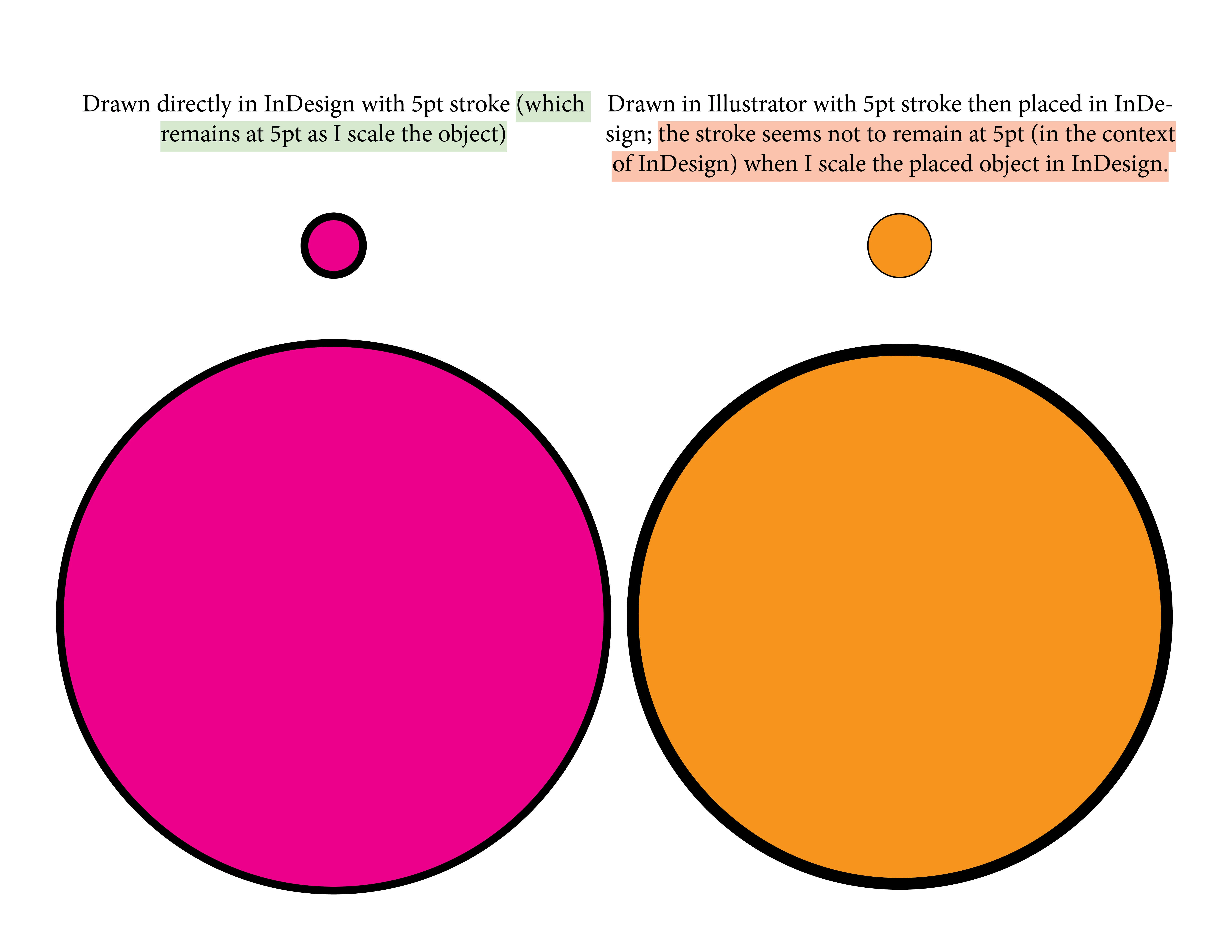
To further explain, I have attached a jpg as a simple visual example using circles.  (The actual vector graphics I am using are much more complex and can not be easily made directly in InDesign.)  I exported this jpg from InDesign.  (The relevant parts looks the same if I instead exports it to a pdf, etc., and it looks the same in Preview view mode in InDesign.)  On the left (in magenta) are two circles created directly in InDesign.  When I scale them, the stroke width stays the same: the stroke width of the small magenta circle is exactly the same as the stroke width of the large magenta circle.  This is the behavior I want.  On the right (in orange) are two circles created in Illustrator and then placed (File > Place and then choosing the .ai file from the Place dialogue box) in InDesign.  When I scale them within InDesign, the stroke width changes: the stroke width of the small orange circle is much smaller than the stroke width of the big orange circle.  This is the stroke width behavior I do not want.
Any help would be so, so greatly appreciated!  😊

    Correct answer Bill Silbert

    You have to understand that a placed object from Illustrator is not actually editable in InDesign. Any editing of the object has to be done in Illustrator. You simply cannot affect the object’s stroke within InDesign. The quickest workaround that I would suggest is that when you have determined what size the Illustrator object needs to be in the InDesign layout you then open it in Illustrator and scale the object to the percentage that you need with the stroke weight that you want. Then when you update it in InDesign adjust its size so that it is scaled at 100%.

    3 replies

    Mike Witherell
    Community Expert
    Community Expert
    March 17, 2026

    Hi YL,

    Not sure if this helps, but notice this preference about “When Scaling” in InDesign:


    Otherwise, if you are making very simple shapes, I would consider defining them with an Object Style where the stroke thickness could be defined.

    Mike Witherell
    Bill Silbert
    Community Expert
    Community Expert
    March 17, 2026

    Unfortunately, this will not help with objects placed from Illustrator. It only works for native InDesign objects or ones copied and pasted from Illustrator.

    rob day
    Community Expert
    Community Expert
    March 16, 2026

    Hi ​@yl22304983 , With some limitations and depending on how you set your Clipboard Preferences, it is possible to cut and paste (not Place) objects from Illustrator as editable vectors. Set your Illustrator Clipboard handling like this:


    And InDesign’s like this:


    The pasted object from Illustrator can be scaled or resized depending on the tool:


    Bill Silbert
    Community Expert
    Community Expert
    March 16, 2026

    I decided not to offer the copy and paste option. Placing rather than copying and pasting is usually the more recommended way of bringing in Illustrator files into InDesign. When you copy and paste you no longer have a link to the original Illustrator file and any changes to the objects  will have to be done manually in InDesign which does not have all of the drawing tools available in illustrator. Also, Illustrator effects do not always paste in correctly which certainly can cause significant issues. Additionally, pasting in complex Illustrator art will increase file size which can cause sluggish performance. Overall, placing provides more options in guaranteeing the integrity of the original Illustrator files.

    yl22304983
    Participant
    March 19, 2026

    .

    Bill Silbert
    Community Expert
    Bill SilbertCommunity ExpertCorrect answer
    Community Expert
    March 16, 2026

    You have to understand that a placed object from Illustrator is not actually editable in InDesign. Any editing of the object has to be done in Illustrator. You simply cannot affect the object’s stroke within InDesign. The quickest workaround that I would suggest is that when you have determined what size the Illustrator object needs to be in the InDesign layout you then open it in Illustrator and scale the object to the percentage that you need with the stroke weight that you want. Then when you update it in InDesign adjust its size so that it is scaled at 100%.

    yl22304983
    Participant
    March 19, 2026

    Thank you, so much, Bill.  I was afraid this was the answer; it’s cumbersome to need to go back into Illustrator to tweak the sizes of all my objects in order to keep the stroke width looking consistent in my InDesign layout just because I played around with the placed objects’ sizes when designing the InDesign layout.  That said, it’s a huge help to at least have clarity.  I’ll probably copy-paste when I can (when the vector/effects are simple or quick-&-dirty will do) but use your advice regarding placed objects in complex or particularly important situations.

    For others who might be trying this: it seems to be important to pay attention to how InDesign versus Illustrator handle height & width.  This seems to depend on whether or not “Use Preview Bounds” is selected in Illustrator > Settings > General.  


    From what I can see, InDesign always evaluates the size of an object as including the stroke.  (Maybe there’s some way to change this setting in InDesign; I’m not sure.)  

    Illustrator, in contrast, seems to disregard the stroke when displaying the object’s height and width in the Properties panel unless “Use Preview Bounds” is turned on.  As I tried to sketch in the jpg below, it seems this can lead to unexpected results unless users are cognizant of whether or not they have “Use Preview Bounds” selected in Illustrator and how that affects the height and width of placed Illustrator objects in InDesign.