Participating Frequently
November 15, 2025
Answered

Large white space within the text

  • November 15, 2025
  • 7 replies
  • 439 views

Hi All, I'm trying to format a text document that has a lot of inexplicable white spaces breaking up paragraphs when there is plenty of white space left on the page to accommodate text.  I've turned on Hidden Characters and there weren't any extra paragraph breaks; tried various "Keep" options, but removing them leaves me with widows and orphans and sends all of my anchored images into a tizzy; checked the space before and after paragraph but it's set to 0. I'm at a loss and this is due on Wednesday. Any help you can give me, I'd appreciate it!

I should mention I'm pretty much a novice with InDesign and largely self-taught through YouTube, so forgive me if the answer is obvious. 
Correct answer Dave Creamer of IDEAS

Hmm, I made that change and it did nothing to remove the large white space on page 3. 


Make sure you change the keep with next setting too.

Before:


After:


7 replies

Participating Frequently
November 16, 2025

Thanks, everyone, for your help. I removed "Keep Options: keep with two previous" and ultimately had to condense the following one-line paragraphs into a single paragraph (an odd bit of writing anyway), which is what finally filled the large 2/3 space on page 3. Some combination of Keep Options and too many small paragraphs was the issue. Furthering the readability of the document, I added clear, regular spacing between the paragraphs using the paragraph syles and then went through and adjusted the affected images. 

Thanks for everyone's patience as I realize I often worked against myself in trying to explain the issue but without appropriate examples. I appreciate you all!

Dave Creamer of IDEAS
Community Expert
Community Expert
November 16, 2025

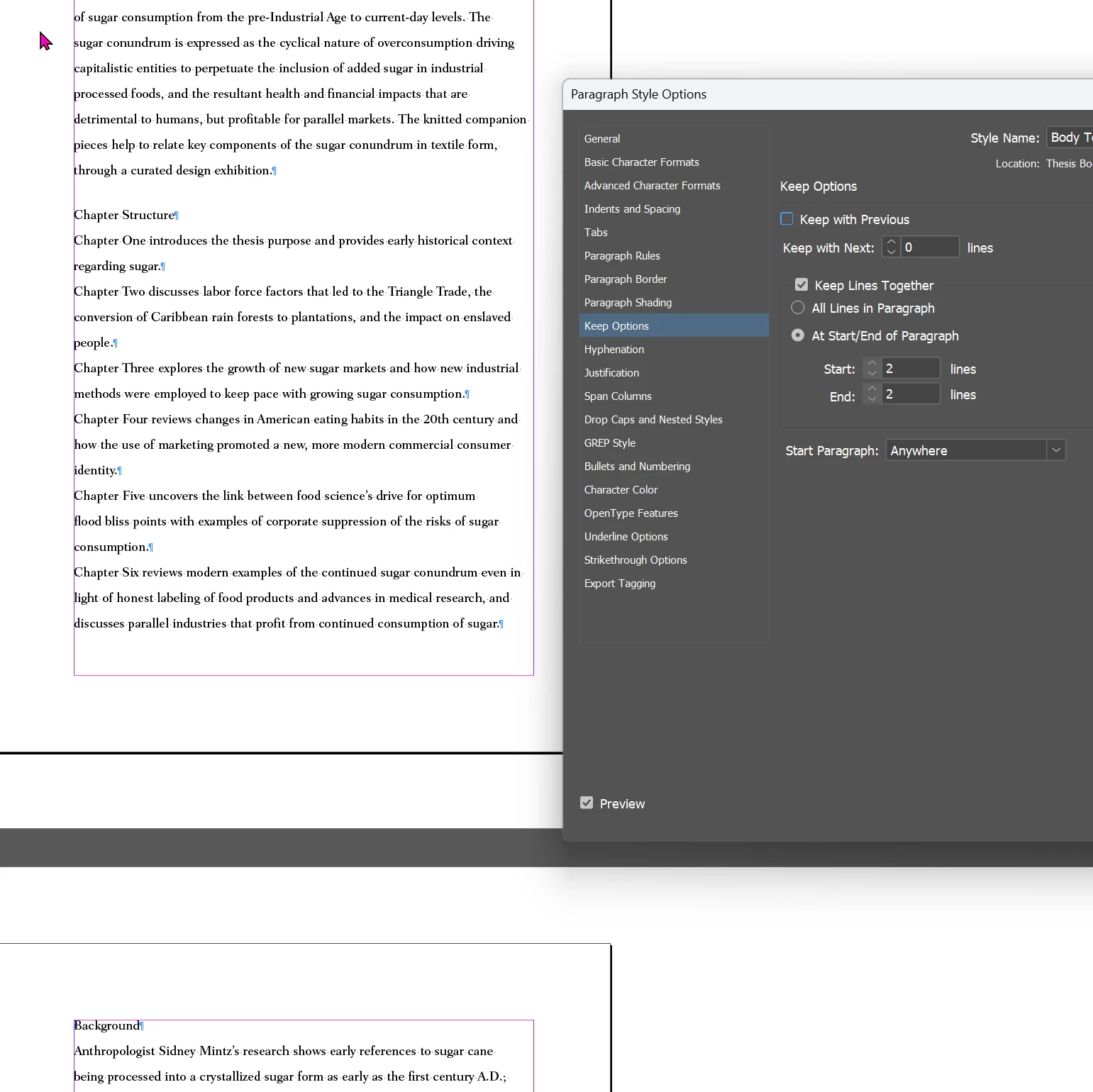
The setting is "Keep Options: keep with two NEXT (following)" lines. The number of lines ONLY refers to the NEXT lines. The Keep with Previous does not specifiy a number of lines--it's simply and on/off setting. It can be a little confusing, but the Keep with Previous was added years after the keep with next setting. 


David Creamer: Community Expert (ACI and ACE 1995-2023)
Participating Frequently
November 16, 2025

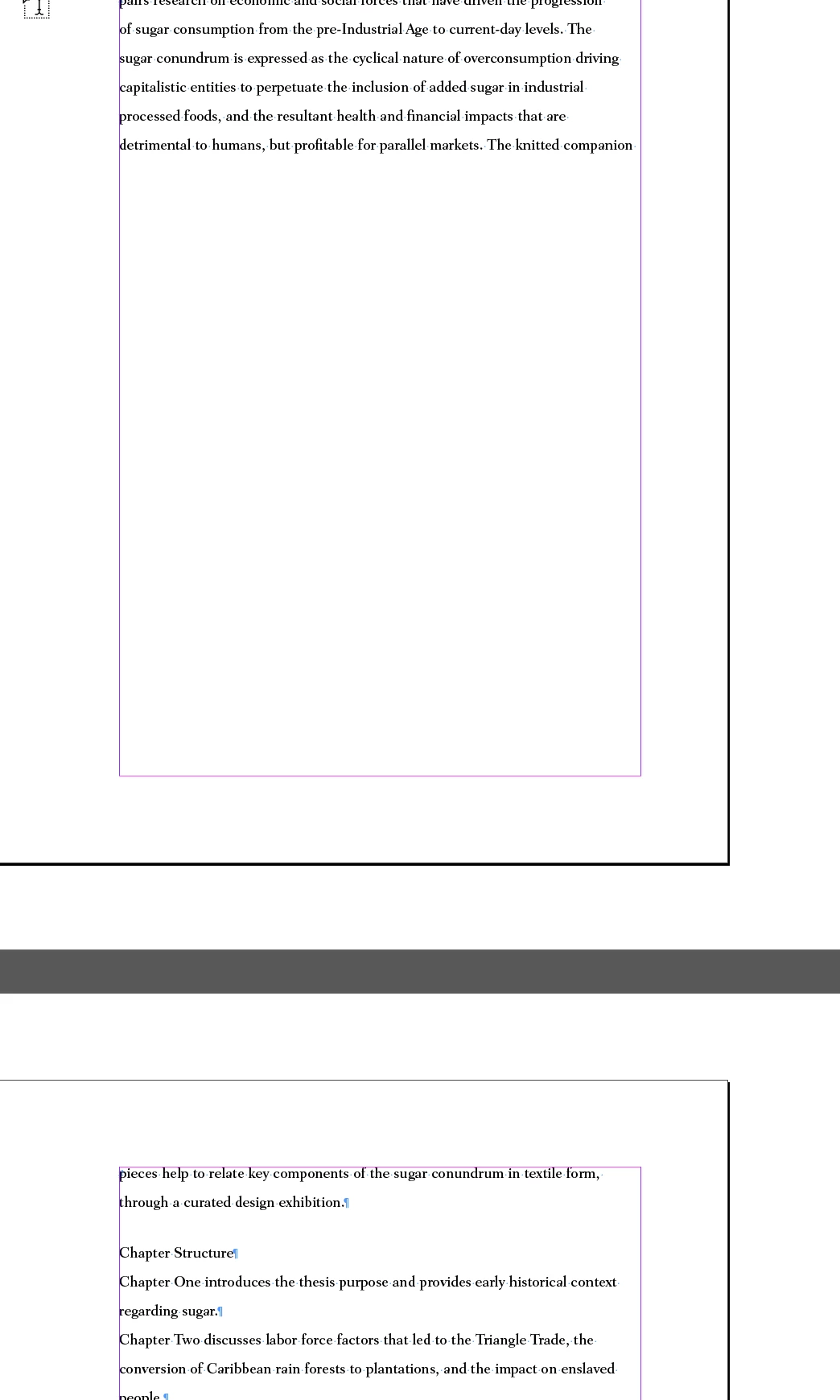
Okay, trying this again with pages 1-4. The problem is clearly shown on page 3 and 4. 

Participating Frequently
November 16, 2025

And here's a screenshot of the problem area with Hidden Characters turned on. 


Dave Creamer of IDEAS
Community Expert
Community Expert
November 16, 2025

Here is the problem. For body text, use these settings:


This is what you had:

These settings are usually used for subheads and bullet/number lists. 


David Creamer: Community Expert (ACI and ACE 1995-2023)
Participating Frequently
November 15, 2025

Hi All, based on a couple of suggestions, I've uploaded one chapter of the document. To repeat my issues, i have tons of white space breaking up the document. We have document guidelines to adhere to, which are: 1.5" left margin, 1" right, top, and bottom margins; 12pt font; double-spaced, hence the 24pt leading, 8.5"x11"paper, serif font (we had used Fairfield Lt Std, but I changed it to Times New Roman, hoping that would fix it). I've tweaked the Keep Options and removed extra paragraph styles that were unnecessary. I'm now finding that the Anchoring Images is also giving me issues. I appreciate your help.

Joel Cherney
Community Expert
Community Expert
November 15, 2025

I feel like I didn't understand your question from your initial post, perhaps. Is the issue that something is forcing text to the next page? Are these the gaps that you are talking about? Because I downloaded your file, let InDesign convert it to the previous version, and installed the relevant font, and I see... no gaps? Perfectly ordinary text with 200% leading, as it seems you have intended? I've attached a screenshot of what it looks like in InDesign 2025 (20.5). I'll go and download 21.0 (rather earlier than I would, ordinarily - initial releases tend to have bugs that I'd rather keep out of production workflows, so I'm not likely to start using InDesign 2026 until we see the release of something like 21.1) and see if I can find any gaps. 


... nope! Screenshot from 2026 looks exactly like that from 2025. Which gaps are we talking about? Do you mean "the word 'products' is a runt, a word all by itself in the last line of the paragraph, so I want to learn to compress the text a little to wrap 'products' up, so it sits next to 'non-food' to reduce the amount of whitespace?"


Participating Frequently
November 15, 2025

Sorry for the confusion. I tried to upload all of chapter 1 and the file was too large. I was hoping that with only one page, someone would see a glaring error in the Paragraph Styles. Here is a screen shot of page 3 and 4 of that same chapter. (I tried to also upload Chapter 1, pages 1-4 but everytime I deleted pages from my copy doc, InDesign crashed. I uploaded what I could and then had to walk away.)

I appreciate everyone's help. I'm trying my best to fix this but am also way underprepared and inexperienced.

Participating Frequently
November 15, 2025

Hi All, I really appreciate the suggestions. What I've done so far is: delete extra paragraph styles that may have been in conflict; change the font to Times New Roman (basic serif); adjust the Auto Leading to 120%; make sure the "balance ragged lines" is off; and made sure all of the remaining paragraph styles were not based on the Chapter Heading. All of this has helped, though not entirely solved. I'm now repositioning and reanchoring the images, which is itself a bit of a bear. I haven't pasted the entire document into a new document. I'm not sure if that would be more or less work in the end. 

rob day
Community Expert
Community Expert
November 15, 2025

make sure the "balance ragged lines" is off;


Just to check—did you have all the text selected when you unchecked Balance Ragged Lines?


Upload the document? Not sure, it's pretty large.


A single page would help. INDD files can be attached to your message—on a reply see Drag & drop here... at the bottom of your message


Barb Binder
Community Expert
Community Expert
November 15, 2025

Caffeine enters bloodstream...


That's a small paper size. What is the typesize being used?


Try using this formula: 


typesize + 2 pts = leading

i.e., 10/12 or 12/14


Does that take care of it? At this point, I think you have a small type size and much larger leading. Get the two numbers  closer together and see if that takes care of it. Then you can increase the leading until you get it where you want it.


~Barb

~Barb at Rocky Mountain Training
Participating Frequently
November 15, 2025

Thanks. The paper is 8.5" x 11" standard U.S. We have document guidelines to adhere to, which are: 1.5" left margin, 1" right, top, and bottom margins; 12pt font; double-spaced, hence the 24pt leading. 

rob day
Community Expert
Community Expert
November 15, 2025

Hi @Meghan L.253552907vjb , Check your Composer and Balance Ragged Lines settings. Looks like you have Balance Ragged Lines turned on?


Participating Frequently
November 15, 2025

Thanks, the "Balance Ragged Lines" was turned off. 

Joel Cherney
Community Expert
Community Expert
November 15, 2025

In your style definition, it's "Auto leading: 200%" that is causing this. You can set the distance between lines with the Leading value, which I bet you have already learned about - but the default leading is typically 120% of your font size. However, in the "Justification" section of your paragraph style, you can set the "Auto leading" value back down to 120% which should return your paragraphs to the line spacing you'd typically expect. 

Participating Frequently
November 15, 2025

Thanks. I tried this, but it didn't make a difference (though it did help elsewhere). The break in the images shown is actually happening within one sentence. There are no images anchored. The issue may be related to the 'Keep Options' setting: 'Keep first and last 2 lines together'. But why would it avoid two-thirds of a page?

Dave Creamer of IDEAS
Community Expert
Community Expert
November 15, 2025

What happens if you copy the text into a new document?

Can you upload the sample document in your screen captures?


David Creamer: Community Expert (ACI and ACE 1995-2023)