
Participant
June 24, 2019
Question

link panel is empty

  • June 24, 2019
  • 4 replies
  • 1171 views

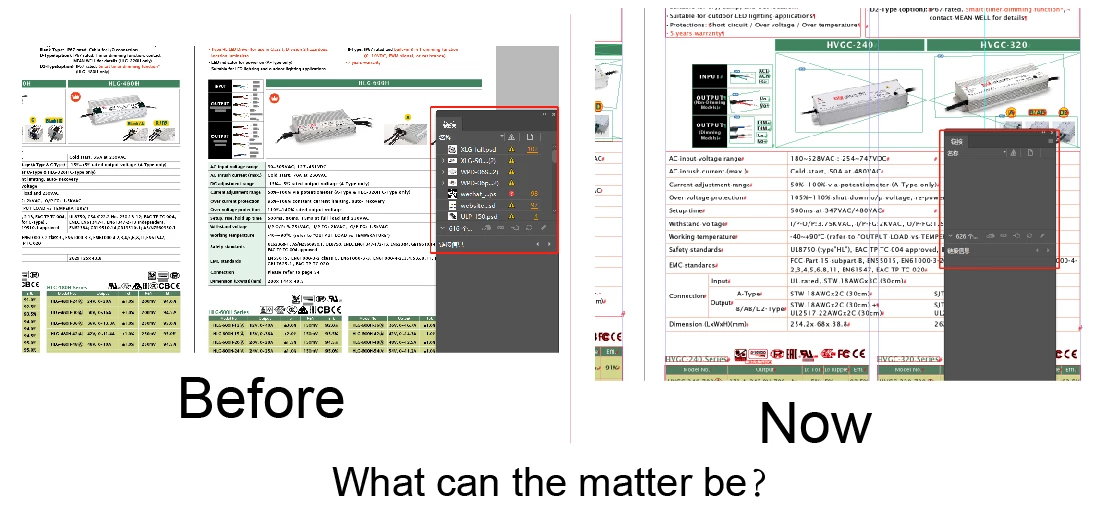
I have a problem, when I Edit documents (called LED catalogue) with InDesign, the InDesign crashed. And then I open the document again, I find that the link panel is empty, There should be a lot of information about linked images. I’m not sure Is it due to my operation error or Other reasons. And other documents is normal except for my LED catalogueI need to let the link panel for my LED catalogue display normally when I open it with InDesign, could you help me. Here are my screenshots
    This topic has been closed for replies.

    4 replies

    Participant
    June 25, 2019

    Thank you very much , This is happening just for this document,not all. Is there any other solution for this? help help ......

    Bill Silbert
    Community Expert
    Community Expert
    June 25, 2019

    Try George's suggestion of exporting the document as an IDML and then opening that in your version of InDesign. This method can fix some forms of corruption in an InDesign document.

    Participant
    June 26, 2019

    I have tried it before, I need to readjust the document in this way, anyway, it can be solved. Thank you~

    Bill Silbert
    Community Expert
    Community Expert
    June 24, 2019

    Is this happening just for this document or for all documents? If panels are missing elements for more than just the one document then you could try trashing your InDesign cache files. This is different than trashing preferences and can be helpful for interface related problems.

    To do so:

    For Macintosh Users: The User Library folder in which InDesign’s cache files are stored is hidden by default on most Macintoshes. To access it make sure that InDesign is closed and click on the desktop to launch a Finder Window (Command-N).With this window in column view follow the path User>Home folder (it’s the folder with an icon that looks like a house—it may have the user’s name rather than “Home”) and click on the Home folder. With the Option Key pressed choose Library from the Finder Go Menu. “Library” will now appear within the Home folder. Within the Library folder find the “Caches” folder. Within the Caches folder find and delete the entire folder “Adobe InDesign”. I find that deleting the InDesign cache folder completely leads to a lasting change. 

    For Windows Users: On Windows 7 and above the caches files are hidden. To find them go to the Control Panel and open Folder Options and then click the View tab. Then select “Show hidden files and folders” or “Show hidden files, folders or drive options” in Advanced Settings. Then delete (or rename) the folder at the end of this path: C:\Users\[User Name]\AppData\Local\Adobe\InDesign\Version [#]\<Language>\Cache.

    Participant
    October 19, 2023

    Deleting the cache folder worked for me! Thanks.

    Legend
    June 24, 2019

    Go back to a backup, taken before the crash. You are asking for terrible trouble to continue after this warning sign.

    Geоrge
    Legend
    June 24, 2019

    Try to save your publication as idml, open it this idml and re-save as new indd, open this new indd.

    Remember, never say you can't do something in InDesign, it's always just a question of finding the right workaround to get the job done. © David Blatner
    Participant
    June 26, 2019

    Thanks, this method is currently a workable solution, just need to re-edit the document