Participant
January 5, 2024
Answered

Linked files are rotating unexpectedly

  • January 5, 2024
  • 1 reply
  • 2187 views

My project was made in another software (Pixellu SmartAlbums) and then exported to an IDML fil.   The project contains hundreds of linked image files.    When I open the Indesign file,   all of sudden,  40% of the pictures end up rotating 90, 180, or 270 degrees.  There is no rhyme or reason to it.    Help?

This topic has been closed for replies.
Correct answer Luke Jennings3

I would love to do that, however,  all of the files have captions written about them (that currently live in Lightroom).   So once all the layout is done in SmartAlbums (which is so much faster and more efficient than ID),  I come back to ID to link the captions from LR.     So, I think the PDF wouldn't do that?  Am I right?   Great suggestion though!


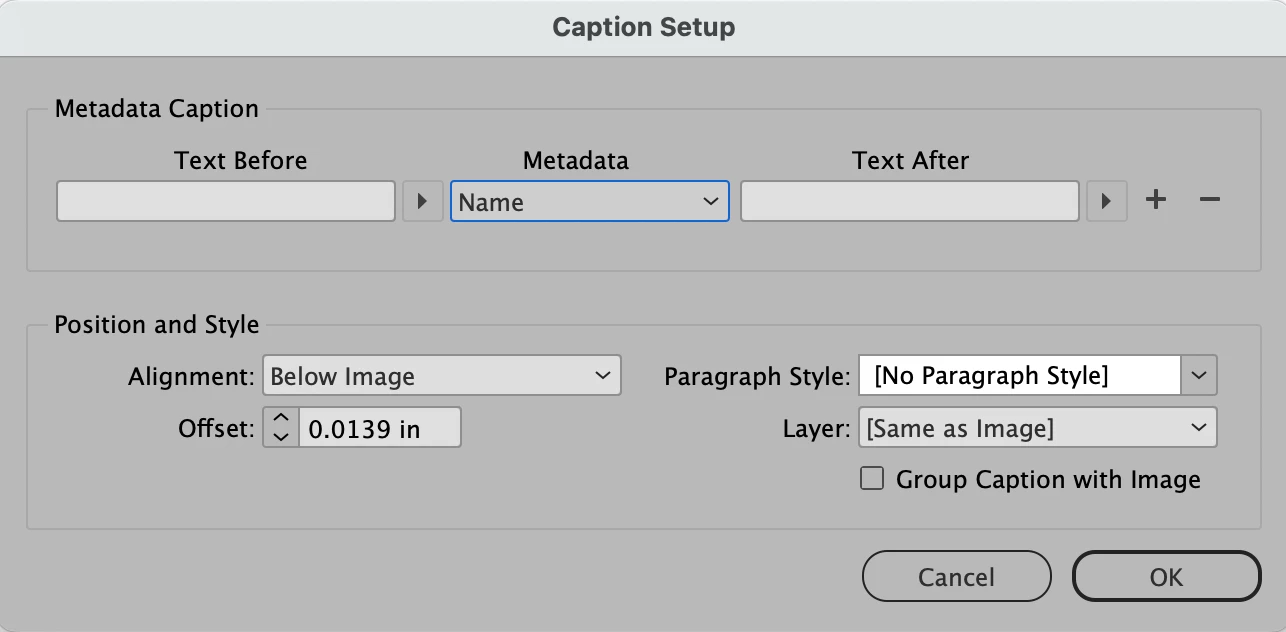
Any placed object in InDesign can have a caption applied to it, including pdfs (Object> Caption> Setup). The caption can use the name of the placed file, or other metadata from the file.

Edit- if you need captions for each individual image, than no, a pdf would not have this information for captions, unless you could add the caption text to the individual images.
1 reply

James Gifford—NitroPress
Legend
January 5, 2024

At a guess, from working with various "consumer level" imaging apps, the actual image files are not rotated, but the album layout appled a rotation factor instead. That rotation is not being passed through to the IDML export. I doubt it's a bug on the InDesign end; more likely that the album app is not using valid code or instructions to pass the rotation to the export file. These kinds of 'gotchas' are common when consumer, novice/amateur tools are used; since most users never do anything outside of that tool, these oddities are never noticed.


A quick check to see what's going on is to select images and see if InDesign is applying any rotation. Look at the Info panel, and the rotation setting in either the Control Panel (all the controls at the top of the ID window) or in the Transform pane. I'd bet they are all zero degrees rotation, and you're thus seeing the images as they come directly from their source files.


I doubt there's any solution but to manually rotate all the images in InDesign and touch up the layout as needed. Object Styles will probably be a big help here in managing all those images with simple blanket rules. You should create at least one named object style and apply it to all the image frames; it's poor practice to leave styles at the [default].


[Experts: Am I missing the ability to assign rotation to an Object Style?]

Participant
January 8, 2024

Thank you for your response! 🙂 


Interestingly,   each of the rotated obejects, is rotated in ID.  So when I look in the info panel,  the rotation settings varies from 90 - 270 degrees and is accurately depicted in the rotation in ID.    So everything at 0 is just what was set up in the original file.    90 degrees in the ID info panel, is 90 degrees on the screen.  etc.   Any possible reason for that do you think? 

James Gifford—NitroPress
Legend
January 8, 2024

The nuts-and-bolts-and-why of this could probably be resolved by looking at the export tool and then examining the document code at various stages. If this were a regular or repeated workflow, it would probably be worth that effort. But for a one-time export and prep for print, it's probably not worth it. There is almost certainly some glitch in the way the album tool manages image rotation, using methods ID doesn't like or recognize. But I'd put the effort into a one-time fix in the InDesign layout rather than try to make the apps play nice, or invest in a script solution that fixes the image positioning.


That's one of the problems with creating something in an amateur/EZ tool and then trying to do anything but export or print it from that tool; more sophisticated apps may not read exported formats correctly, and there's no infrastructure of tools to fix these problems at reasonable time and cost. Canva is the worst offender here, followed by the many online tools for layout and page composition like this one, and even Word... although the support/fix infrastructure for Word is at least well developed.


Fix your ID file and move on. Next time, consider ID features, plugins and scripts to do repetitive, organized work like this, instead of an "E-Z-2-Use" tool that may or may not successfully get your work to the next step.
