

OzPhotoMan
Inspiring
August 9, 2022
Answered

Linking text boxes

  • August 9, 2022
  • 3 replies
  • 948 views

Hi all, 

I am experiencing some behaviour I don't understand.  I am trying to remove pages 4-5 in the attached first screen shot. To do that I understand I must unlink them.
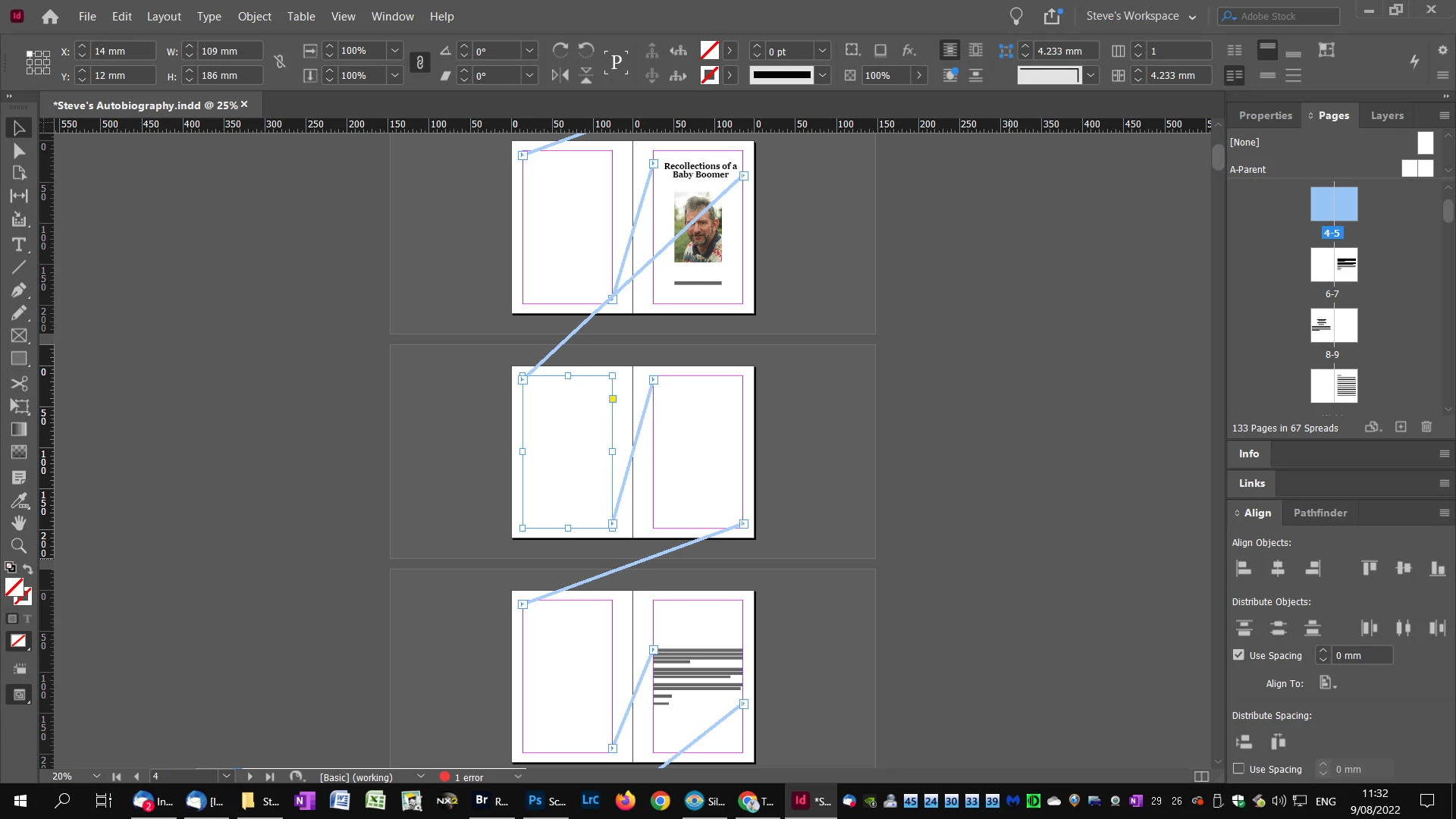


However, when I unlink, all text disappears as per the next screen shot. 
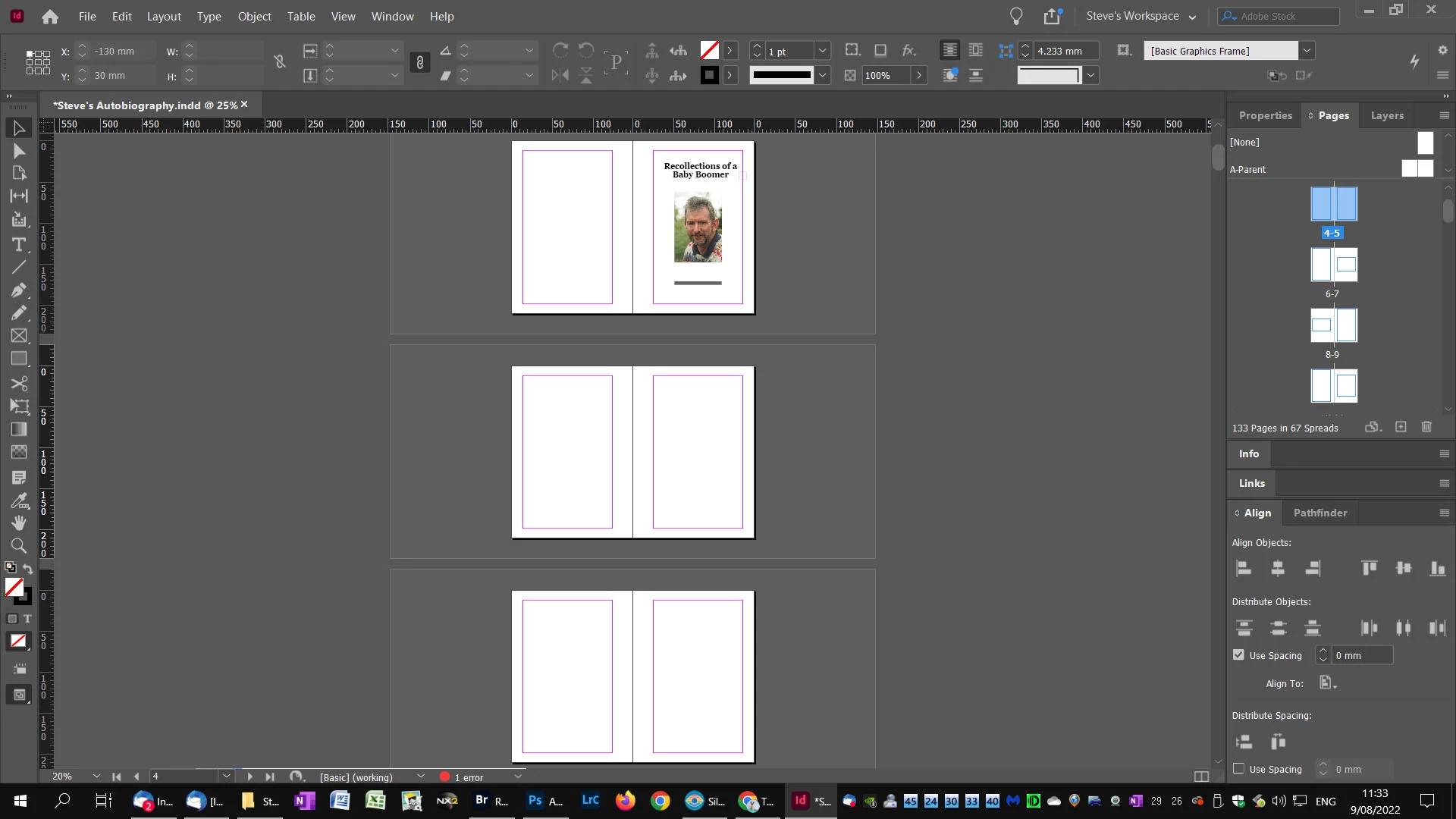
What am I doing wrong?

Regards,

Steve (InDesign V17.3)


This topic has been closed for replies.
Correct answer Laubender

@OzPhotoMan said: "To do that I understand I must unlink them."


Hi Steve,

don't think so. Both frames on both pages 4-5 seem to be empty.

Usually you want to select all the text in both threaded text frames and delete it, only then you'd remove the pages.

No need to unlink them.


What do I not get is why the text on page 7 does not flow on page 6, 5 or on page 4.


Regards,
Uwe Laubender
( Adobe Community Professional )

3 replies

LaubenderCommunity ExpertCorrect answer
Community Expert
August 9, 2022

@OzPhotoMan said: "To do that I understand I must unlink them."


Hi Steve,

don't think so. Both frames on both pages 4-5 seem to be empty.

Usually you want to select all the text in both threaded text frames and delete it, only then you'd remove the pages.

No need to unlink them.


What do I not get is why the text on page 7 does not flow on page 6, 5 or on page 4.


Regards,
Uwe Laubender
( Adobe Community Professional )

Dave Creamer of IDEAS
Community Expert
Community Expert
August 9, 2022

>>>Both frames on both pages 4-5 seem to be empty.

In the first screen capture, the frames can't be completely empty--I would think they must have a column or page break in them. 


David Creamer: Community Expert (ACI and ACE 1995-2023)
Scott Falkner
Community Expert
Community Expert
August 9, 2022

When you unlinked the text frames the text became overset since it has no place to go. You didn’t need to do that, you can just delete the pages. But since hte text frames are linked you will also need to delete whatever text is on those pages, even if it’s just frame breaks. First delete the text so the text that is on pages 6–7 now appears on pages 4–5. Then you can delete teh pages. You might not need to, since now the text is where you want it.

OzPhotoMan
Inspiring
August 9, 2022

P.S.

Before I delete, the pages panel shows 133 pages in 67 spreads. After I delete it shows 131 pages in 61 spreads, but pages 4-5 are still blank. The text box on page 7 then moves to the top of the page 7 where before it was centred. The pages then move to the incorrect side. I am totally lost although I am an intelligent person!

Community Expert
August 9, 2022

@Scott Falkner is correct of course.

What I do here is

Delete the text frame from the pages you want, which will leave blank pages.

The text will still show further down the pages - as all the text frames are connected. 

Manually delete the content on the continued pages that you no longer need.

Then delete the blank pages.


Hopefully, either Scott or my workflow will demonstrate how it works, and you can then proceed with a method that you find best for yourself.

OzPhotoMan
Inspiring
August 9, 2022

I did try that, but it dod not work. I had read you needed to remove the text box links before deletion, but doing that resulted in loss of text. Finally, I read you had to use a script to remove the link. What I had to do eventually was break the links between pages. Took me a lot of digging to find the solution. One script removed all links, but there is a script that only removes the link on a per page basis, the BreakFrame script. that worked and I am now back on track.

Surely there must be a simpler way to implement this. I am becoming more disillusioned with InDesign the more i learn it. But then, it took me a few years to become proficient in Photoshop.


Regards,


Steve