bartonlew
Legend
August 18, 2023
Answered

make facing pages one page for purposes of horizontally centering an object (image)

  • August 18, 2023
  • 1 reply
  • 530 views

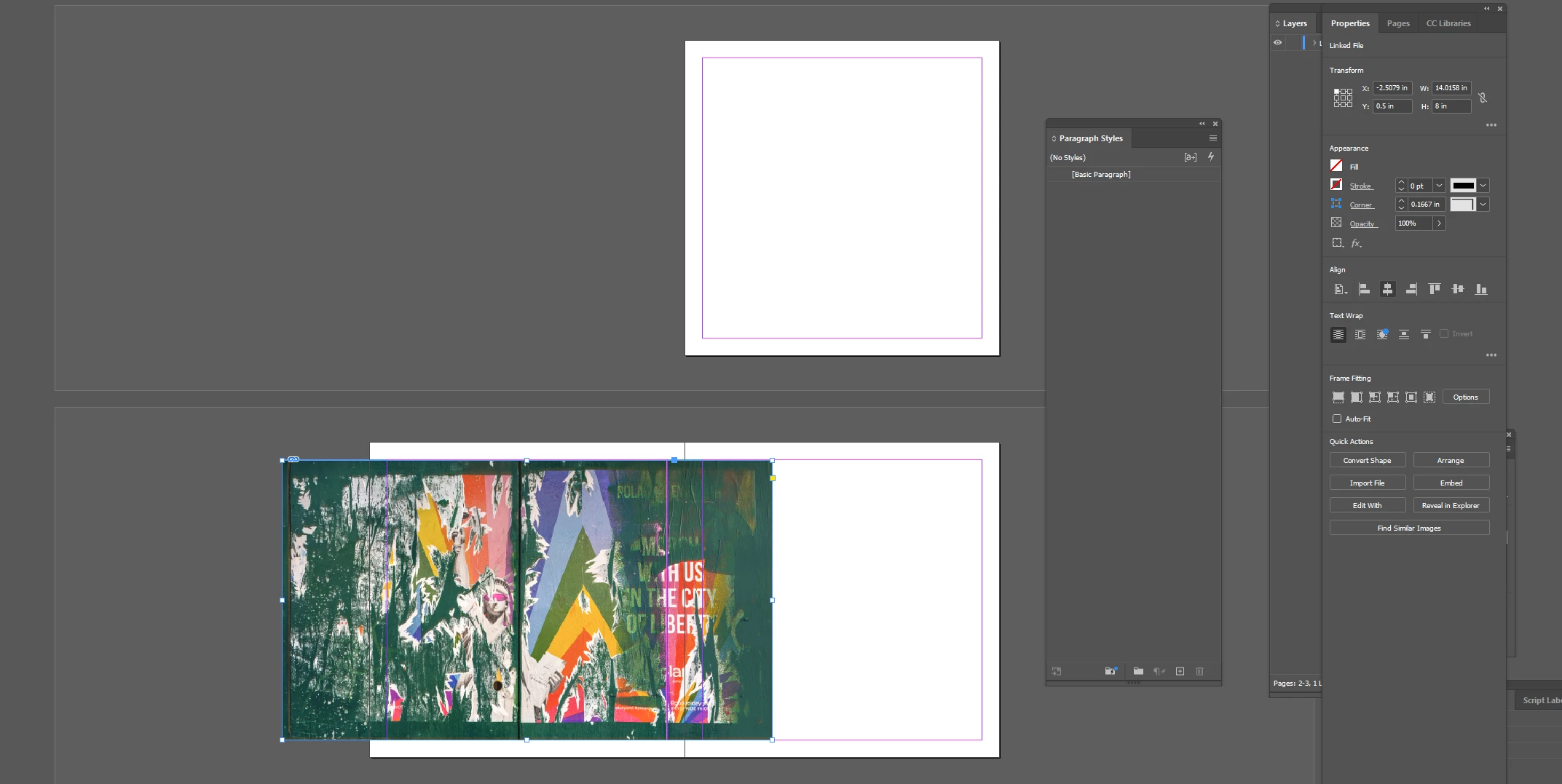
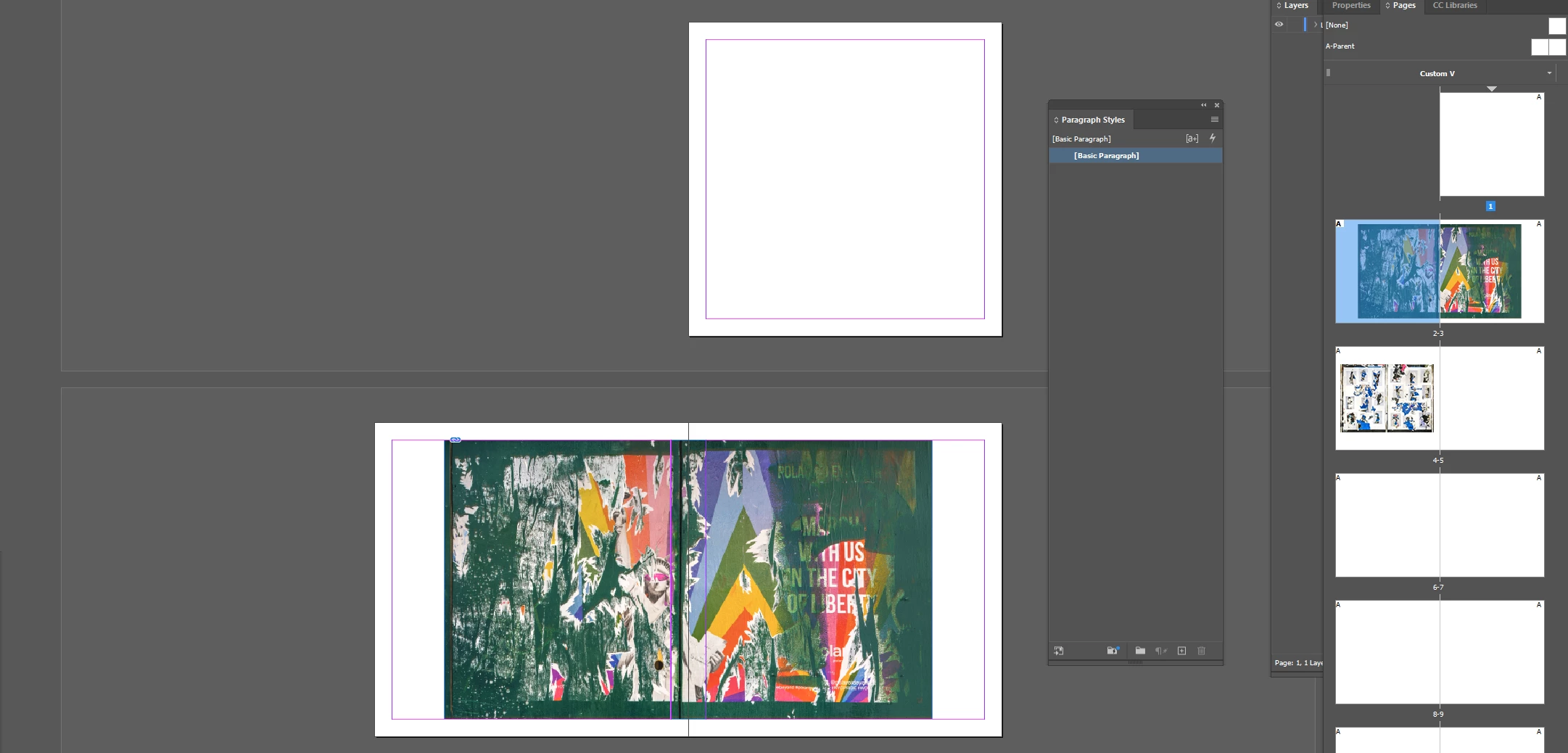
I want to create a PDF where some facing pages are treated as one page for purposes of an image printing across these pages and which is horizontally centered.  I manually centered the image in the first screen shot.  In the 2d screenshot, I selected both pages and chose Align Horizintal Centers, but since the pages aren't joined I got the result shown.  Can I treat these pages as one page so I can center the image horizontally?  Also, how would I make that a Parent Page so I could apply that treatment to other pages in the book?  Thank you.  


This topic has been closed for replies.
Correct answer rob day

Hi @bartonlew , I assume this is not for a document that will not be professionally printed and bound? Bound books need to be imposed from single pages, and in the case of a spread you would simply cross the image over the facing page spread and Export the PDF as single pages—the printer will handle the crossover imposition.


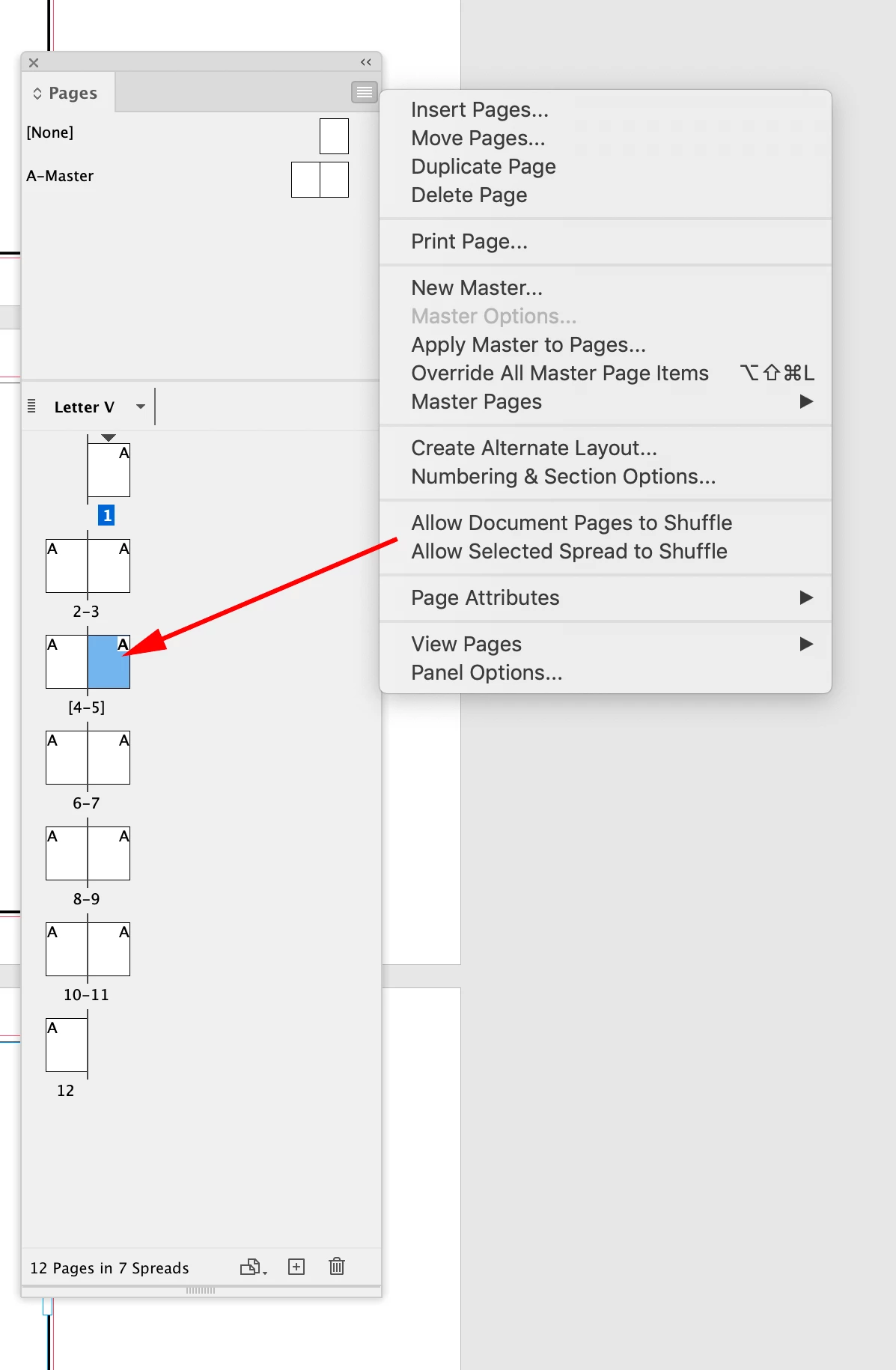
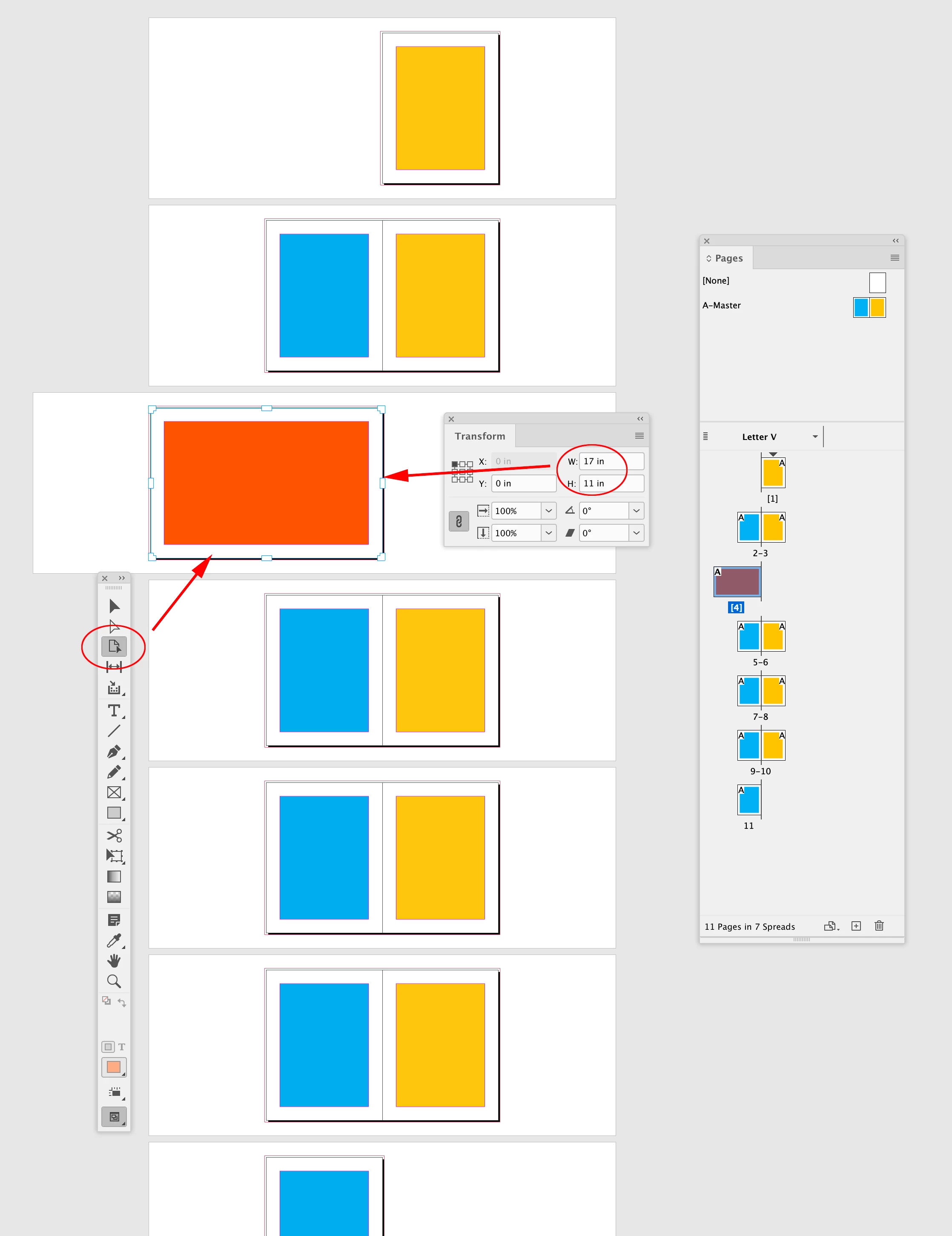
If it’s for a PDF where you want to allow someone to selectively print an individual spread from Acrobat, a document page can be sized to any dimension with the Pages tool. Here I’m selecting page 5, and with Allow Selected Spread to Shuffle unchecked, I can delete page 5, and then with the Pages tool resize page 4 into a spread:


1 reply

rob day
Community Expert
rob dayCommunity ExpertCorrect answer
Community Expert
August 18, 2023

Hi @bartonlew , I assume this is not for a document that will not be professionally printed and bound? Bound books need to be imposed from single pages, and in the case of a spread you would simply cross the image over the facing page spread and Export the PDF as single pages—the printer will handle the crossover imposition.


If it’s for a PDF where you want to allow someone to selectively print an individual spread from Acrobat, a document page can be sized to any dimension with the Pages tool. Here I’m selecting page 5, and with Allow Selected Spread to Shuffle unchecked, I can delete page 5, and then with the Pages tool resize page 4 into a spread:


bartonlew
bartonlewAuthor
Legend
August 18, 2023

Thanks.  All went well until clicking on the 3rd icon (underneath Direct Selection Tool) in your 2nd screenshot.  Then I did not see the same "Transform" dialog box pop up as you show.  So instead I went over to Properties, and changed the width there.  But that gave me the result below.  What am I doing wrong?  (And yes you are right this is not to send to a printner, but create a rough edit.)  Thanks.


rob day
Community Expert
Community Expert
August 18, 2023

Transform is a panel. See Window>Object&Layout>Transform.