helle elisabethz98183416
Participant
May 30, 2018
Answered

Making a rectangle with an arrow attached?

  • May 30, 2018
  • 2 replies
  • 7429 views

Hi!

I need to do a rectangle (to put some text in) and point at a certain place on a map in my document in Indesign. I have no idea how to do this. Can I find this in the program or do I have to make one myself (and how do I do that)?

Thanks a lot // Helle
This topic has been closed for replies.
Correct answer Laubender

Hi,

that would be a rectangle that is not closed. With a arrow head.

So yes, it's doable.

Some steps that illustrate this.

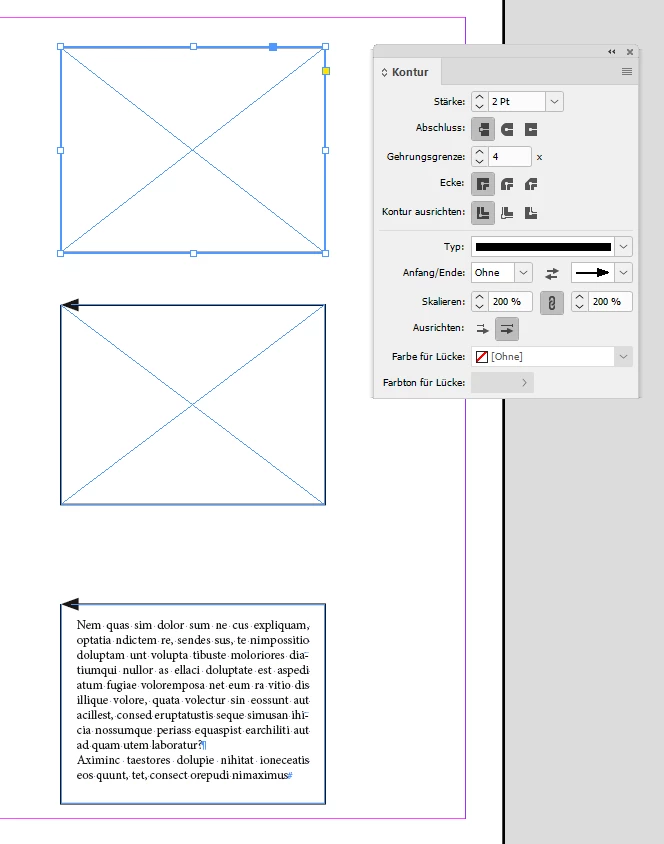
Draw a rectangle and define an arrow head and a stroke weight:

Now open the path of the rectangle with the Path Finder:

Convert the rectangle to a text frame: Just click with the Type Tool inside the frame. Or use the corresponding menu action.

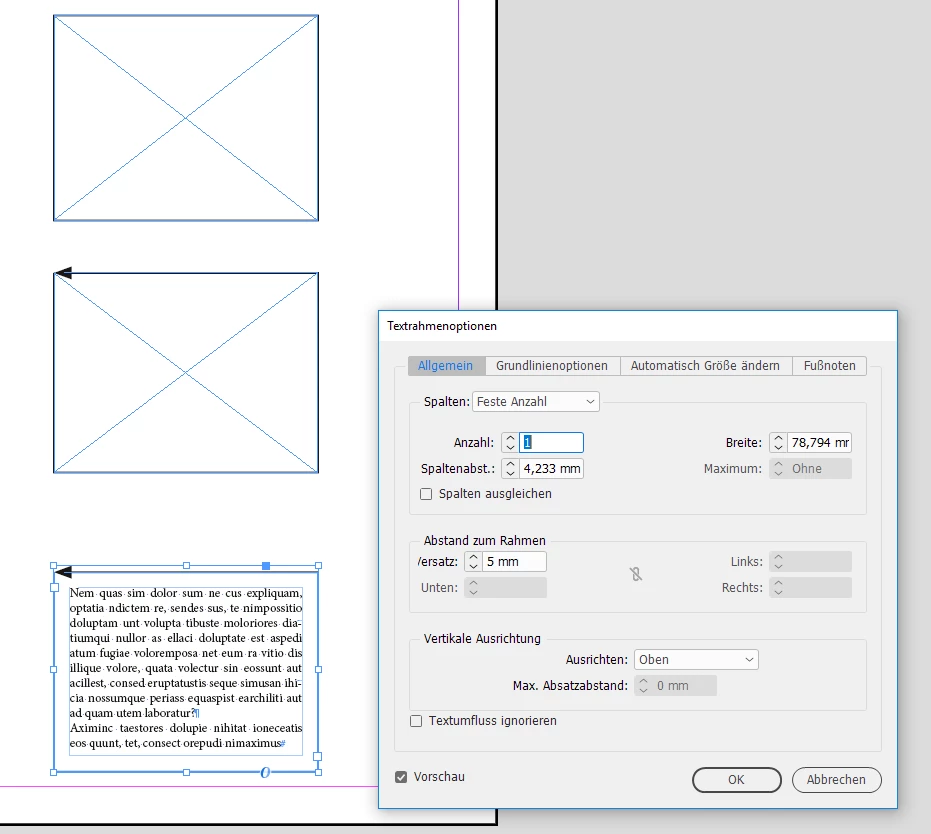
Do some insets with the text Frame Options:

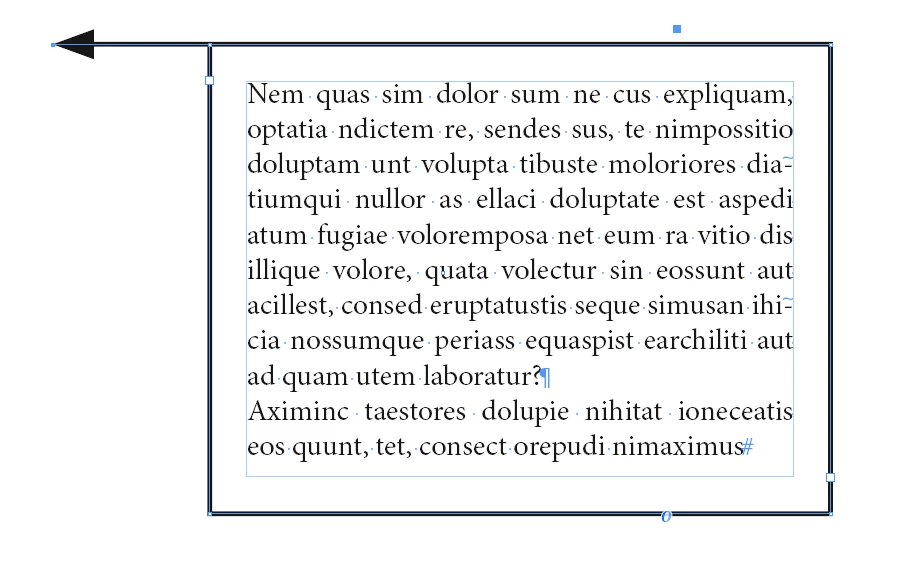
if you want the tip of the arrow outside select the frame with the Direct Selection Tool and drag the path point at the tip of the arrow head a bit out:

Regards,
Uwe

2 replies

Colin Flashman
Community Expert
Community Expert
May 30, 2018

If the OP is trying to make callout boxes similar to those in a flowchart diagram, perhaps check out Indiscript's Autostick script:

Indiscripts :: AutoStick | Simple Diagrams Made Easy

If the answer wasn't in my post, perhaps it might be on my blog at colecandoo!
Shiv Allva
Known Participant
June 10, 2022

Cool solution!


I've a slightly interesting requirements (chk below images) I need only the ARROWs, but not stroke. On this solution arrow with is tied with stroke, so making the stroke width to zero, make the arrow disapper. So, am I left only with inserting an Anchored Black Triangle Inline frame at tf.insertionPoints[0] and position it on top left/right? or is there any idea to deal with just object style? Would appreciate any help?

LaubenderCommunity ExpertCorrect answer
Community Expert
May 30, 2018

Hi,

that would be a rectangle that is not closed. With a arrow head.

So yes, it's doable.

Some steps that illustrate this.

Draw a rectangle and define an arrow head and a stroke weight:

Now open the path of the rectangle with the Path Finder:

Convert the rectangle to a text frame: Just click with the Type Tool inside the frame. Or use the corresponding menu action.

Do some insets with the text Frame Options:

if you want the tip of the arrow outside select the frame with the Direct Selection Tool and drag the path point at the tip of the arrow head a bit out:

Regards,
Uwe

Community Expert
May 30, 2018

You can also add a path point and change the direction the arrow is pointing to.

You can also mirror the shape of the path using the Direct Selection Tool and the Transformation Panel:

Regards,
Uwe

helle elisabethz98183416
Participant
May 30, 2018

Wow Uwe! Thanks a lot. What a lovely thing to give of your knowledge and time like that! :-)