I’m not familiar with the term “interactive image” being used that way; usually “interactive” means an image you can click on as a button that makes other things happen. In InDesign, all the File > Place command does is link back to the actual image file using a file path; in other words, it does not make its own copy of the image to store inside the InDesign document. That means the Place command works exactly the same way as an image on a web page, or a video imported into a pro video editor…in all of those cases, the document does not contain a copy of the media file but links back to the actual file, showing only a placeholder in the document. Not embedding a copy saves a lot of storage space, and makes updates easy (edit the original file, and it’s updated in all pages or documents linking to it).
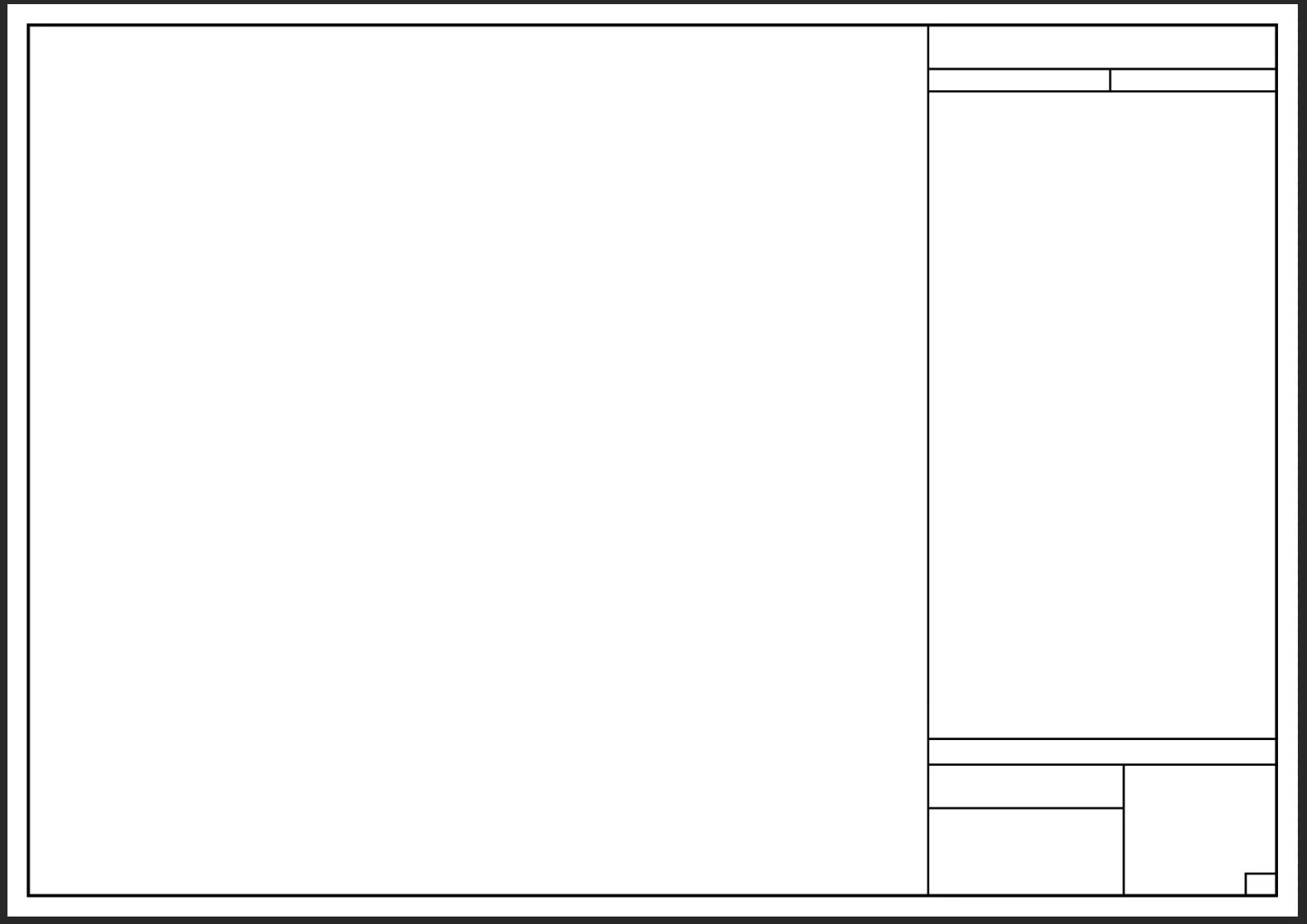
The way I answered your question was assuming you were talking about just the empty black rectangles. Those can be drawn as graphics in InDesign, and you would use Object Styles with those. If you are talking about photos or other graphics that you want to place inside the frames, then those would not need Object Styles, but they will, as you say, “keep its ‘interactive’ properties.” For example, after you place a Photoshop document into an InDesign graphics frame, at any time you can choose Edit > Edit Original, and that will pop that graphic open in Photoshop. If you edit that in Photoshop and save it, the instance in the InDesign document will update.
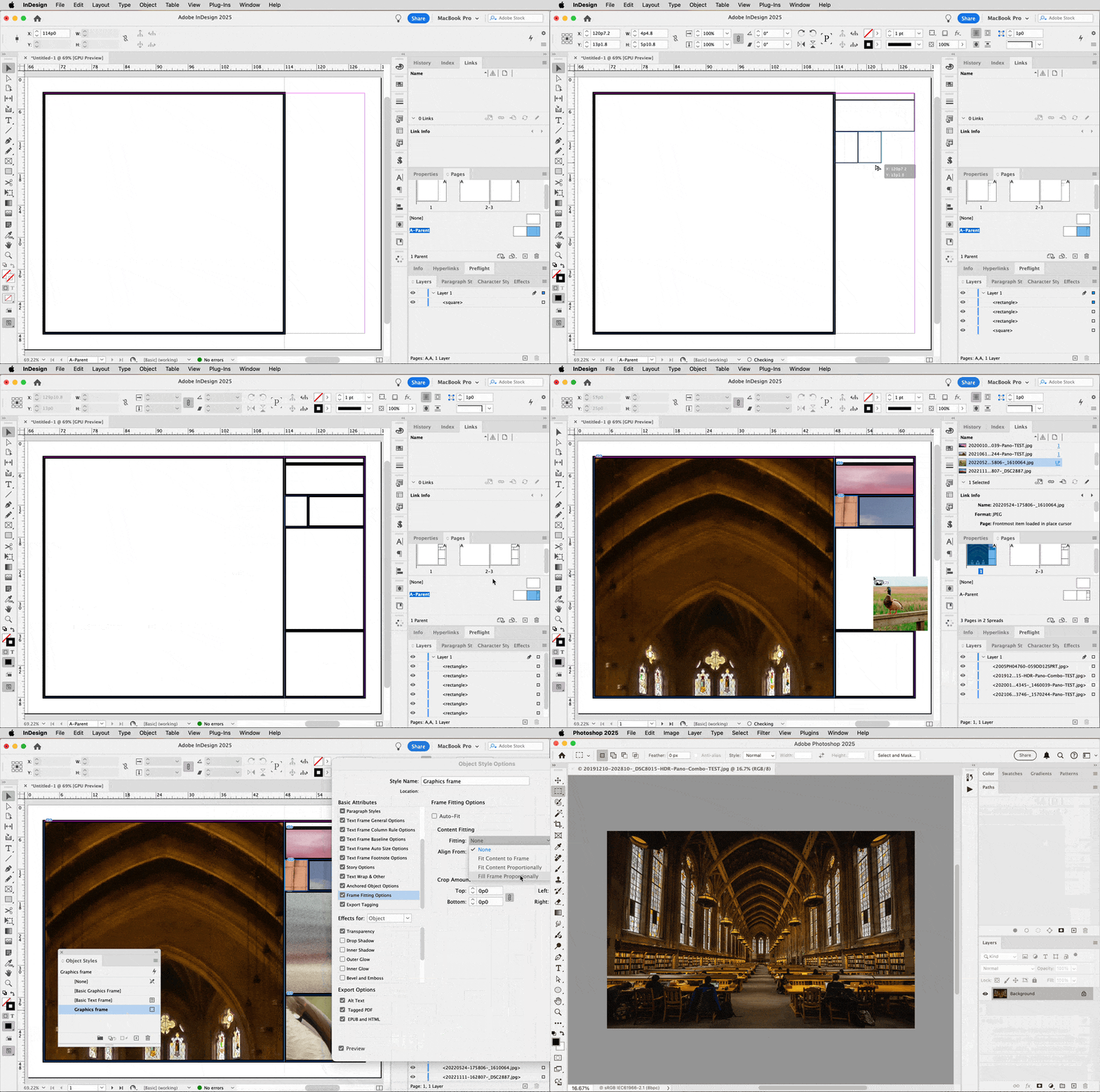
What’s shown in the demo below (sped up 2x to minimize the GIF animation file size):
1. Using the Rectangle tool to draw graphics frames. (Actually, I drew one and kept duplicating it.)
2. New frames are not the correct style, so I open the Object Styles panel and apply my pre-defined “Graphics frame” style, and all selected frames are instantly corrected.
3.I switch to Adobe Bridge where several images are selected, and I start dragging them. Without releasing the drag, I switch back to InDesign and the pointer is loaded with the images. (This works because drag and drop to InDesign is a shortcut for File > Place. If you were in the Place dialog box, you could select multiple images.)
4. In InDesign, watching which image is active in the Place pointer, I click the loaded pointer in a frame to load that image into it, and repeat for other frames.
5. The images were not properly fitting the frames, so I edited the Object Style for the frame, adjusting Frame Fitting Options so that all frames use the Fill Frame Proportionally option.
6. I decide that one image needs further editing, so I select it and choose Edit > Edit Original. The source image file is popped open in Photoshop.
So given some experience with InDesign and some advance planning, building each page can go very quickly, as shown.
Not shown: The numerous features InDesign has for managing automatic page numbers, parent pages, management of spreads and facing pages, etc. to make book building far faster and easier than it ever would be in Photoshop alone.





 AdChoices