Inspiring
May 9, 2017
Answered

Managing text (and contents) + numbers + tabs? Daily life problems...

  • May 9, 2017
  • 2 replies
  • 1060 views

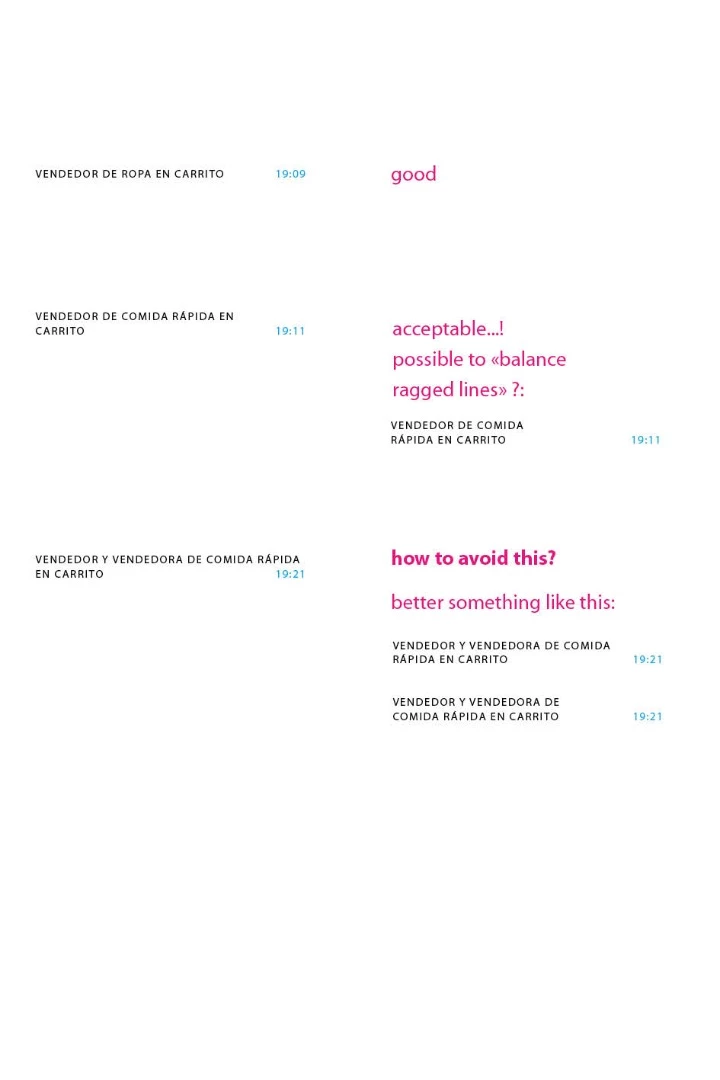
In this example it is necessary to avoid the collusion of text and number as seen in the third example/left column.

It is possible to manage this with some Indesign resources?

Thanks.
    This topic has been closed for replies.
    Correct answer Migintosh

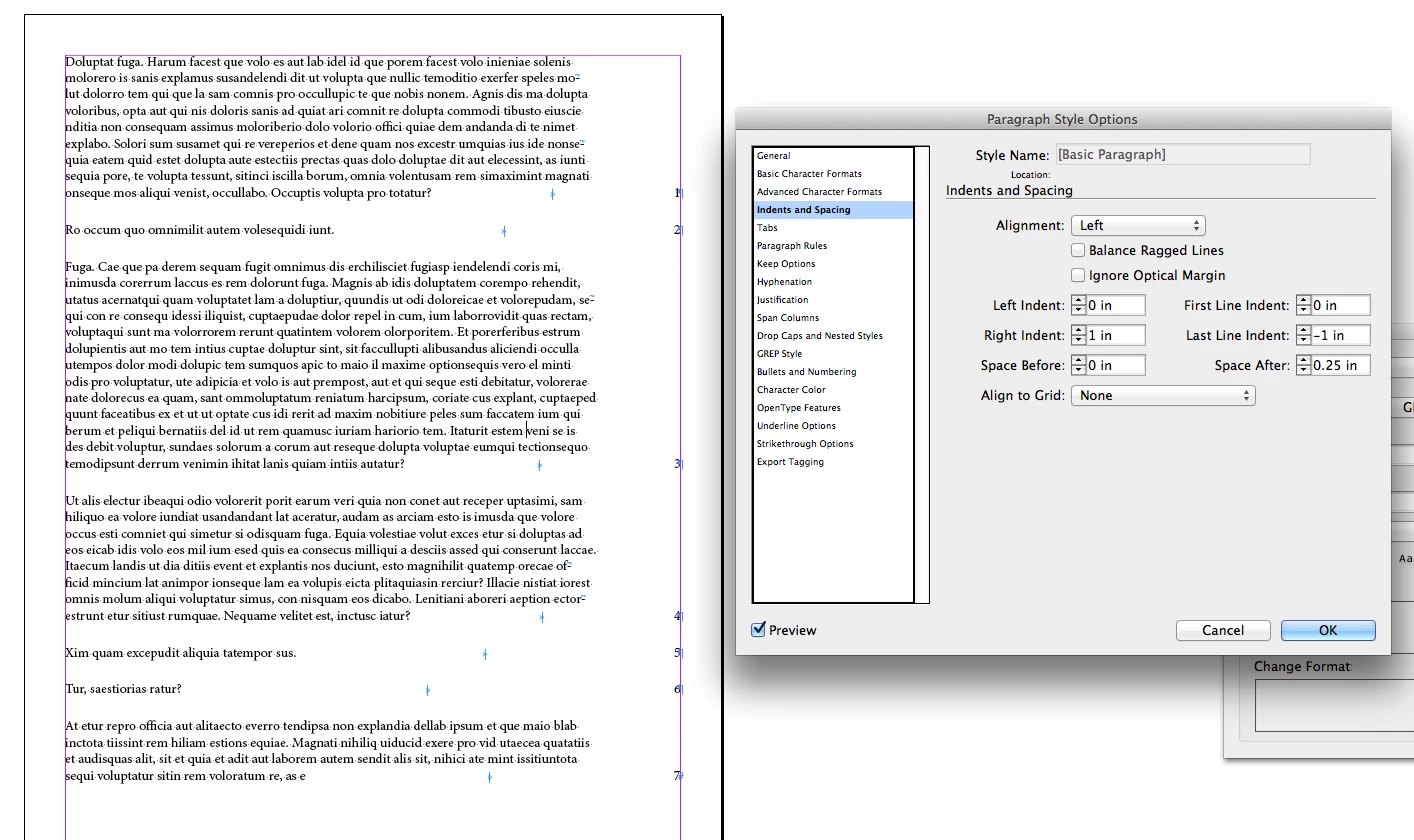
    Try removing the soft returns (line breaks that are not paragraph returns) and set your right indent to the amount of space that will clear your page numbers. Then set the last-line indent to the negative value that you set for the right indent. For example, right indent at 1 inch and last-line indent at -1 inch.

    2 replies

    Inspiring
    May 10, 2017

    DBLjan,

    Yes, it seems the resource inside ID to manage this!

    In TOC is a very common nuissance.

    Let me test it.

    Thanks in advance,

    c.

    Inspiring
    May 14, 2017

    Hi, DBLjan,

    Sorry for my delay.

    Here is an example using right tabs.

    In your example sometimes you added a new line to insert the page number... With that trick the folio gets converted to a new style and the problems is resolved, as you have two different styles to manage the text...

    No, the page number must be in line with the last line of text.

    Please, see the example. Perhaps I did not catch your idea: always the text penetrates the whole space to the right as in this example.

    That is not fine.

    Thanks for your reply.

    MigintoshCorrect answer
    Legend
    May 15, 2017

    Try removing the soft returns (line breaks that are not paragraph returns) and set your right indent to the amount of space that will clear your page numbers. Then set the last-line indent to the negative value that you set for the right indent. For example, right indent at 1 inch and last-line indent at -1 inch.

    Legend
    May 10, 2017

    Could you do it as a table with no strokes on the cells?

    Legend
    May 10, 2017

    What about:

    +

    =

    Legend
    May 10, 2017

    Or just with a right-alignment-Tab: