
chrisc8655794217938063
Inspiring
April 17, 2021
Answered

Margins don't correspond to setup

  • April 17, 2021
  • 3 replies
  • 582 views

Hi Adobe experts!


I have a document that I set up with an outer margin of 0.5 in and a bottom margin of 0.75 in.


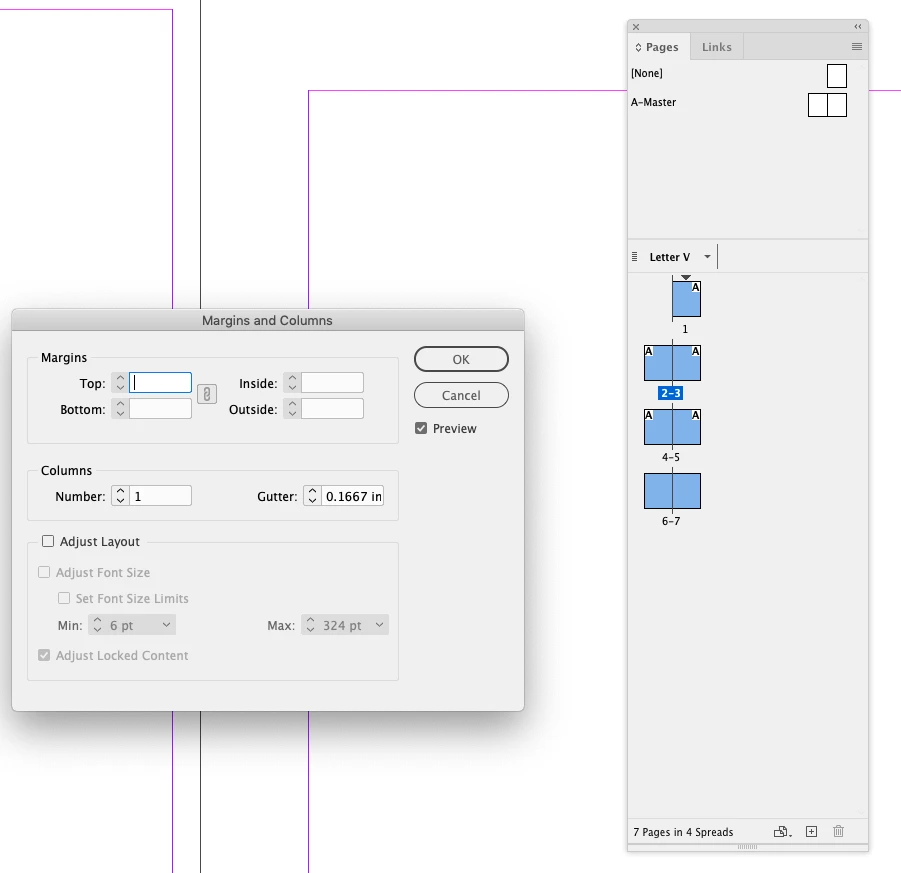
However, when I look at any page onscreen (master or doc page), the margins show as completely different to this, against the ruler (approx 0.75 in and 1.5 in - see screenshot).


What the **** is going on?

https://gyazo.com/a4af9c8b9621807d9cf0497f90be2401


This topic has been closed for replies.
Correct answer rob day

... and how do I correct it? I can't use Adjust Layout as this already thinks the margins are at their target size.


Margins and Columns are a page property—the Document Setup sets the initial margins for the document but each page or master page can have custom margin settings. Select all of the pages you want to change in the Pages panel then select Layout>Margins and Columns and enter the desired settings for the selected pages.


3 replies

Participating Frequently
April 17, 2021

I've had the same thing happen before. Go to Layout > Margins and Columns. 

chrisc8655794217938063
Inspiring
April 17, 2021

Hi both.


Yes, Layout>Margins and columns shows the "correct" numbers - i.e. they correspond to the actual document.


But (a) why are they different? and (b) I set the document to 0.5/0.75 when I created it.


Is this an Indesign bug?


chrisc8655794217938063
Inspiring
April 17, 2021

... and how do I correct it? I can't use Adjust Layout as this already thinks the margins are at their target size.

jmlevy
Community Expert
Community Expert
April 17, 2021

Go to the Page menu > margins and columns.

What does it show?

Steve Werner
Community Expert
Community Expert
April 17, 2021

In your screen shot, the color of the ruler is so dark that it's not legible. Can't see anything useful.


I'd change your interface color to make it more legible.

chrisc8655794217938063
Inspiring
April 17, 2021