Inspiring
July 8, 2022
Answered

Maximum place file size

  • July 8, 2022
  • 5 replies
  • 3865 views

Is there a maximum file size I can place?  I am trying to place pages from an Illustrator file and it keeps giving me an error.  The AI file is 1.9 gb (no, I can't reduce it as Illustrator still bloats file size even though all of the images are linked).  


Very frustrating!

This topic has been closed for replies.
Correct answer rob day

There are about 25 layers that I turn on for each page in ID, so I can't save it as a flattened PDF (unless I am missing something).  Each layer = a page.


Hi @displaced7 , When you Save As PDF/X-4 check Create Acobat layers...
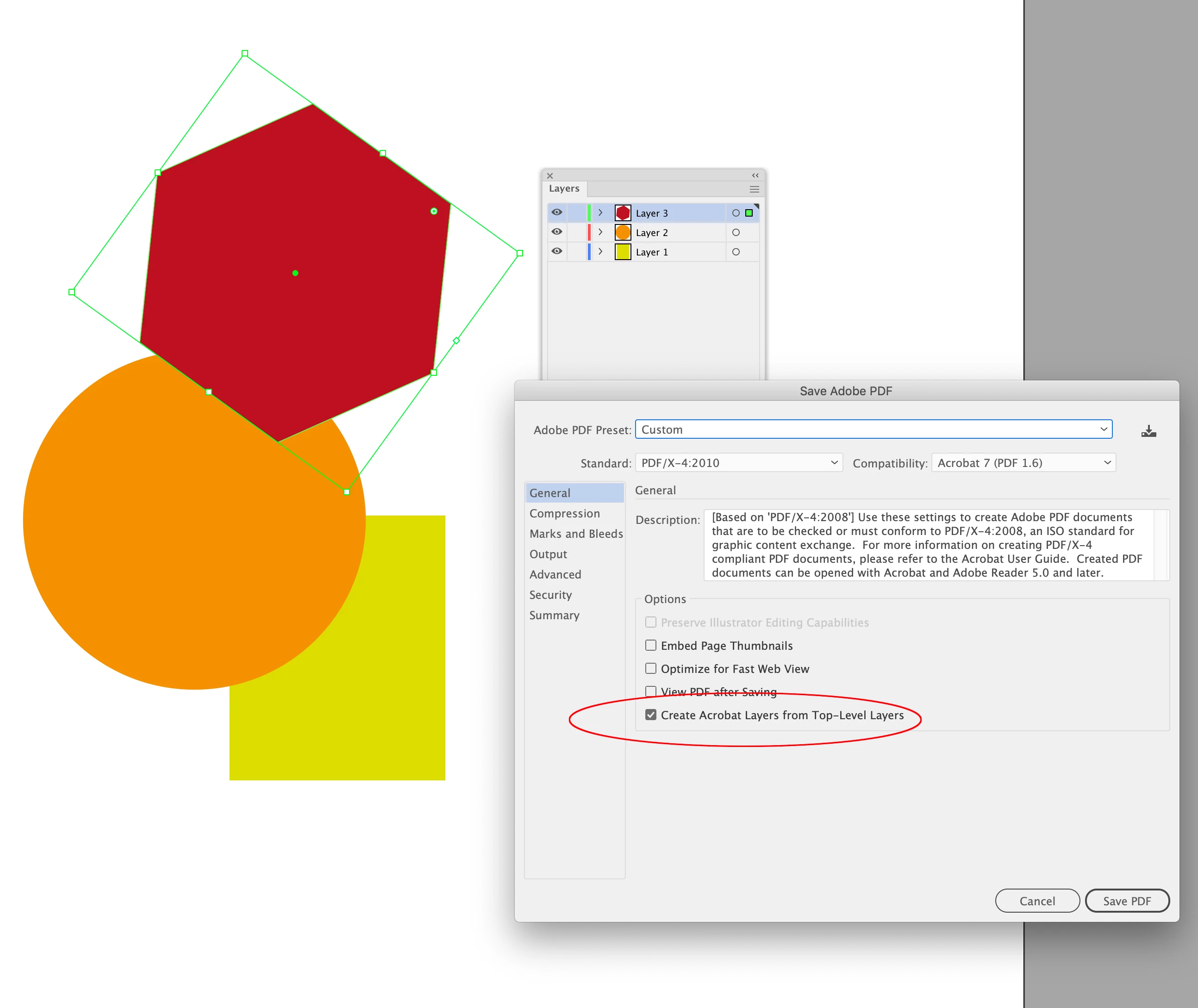


Then in InDesign Object Layer Options will be available:
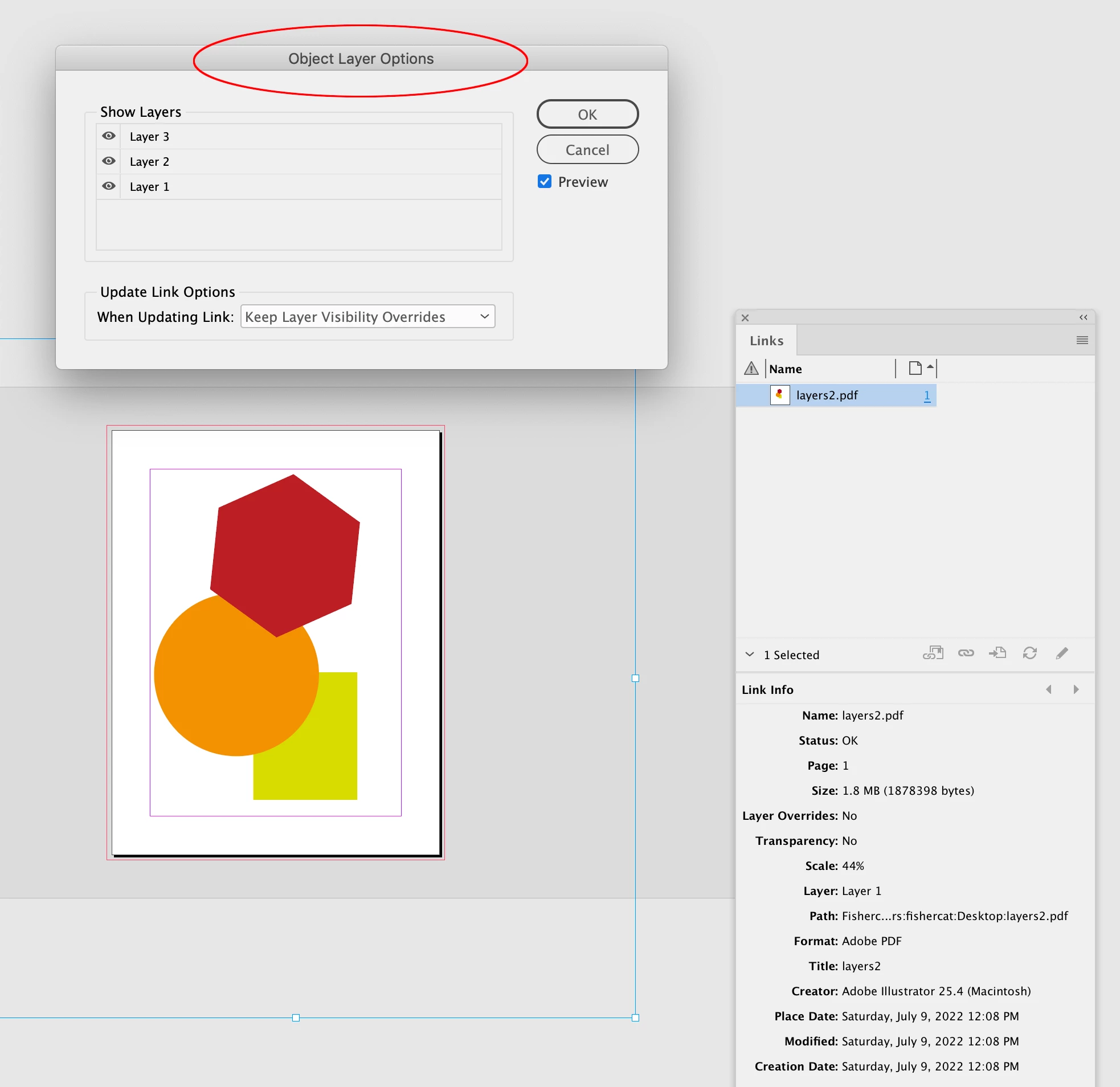


A few thing to watchout for with PDF/X-4, you won’t be able to Edit Original, so you’ll need to keep an editable version as .AI. For me that’s a non starter, but in your case it could be a fix because the placed images are going to get compressed and embedded in the PDF, which might fix any file corruption.


Also the default PDF/X-4 preset downsamples to 300ppi, so if you scale the PDF up in ID, the Effective Res will go below 300ppi

5 replies

rob day
Community Expert
Community Expert
July 8, 2022

I regularly place large Photshop files without any problems—this .psb is 3GB—so it could be related to overly complex vectors in the AI file rather than the file size.


Inspiring
July 8, 2022

It's definitely the file size.  If I delete layers down to, say, 1.2 gb it works correctly.  


There are nothing but images and a few lines of text in the AI file.

rob day
Community Expert
Community Expert
July 8, 2022

Doesn’t seem like there is a file size limit—here’s my 3GB .psb paced 4x in an Illustrator file with the .ai file placed in InDesign:


Took sometime to make the proxy image, but it worked.


How many images are in your .ai file? Can you place all of the images directly into InDesign without any problems? What are your hardware specs?

Community Expert
July 8, 2022

I would suggest looking into ways (if possible) to reduce the size of this graphic file. Deleting unneccesary layers, simplifiy complex paths, deleting unneccesary content beyond live area, set appropriate resolution of placed images, deleting unneccesary content in placed images, etc.

Inspiring
July 8, 2022

There's nothing complex in the file.  It's just linked images.  It's simply the file size of the AI file (if I delete layers reducing it it will place correctly).

No, there would be no point in that.  I might as well divide into 2 AI files, but that's tedious.  This is a problem with InDesign that should not be there (10 years ago, maybe, but now it's just bad on Adobe's part).

BobLevine
Community Expert
Community Expert
July 8, 2022

If it's really the file size, save as PDF/X-4 without Illustrator editing capability. Save as AI first though. You'll have two files but the one you place in ID will be much smaller.

rob day
Community Expert
Community Expert
July 8, 2022

Also does it happen if you uncheck Include Linked Files in the Illustrator Save As dialog?

Inspiring
July 8, 2022

That is unchecked.  AI just does a horrible job (and always has) managing file sizes with images.  Theoretically, the AI file should only be a few mbs as there is nothing but linked images and a few lines of text (no real graphics).

Scott Falkner
Community Expert
Community Expert
July 10, 2022

Illustrator actually manages file sizes quite well. The issue is that the default format (and the format required for placing in InDesign) requires including a PDF in the Illustrator file. Think of it like this: There are two formats of the same image: an Illustrator file with no embedded images and a PDF with images embedded at full resolution with minimal compression. These formats are combined into one file on your computer.


The default format for Illustrator files includes the Illustrator data (complete with layers, styles, links, effects, and hidden layers and objects) and a PDF, which must keep images embedded so it can be placed in InDesign or rasterised in Photoshop. If you have a lot of images, whether they are linked or embedded they will need to be embedded for the PDF portion of the file. You cannot control the settings for the PDF portion, except to omit them (save with PDF Compatibility disabled).


Turning off PDF Compatibility can significantly reduce file sizes. If your only use for a file is to edit it and print or export from Illustrator then turning off PDF Compatibility has several advantages. Files are much smaller (I have reduced files from hundreds of MB to 2 MB). Saving files is much faster since much less data is saved to disk. This introduces another advantage: less lost work because you save more often because saving is instantaneous.


Unfortunately if you need to use the Illustrator file outside of Illustrator you will need to save it in a compatible format, which is usually PDF. When you save with PDF Compatibility on you get no control over downsampling or compression. Images are not downsampled, compression is minimal, and images are not cropped. (Place a map of the world, crop out everything but Sardinia, then save a PDF. That PDF will contain a map of the world, almost all of it hidden.)


You can get around that by saving as PDF with Illustrator Editing Capability enabled. Effectively this is the same file but with a .PDF extension instead of .AI. But with one added benefit: you can specify the PDF export options. So if you want images downsampled or a high compression setting you can turn those on. The file will still be large, but perhaps no as large as the Illustrator file. Saving will still take longer, but perhaps not as long as the Illustrator file. you won’t lose any data because the Illustrator file is still embedded in the PDF You will have to remember to edit it in Illustrator.

rob day
Community Expert
Community Expert
July 8, 2022

it keeps giving me an error.


Can you show a capture of the error? Do you get the error if you set the View>Display Performance to Fast Display before trying to place?

Inspiring
July 8, 2022

The error is "Failed to open PDF file" (though it is an AI file).  There is no other error.

BobLevine
Community Expert
Community Expert
July 8, 2022

Make sure you show options when placing the file. These are sticky options and if you chose something prior to this that isn't compatible with this file, you'd get that error. 

Willi Adelberger
Community Expert
Community Expert
July 8, 2022

Save as PDF/X-4 without Illustrator editing capabilites and place that.