Participating Frequently
May 5, 2021
Answered

Merge two pages in spread

  • May 5, 2021
  • 1 reply
  • 5492 views

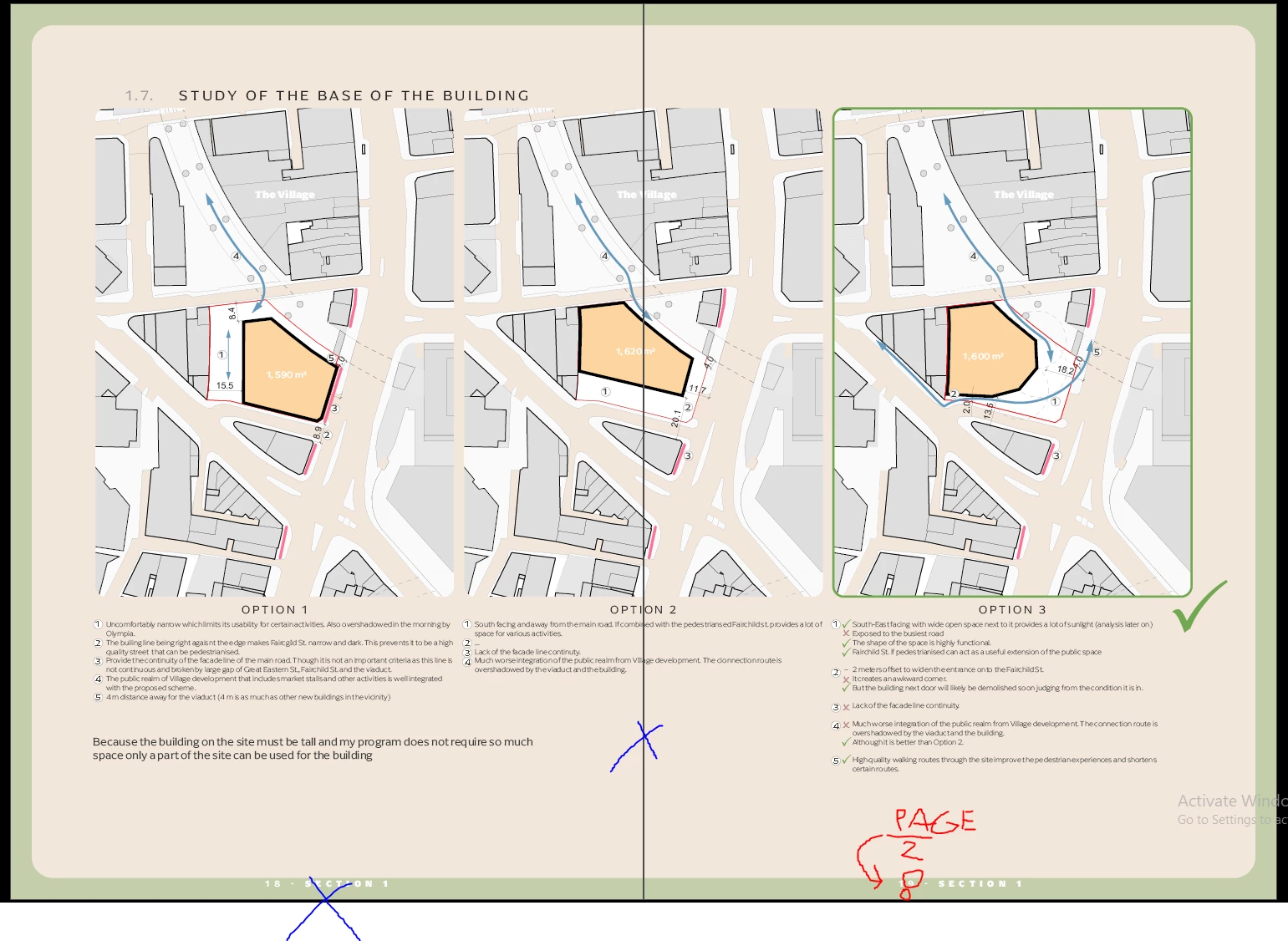
I exceed my page count for my submission. A cheeky solution to that is to merge two A3 pages into one on a spread and label it as one page. (see below

How can I do it without messing up my finished document?

I only care about correct page numbering and table of content for this I think.

Any ideas?


This topic has been closed for replies.
Correct answer Luke Jennings3

What I need to do:

78 portrait pages need to become 39  landscape pages.

E.g: Portrait pages 18 and 19 that are A3 should become one landscape A2 numbered p.8. Numbering and table of contents should reflect the change.


How I understood you:

I should link the Original Indesign Document inside new InDesign document page by page. In the new document, I will have two portrait pages that are linked on one landscape page. This new document also contains new page numbering (not linked).


I would select and group the spread page content for each spread, then change the document setup to A2, non-facing pages, then adjust the content position on page 1 and use Object> Transform again on the other pages.

Make sure no objects or layers are locked, you may need to address master page items.

Edit: if this is to be printed, you will need 40 pages.
1 reply

Luke Jennings3
Community Expert
Community Expert
May 5, 2021

One way would be to create a new one page InDesign file at the spread page size, place pages 18 & 19 of the original InDesign file (not copy/paste) into the new file and export to a PDF. In Acrobat, replace pages 18 & 19 on the original PDF with the new single (spread) page PDF.  While you would technically have fewer pages in the PDF, there would still be the same number of folios.

Participating Frequently
May 5, 2021

Link one InDesign into another. Didn't know that's possible, interesting. (It is super slow. Linking takes unusually long.)

The printed page numbering I could re-create inside this new one-paged Indesign file.

Regarding the Table of contents I could change it manually I suppose.


That's not ideal (If I got you right). I might still manually copy paste all items from pages 18 and 19 into new A2 page and so on. At least this way table of contents and page numbering will be easy to do. And it seems cleaner. Hm...

Luke Jennings3
Community Expert
Community Expert
May 5, 2021

The page numbers will not change on the new InDesign document, it's comparable to placing a PDF, except any changes to the original file will automatically change in the new file (upon link update). Copy/Paste is asking for trouble, IMHO.

I think I misunderstood your original question, you want to number the entire spread page 18? If so, you can group all content on pages 18 & 19 and use the page tool to change page 18 to the desired spread size, then remove the (now blank) page 19 from the original file. Selecting "Allow selected spread to shuffle" from the pages fly-out menu will allow you to keep page 18 as a single (non-facing) page.

I suggest saving a copy of the original file, as the modified file will be problematic for a commercial printer.

Edit: Here's another suggestion, it might sound complicated, but someone with a similar issue might find it useful. On your original document, create 2 layers, one with normal page numbering, one with modified page numbering (you can use auto-numbering for layer 1 and manual numbering for layer 2). Create a new InDesign file with the modified size page 18 and place all original InDesign pages into the new file, use Object layer options to turn off layer 1, export to PDF.