Participant
July 3, 2024
Answered

Mise en page automatisée InDesign

  • July 3, 2024
  • 3 replies
  • 1777 views

Bonjour,

Je recherche partout sans trouver de réponse à ce sujet : est-il possible d'automatiser la mise en page d'un annuaire, provenant d'un fichier Excell, sur Indesign ?

J'ai essayé via la Fusion de données, mais cela ne me donne qu'un nom + ses coordonées par page et non les uns en dessous des autres, même en choisissant enregistrements multiples...

Précision (voir capture d'écran) : mes colonnes de texte sont chainées entre elles, pour que le texte coule de page en page, et je ne peux pas créer plusieurs blocs de texte les uns sous les autres car la longueur des coordonnées diffère d'un nom à l'autre.


Auriez-vous une solution ?

Merci par avance !

This topic has been closed for replies.
Correct answer jmlevy

I am aware of all you say, Willi, and if all the entries had the same number of lines, I would agree with your process, but in this case you can't define a paragraph style for the name (in bold) followed by another style for the address, followed by a style for the phone number and so on since the pattern is not the same for each entry. Look at the first name of the left column: there are 2 lines of info and look at the first name of the right column : 7 lines of info. How do you want to manage this?

The other solution would be to use 2 paragraph styles, on in bold and the other in regular and to use soft returns instead of hard returns but the find change would be difficult.

My solution has the advantage to use a single paragraph style for all the text, and to use a GREP style to bold the line containing the name and the date.


Je reviens sur le sujet avec une autre solution qui n'utilise pas de styles GREP, pour éviter les éventuels ralentissements (à voir si ce ralentissement est notable dans ce cas-ci).

  1. créer 2 styles de paragraphe, un en maigre et un autre en gras
  2. appliquer le style maigre à tout le texte
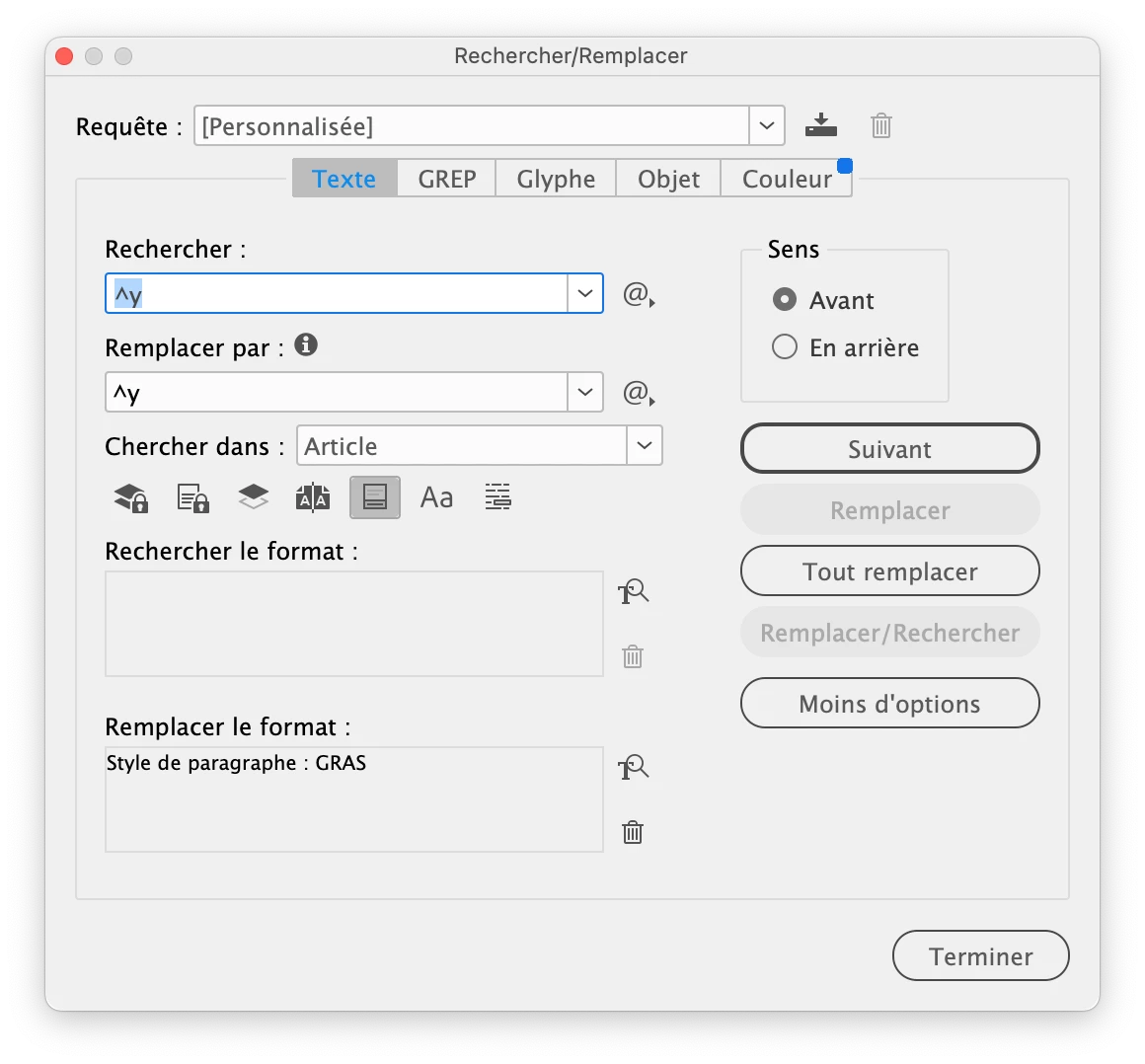
  3. faire un rechercher-remplacer avec ces critères : rechercher les tabulations, les remplacer par des tabulations et leur appliquer le style de paragraphe gras. Cela aura pour efet d'appliquer ce style de paragraphe aux paragraphes contenant des tabulations, en l'occurrence, les paragraphes « nom et date ». Dans mon exemple, il s'agit d'une tabulation forcée à droite (^y).

3 replies

leo.r
Community Expert
Community Expert
July 4, 2024

In addition to all the advice you received, there's also this tool that appears to be able to do what you need:

https://www.decentgroup.co.uk/business-applications/indesign-layout-automation/


I've never used it and know nothing about it except for what they say on the webpage; it's most likely pricey as they don't list the price.

Participant
July 4, 2024

Merci beaucoup à tous les deux pour vos réponses. et votre implication, qui m'aident à mieux comprendre la bonne démarche !

En revanche, il me manque une étape de compréhension, comment je fais pour passer d'un fichier text exporté d'Excell (je vous mets un aperçu du rendu, une fois passé sur word ci-joint) à des données lisibles par InDesign. C'est à dire que le logiciel puisse comprendre où sont les saut de lignes et convertir les tabulations par des espaces ou saut de ligne ?

Afin de pouvoir utiliser la fonction Rechercher/Remplacer de manière optimale.

jmlevy
Community Expert
Community Expert
July 4, 2024

Le plus simple est d'importer le fichier Excel directement dans InDesign et de choisir cette option dans les options d'importation :

Cela transformera ton tableau en texte tabulé. Ensuite, tu transformes les tabulations en retour paragraphe, sauf celles qui sont sur la ligne du nom (ou tu les remets après)

Willi Adelberger
Community Expert
Community Expert
July 3, 2024

Export the Excel file as text file and import it as you would text it.

Participant
July 3, 2024

Merci, mais cela revient donc à tout mettre en forme manuellement ?
Car j'ai plus de 196 entrées.

Willi Adelberger
Community Expert
Community Expert
July 3, 2024

Apply a paragraph style and define next style correctly.

For special space (like between name and  number) add a column in Excel with a code like qyxr and replace it later with the final right aligned space with find & replace. Same do, where returns are to be filled.

At the end select all text, apply the first paragraph style and next style. Everey line has to be its own Paragraph with its distinct style.

Next style succession should create a loop.