


Participant
August 30, 2024
Question

Missing Arial Font Displays as OTF in InDesign 5.5 After Windows 11 Upgrade

  • August 30, 2024
  • 2 replies
  • 953 views

After I upgraded my PC to Windows 11, any InDesign 5.5 documents I open with Arial font, shows
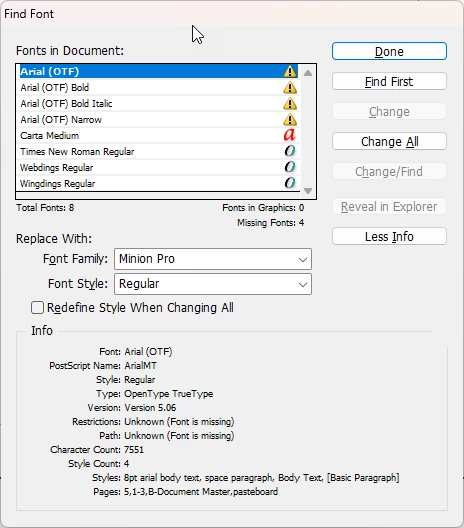
 

I only have Arial as a TTF and that's been this way since I first installed InDesign. When I look at the file path for another font that is listed in the form, it shows correctly. I dont quite get why Arial isn't being seen by InDesign now nor have I found how to fix the issue.

<Title renamed by MOD>


This topic has been closed for replies.

2 replies

Brad @ Roaring Mouse
Community Expert
Community Expert
August 31, 2024

A few things:

First of all, Arial has been OpenType for more than 20 years (since v3.x I believe). TTF is the proper extension, like your Times New Roman. Current Win11 version is v7.01

Two, InDesign CS5.5 is very old and certainly not designed for Windows 11, so consider yourself very lucky it's running at all. That being said, it was designed to find Windows System fonts in a very specific folder location. The fact it found Times New Roman and Wingdings means they are where they are supposed to be. Check your C:/Windows/Fonts folder to see if Arial is there. If not, check this: there have been issues in the past with Arial and a couple of other fonts when a System is upgraded rather than Clean Installed, where some fonts have been moved to a folder called C:Windows/oldWindowsFonts.

In any case, no matter what is causing your issue, if you can see Arial in your Font Menus it's where it's supposed to be for Win11. All you will need to do (even though it might be annoying) is to Find/Replace them and "Replace With" in the dialog box above. (just make sure you check the box to Redefine Styles When Changing). It's good to start with the base Arial Regular, then the styled ones next.

Another problem you might run into is that Windows 11 no longer supports Postscript Type 1 fonts. You have one in this document (Carta: Red A), so don't be surprised if it doesn't process properly.

Peter Spier
Community Expert
Community Expert
August 30, 2024

Have you tried using Find Font to replace the "missing" version with the one that is actually installed, even if it's the same one?