Inspiring
November 17, 2025
Answered

missing figure tags from .ai imported files

  • November 17, 2025
  • 1 reply
  • 102 views

I have an InDesign document that includes vector graphics built in Illustrator and imported as .ai files . They have been given them alternate text in the object export option. 


When I export the file as a PDF, the graphics are not labeled at all. They show up as figure pathpathpath ect... and the alt tag and pdf tag is missing.


Do I have to re-import all the .ai files as images? It is important that the alt tag is there for accessibility. Any suggestions would be appreciated. Thanks
Correct answer Eugene Tyson

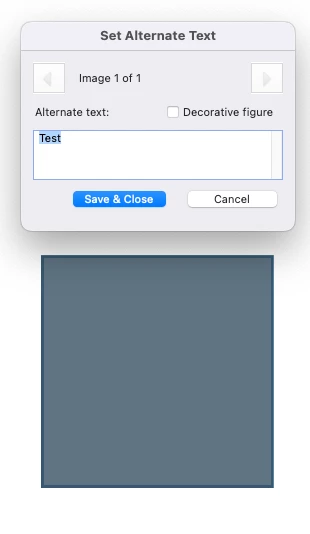
Just did a test there - and open the Accessibility tools and set the alt text - and the preset text is shown automatically


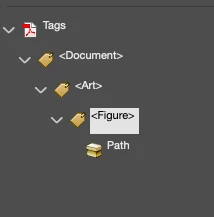
The structure looks like this 


1 reply

Community Expert
November 18, 2025

The reason it isn’t working is because InDesign doesn’t import or recognise any alt text that was added inside Illustrator. When you place an .AI file, InDesign treats it as a graphic container only none of the accessibility metadata from Illustrator is carried over.


That’s why your exported PDF shows the objects as “Figure / Path / Path…” with no alt text or proper tagging.


The fix is to assign the alt text directly in InDesign, not in Illustrator:

  1. Select the placed AI graphic in your layout.
  2. Go to Object > Object Export Options…
  3. Under the Alt Text tab, choose Custom and enter your description.
  4. Export the PDF with Include Tagged PDF enabled.


After that, the PDF will correctly show a single <Figure> tag with your alt text applied.

No need to re-import anything the issue is simply that Illustrator’s alt text doesn’t transfer into InDesign.

Inspiring
November 18, 2025

Thanks for your response, however that is exactly what I've done. And the exported pdf still displays the figure as pathpathpath ect

Eugene TysonCommunity ExpertCorrect answer
Community Expert
November 18, 2025

Just did a test there - and open the Accessibility tools and set the alt text - and the preset text is shown automatically


The structure looks like this