Hi Inélsòre,
here some necessary and extra steps for converting your SVG files from the first batch to AI files with CMYK colors. I mean the ones where the texts are not converted to outlines:
[1] Install the needed fonts in your system
[2] Open the SVG file with Adobe Illustrator 2021
Note: There should be no warning of missing fonts at this point.
[3] Change the color mode of the open artwork from RGB to CMYK.
Theoretically, at that point you could save the file as AI file and place it in your layout in InDesign.
Practically this is not very wise. Why?
You are preparing an InDesign document for CMYK inks printing (my assumption).
Changing the color mode converts the RGB black to a CMYK black where all the four inks have certain percentages and ink black, the K in CMYK, is not 100%. And that will happen to all of the graphics' fills and strokes and also the text that is in RGB black. What we need is text that is filled with 100 K only. And in your case also all other black elements should be colored in 100 K only.
So the some extra steps are necessary to re-color all elements of the graphic in Adobe Illustrator.
The texts as well. For this task you need to know a bit more of Illustrator's features.
E.g. you can select an element and let Illustrator do the hard work to select all other elements of the document that share the same fill color. When done assign the fill color 100 K, that you either have to import or to add to the file.
After you also re-colored all stroke elements, if there are some, you:
[4] Save the file as AI file with the PDF representation included.
Do not include any ICC color profiles!
[5] Place the AI file and use InDesign's feature Separation Preview to control if the blacks are all use the black ink only.
See the following screenshots from my German Illustrator 2021.
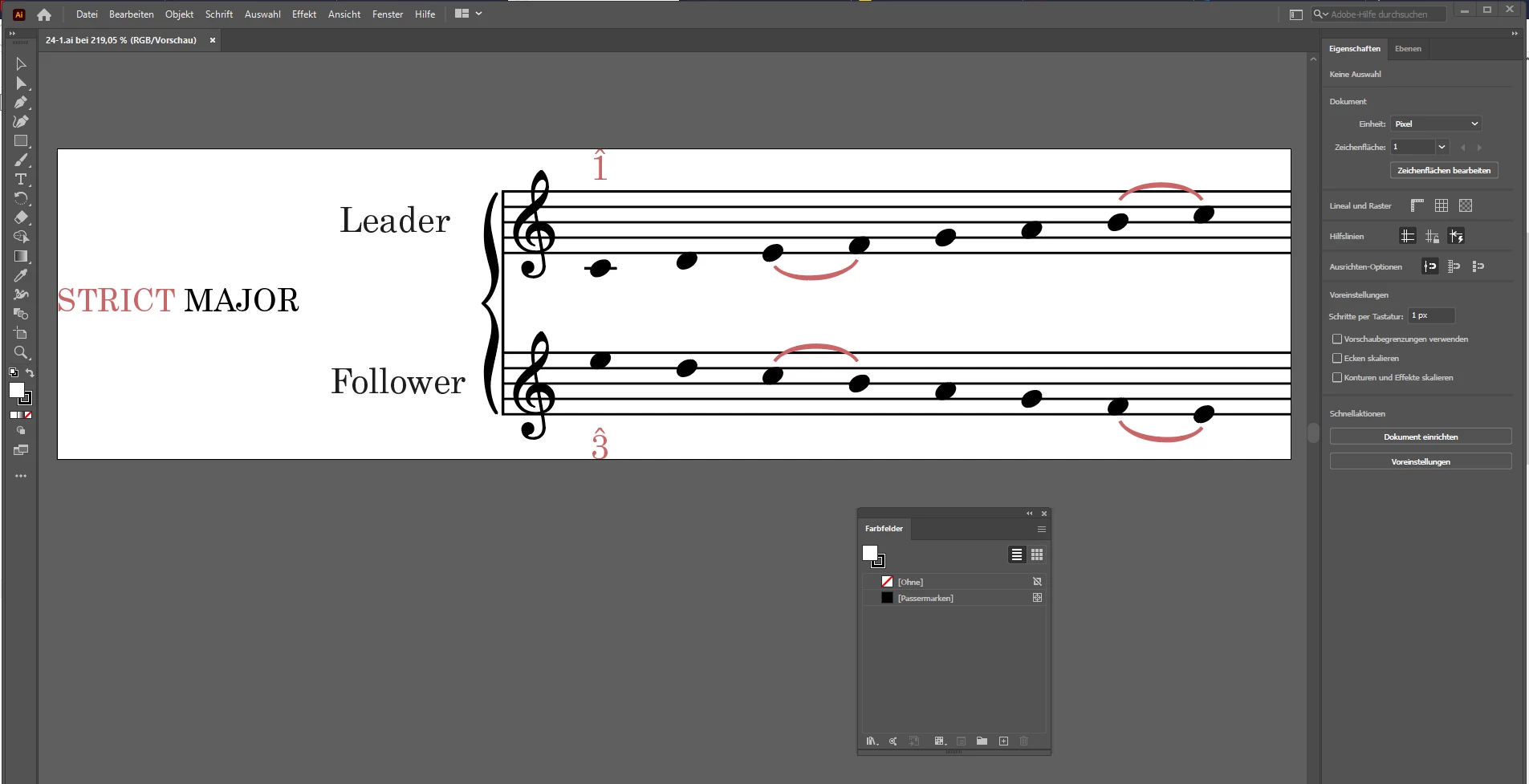
[A] SVG file opened with Illustrator, text is still editable text.
Swatches panel is open with a list view on the available named swatches:
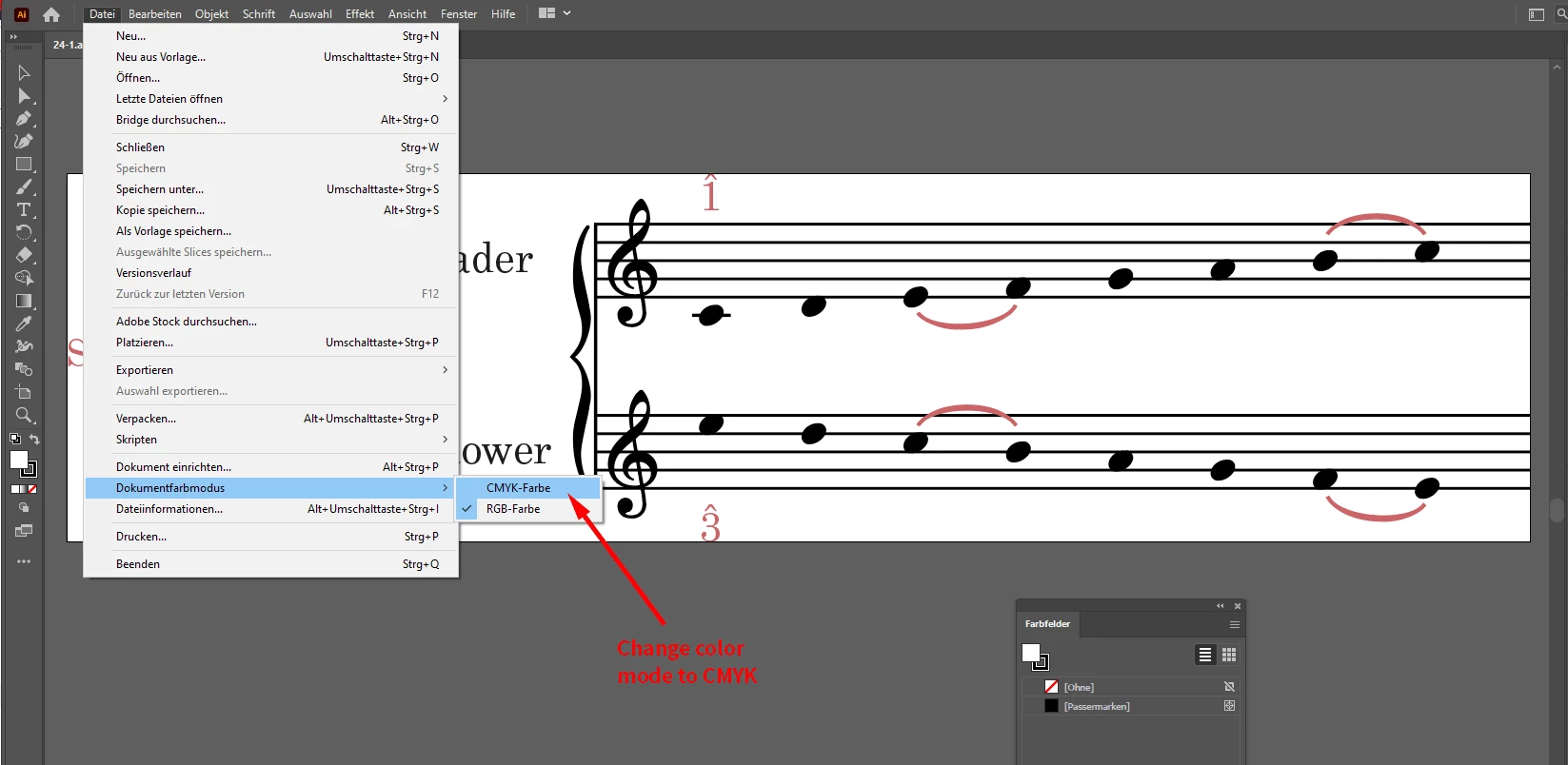
[B] Convert the document to color mode CMYK.
File > Document Color Mode > CMYK
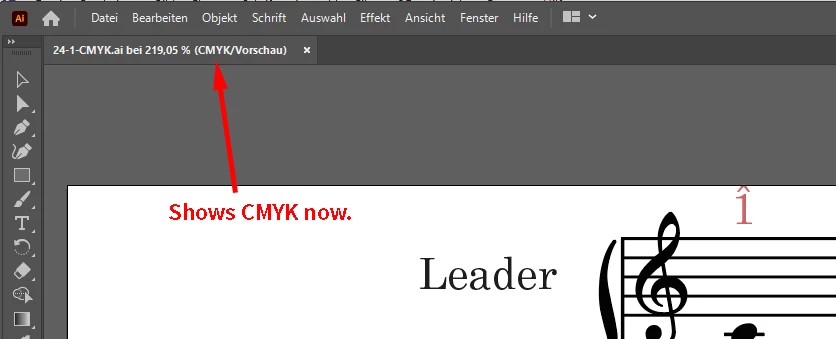
[C] The extra info in the document's tab will inform you if this was done successfully:
[D] Inspect the elements. Switch to "Contour View" with keyboard shortcut Cmd + Y ( when on Mac OS X ) .
What we now can see are two different things: Editable text and a lot of shapes.
At first glance I cannot detect any objects that consist of stroked paths only.
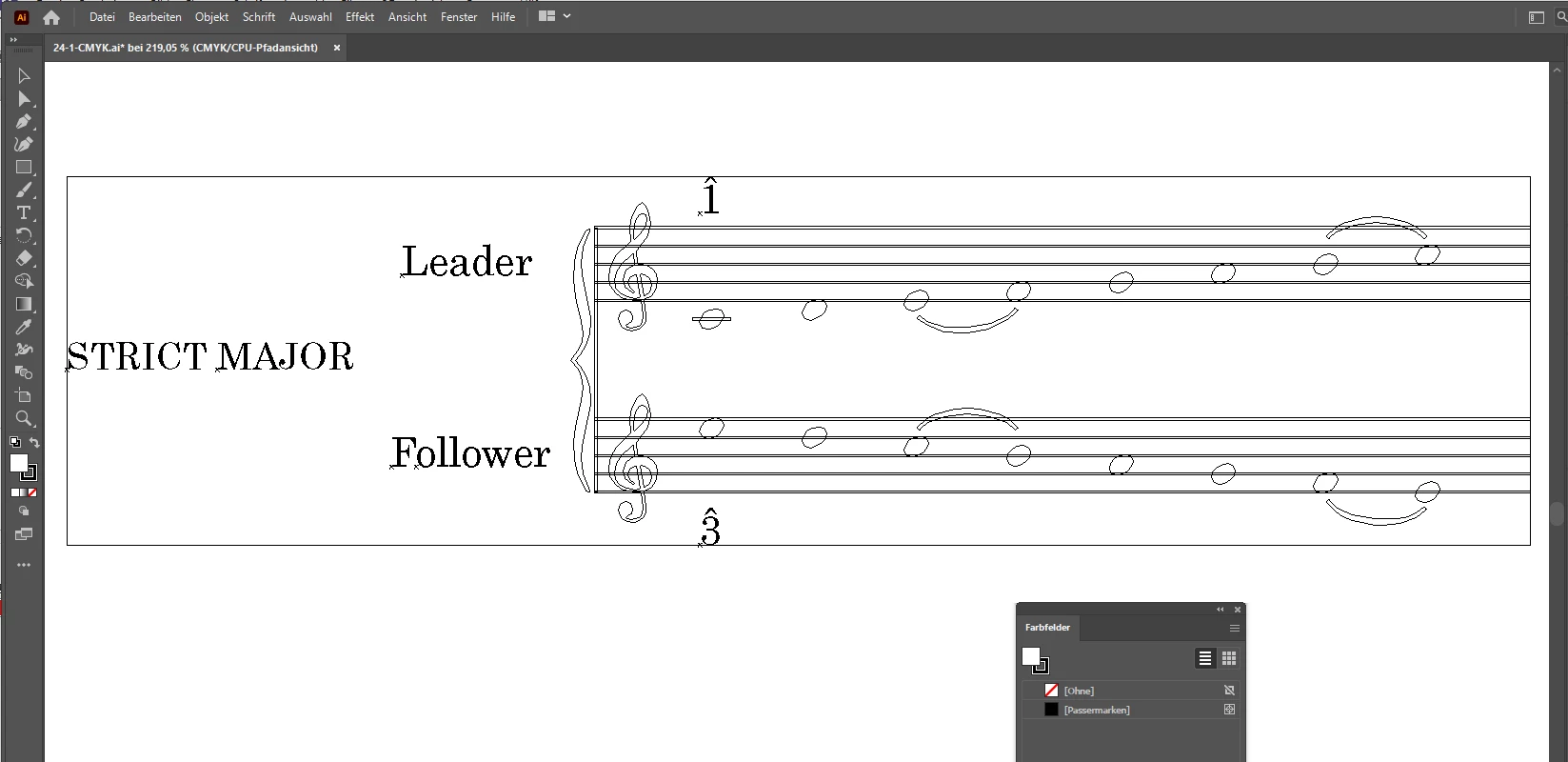
That means we have to deal with fill colors only:
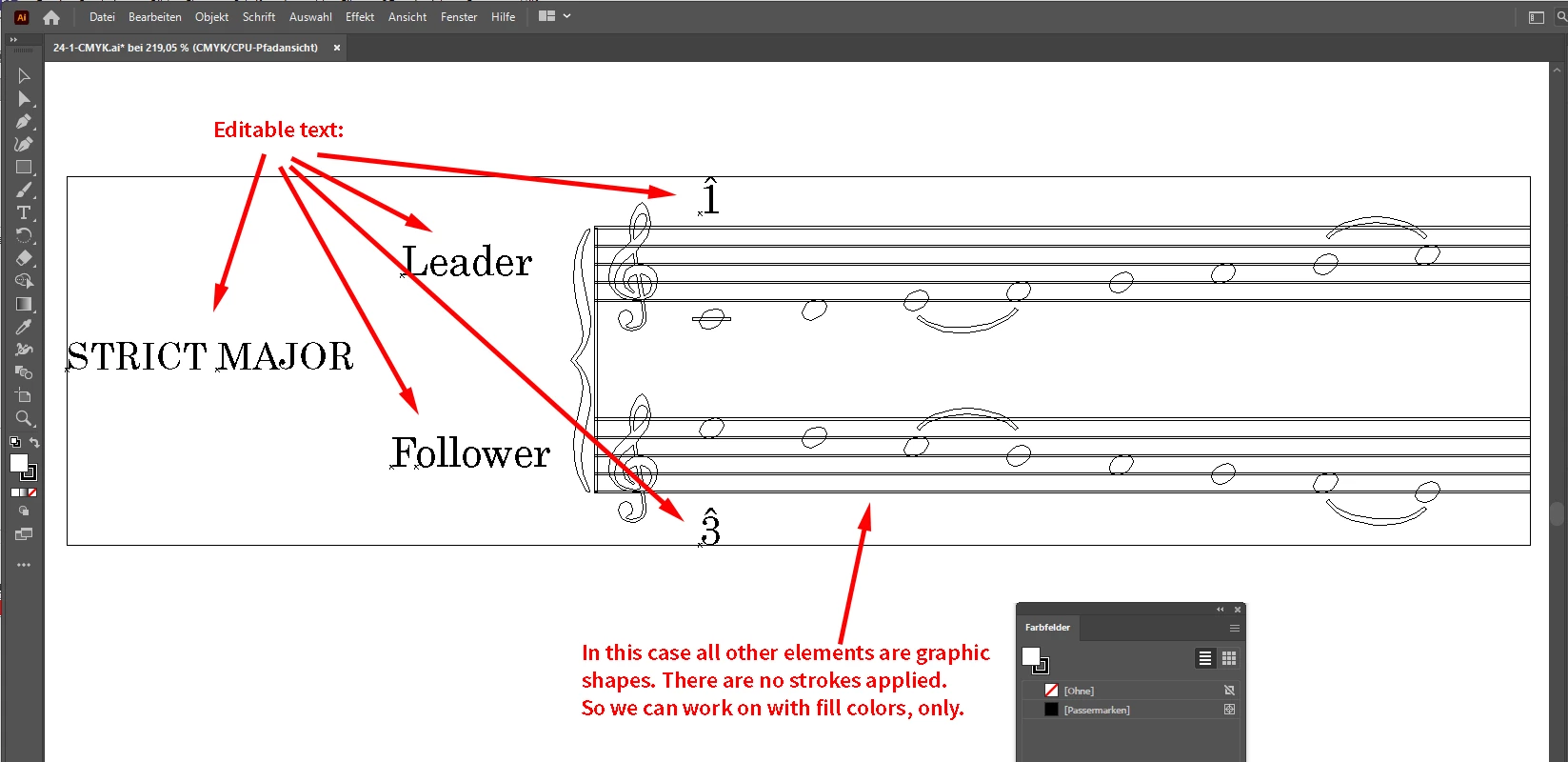
How can I be so sure that there are no elements with stroke colors?
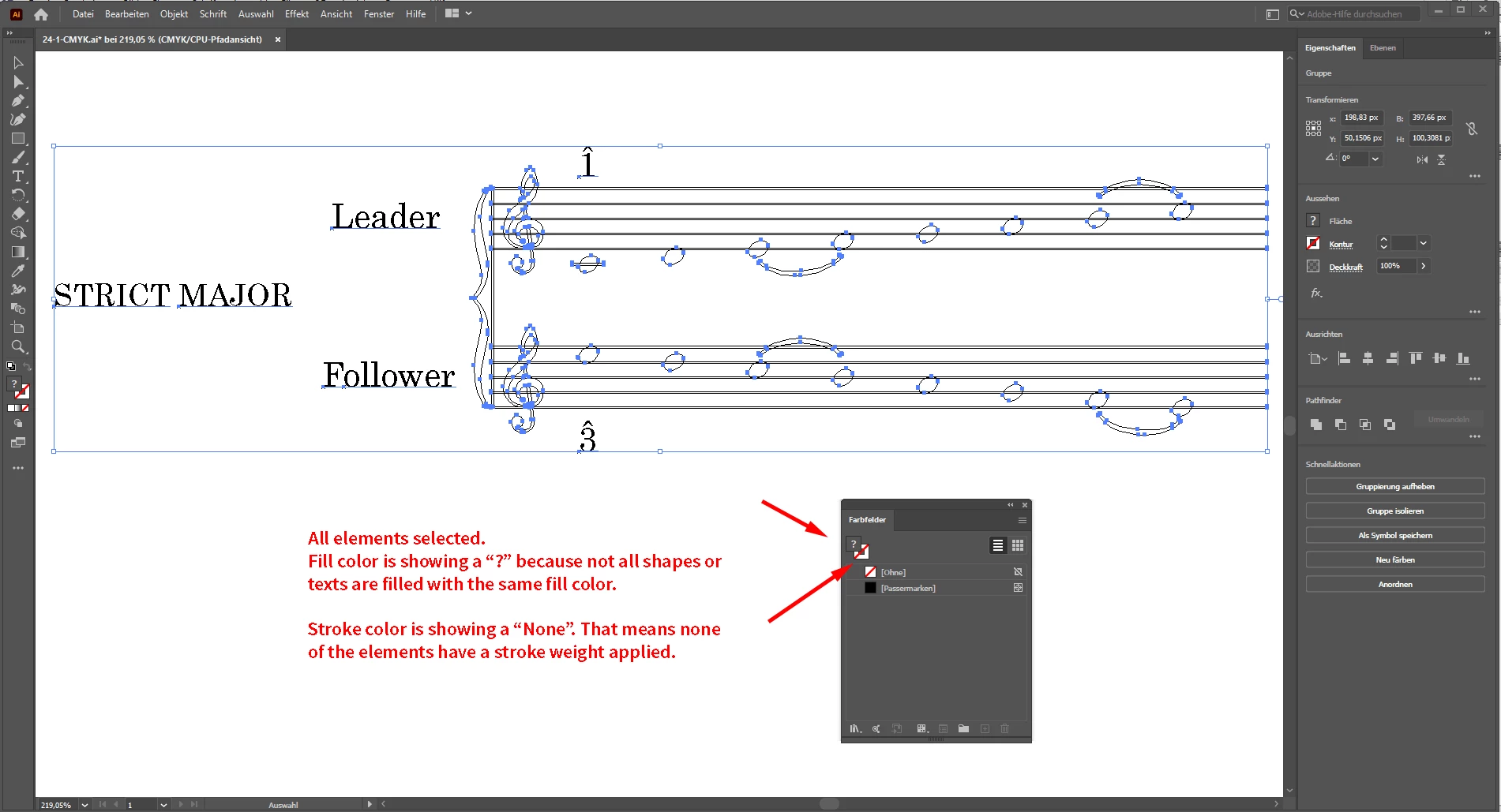
Now, I selected all elements and inspected the Swatches panel. The fill widget is showing a question mark which means not all elements share the same fills, wheras the stroke widget is clearly showing a mutual property: [None] .
[E] Let's select all black elements with a mutual fill color. Note, all elements in that document are grouped. So to select one single element I use the Direct Selection Tool, the "white" arrow tool:
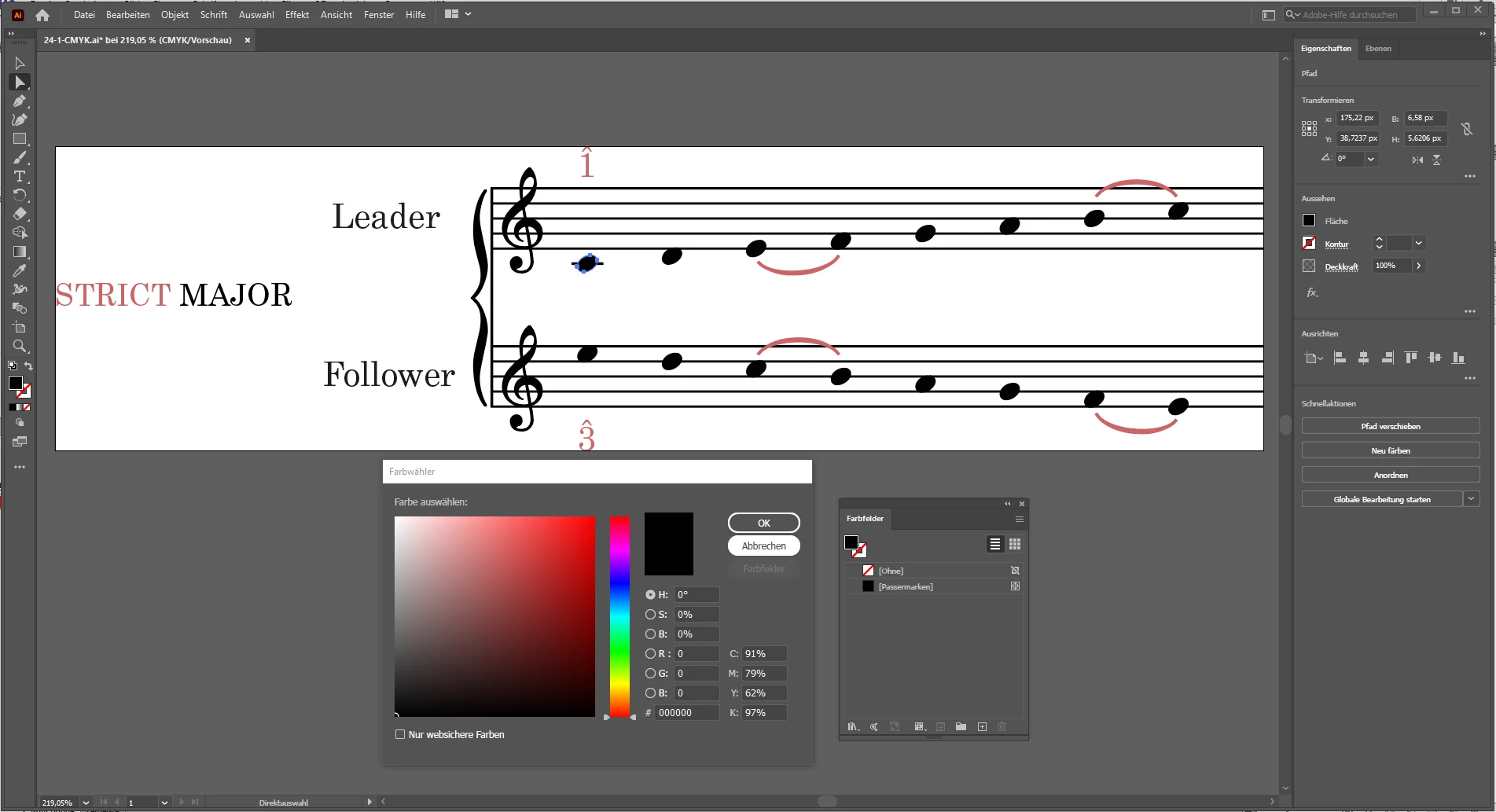
As expected the CMYK swatch applied shows a mix of percentages with every CMYK ink. I'd like to change that to 100% K only. For that I use a menu item that would select all fills with the same fill color as the currently selected one:
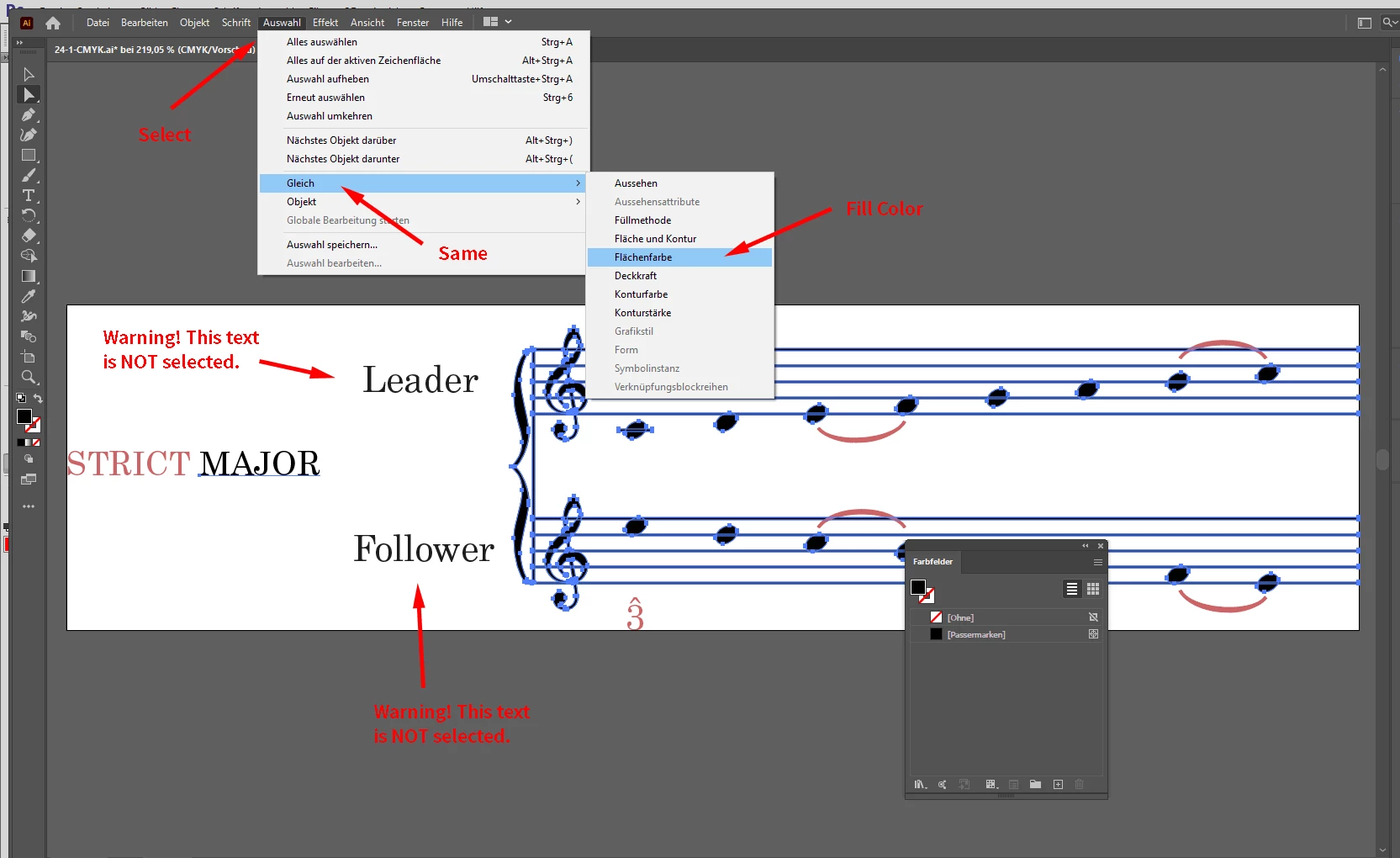
Note, that two elements, two out of several texts are not selected. Why? Because for whatever reason they do not share the same CMYK black with all other CMYK filled elements. Perhaps a glitch in the process to create that SVG file?
In the next step I will add a new CMYK swatch to the Swatches Panel, the selected elements from before are still selected.
I clicked the small black fill widget in the Swatches panel to get the CMYK percentages of the currently applied color:
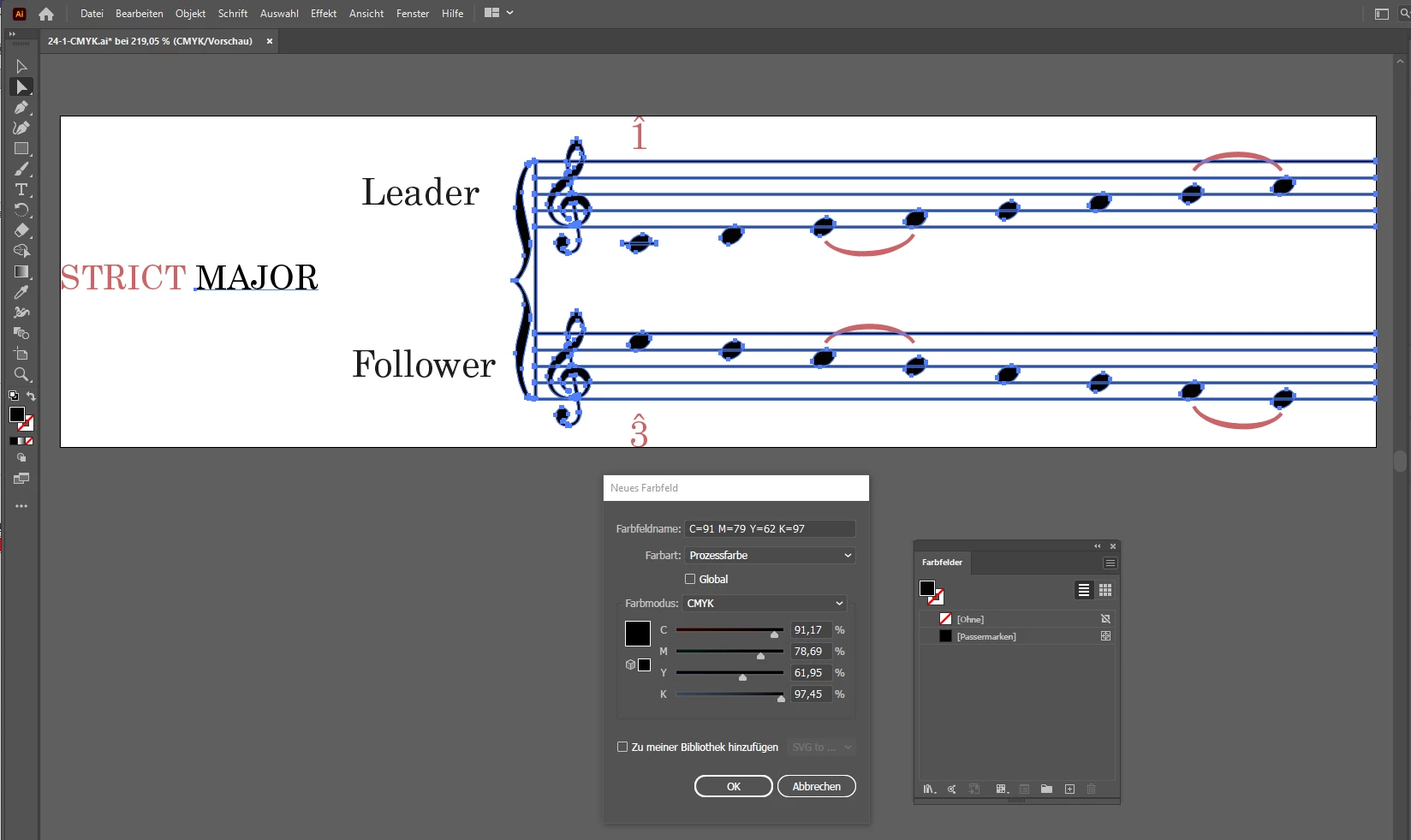
and changed the values to 100% K only:
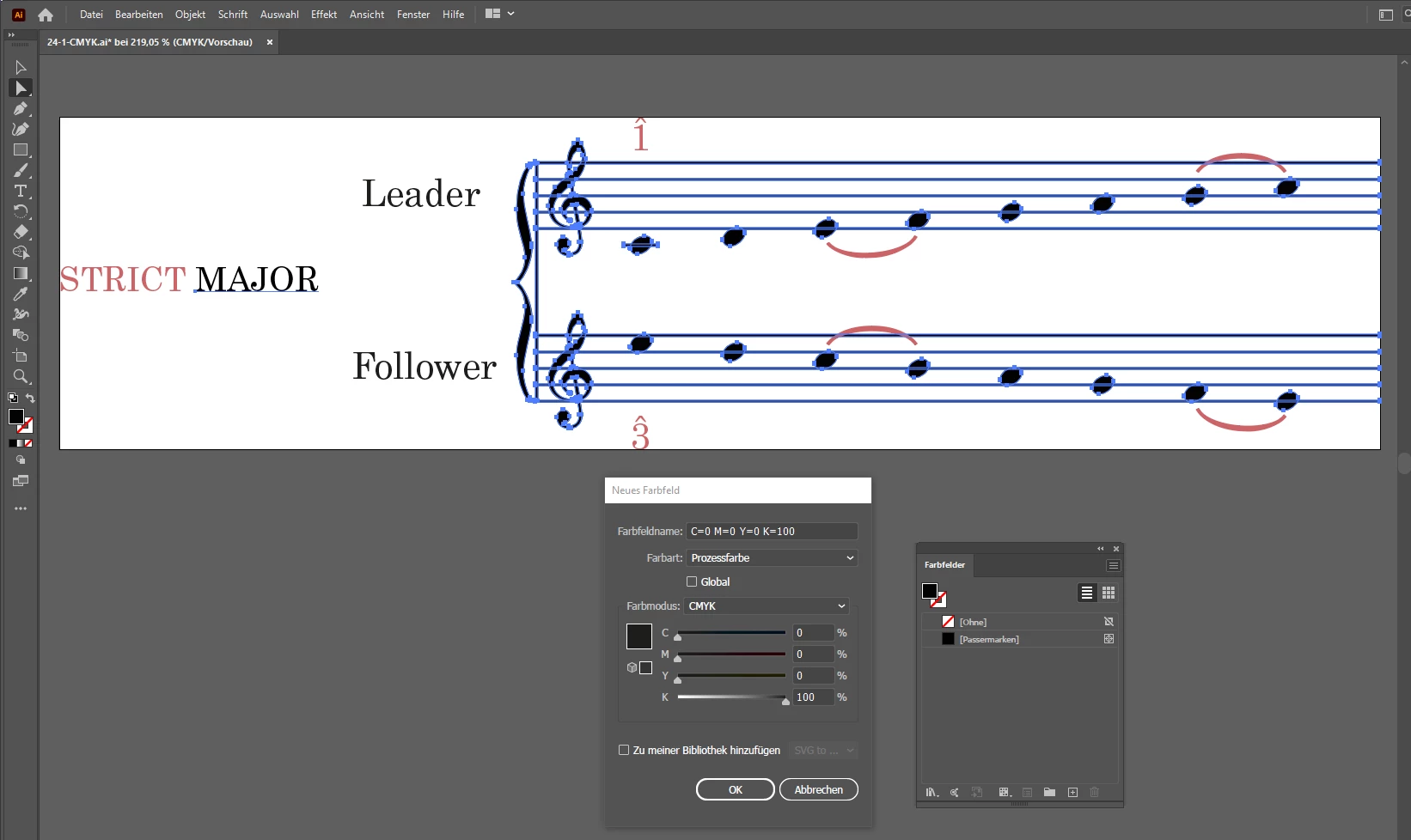
After I hit the OK button the swatch is added to the Swatches Panel and at the same time applied to the selected objects and texts. I select the three missing text elements ( note, that the "F" of "Follower" is on its own ) :
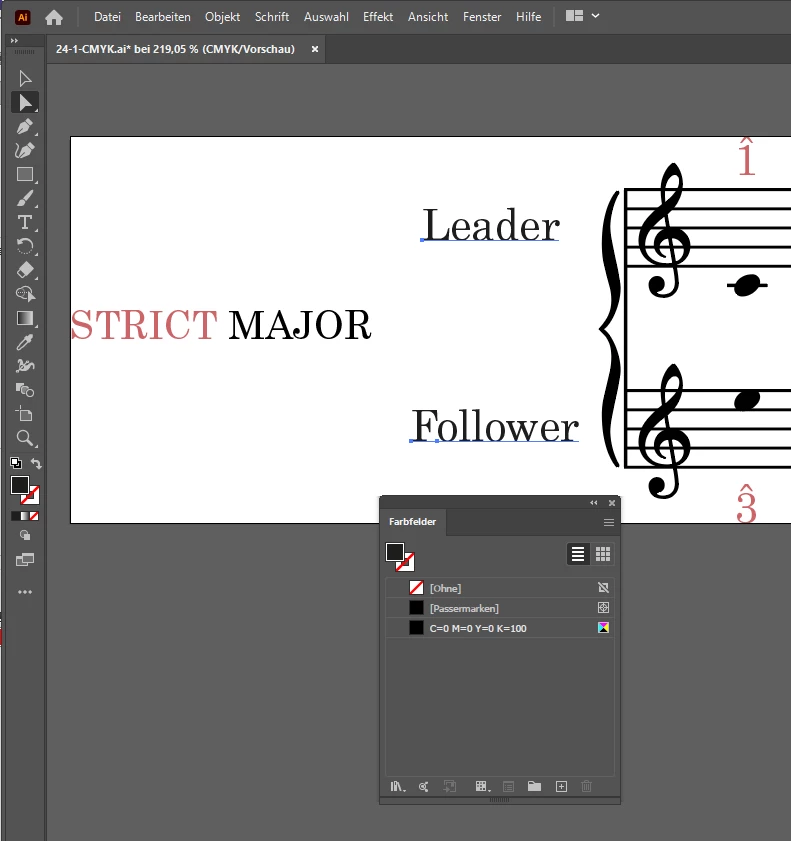
and apply the swatch as fill color:
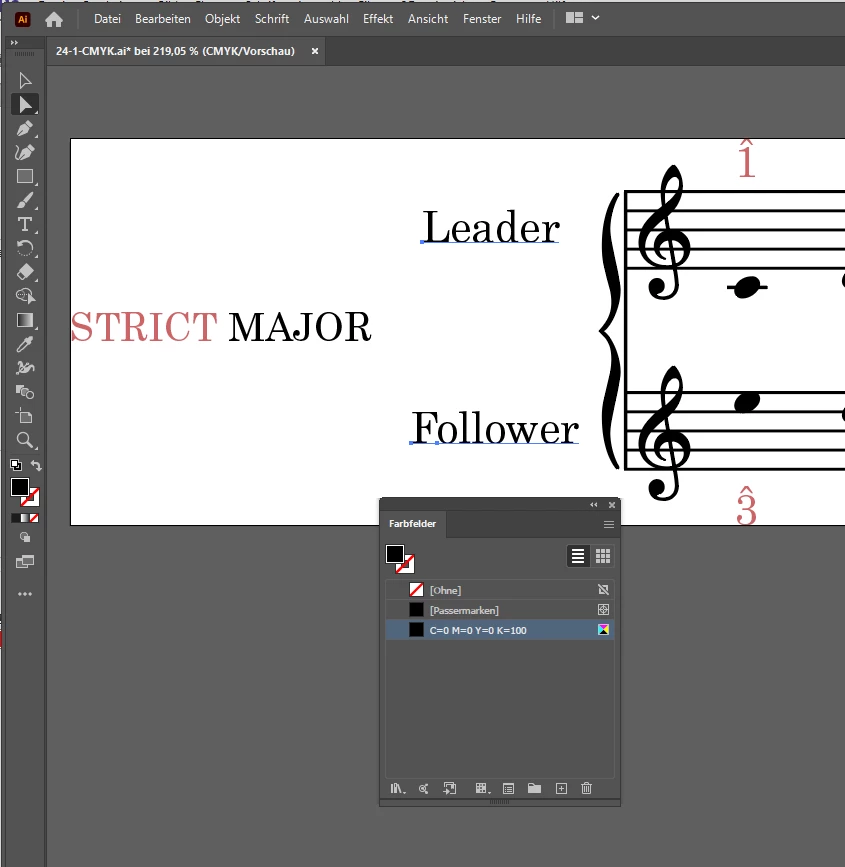
[F] Then the final of the necessary steps. I save the file with a new name as Adobe Illustrator file with suffix *.ai :
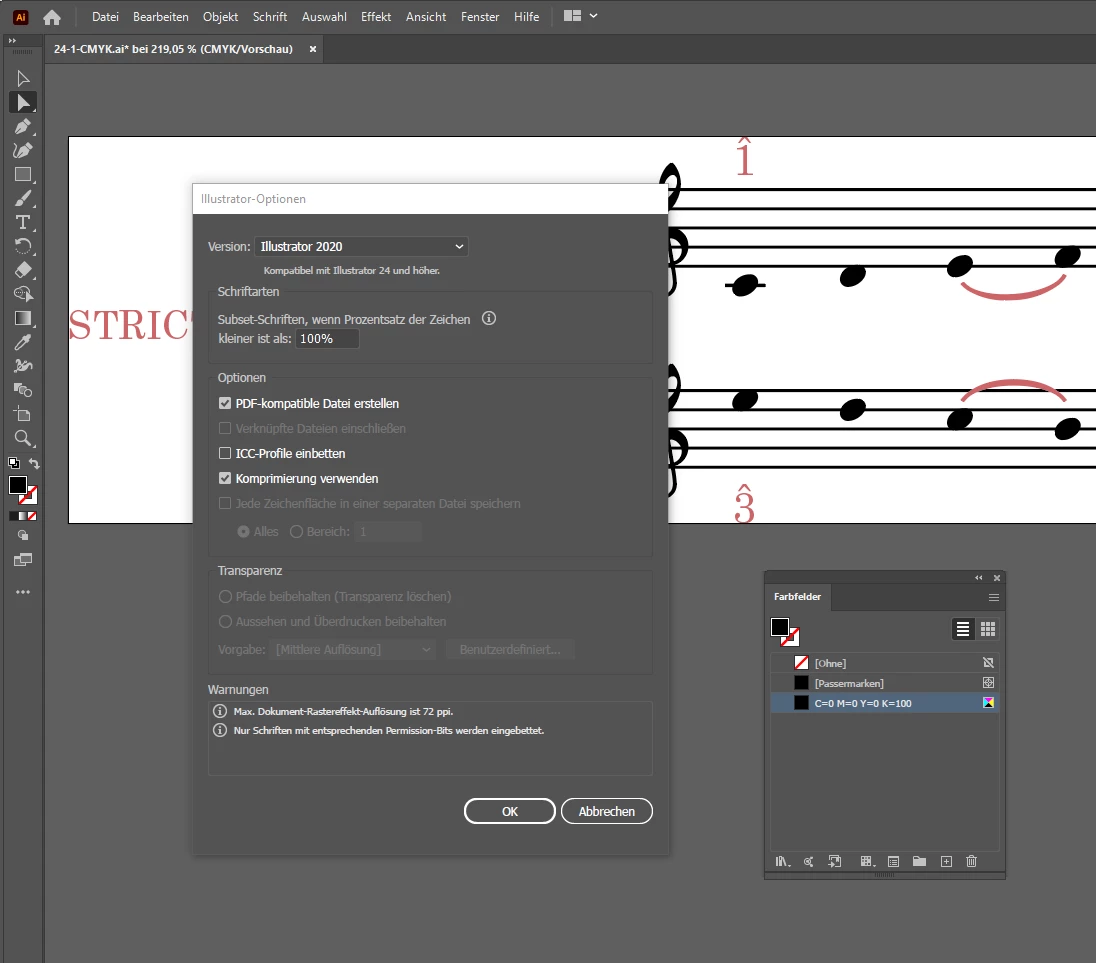
Important note: The option to embed the ICC color profile is disabled.
The ai file now is production-ready for InDesign.
What else could be done?
[1] Inspect the red fill color and change that to your liking.
Also make sure that all red fills use the same swatch.
( You will notice that also the red elements use slightly different red fill colors. )
[2] Store the new swatch(es) in a Library so that you have immediate access when re-coloring the next SVG file.
Regards,
Uwe Laubender
( ACP )



 AdChoices