

aaikele
Inspiring
July 19, 2022
Answered

Missing font/glyphs with no pink crossed rectangle

  • July 19, 2022
  • 6 replies
  • 2626 views

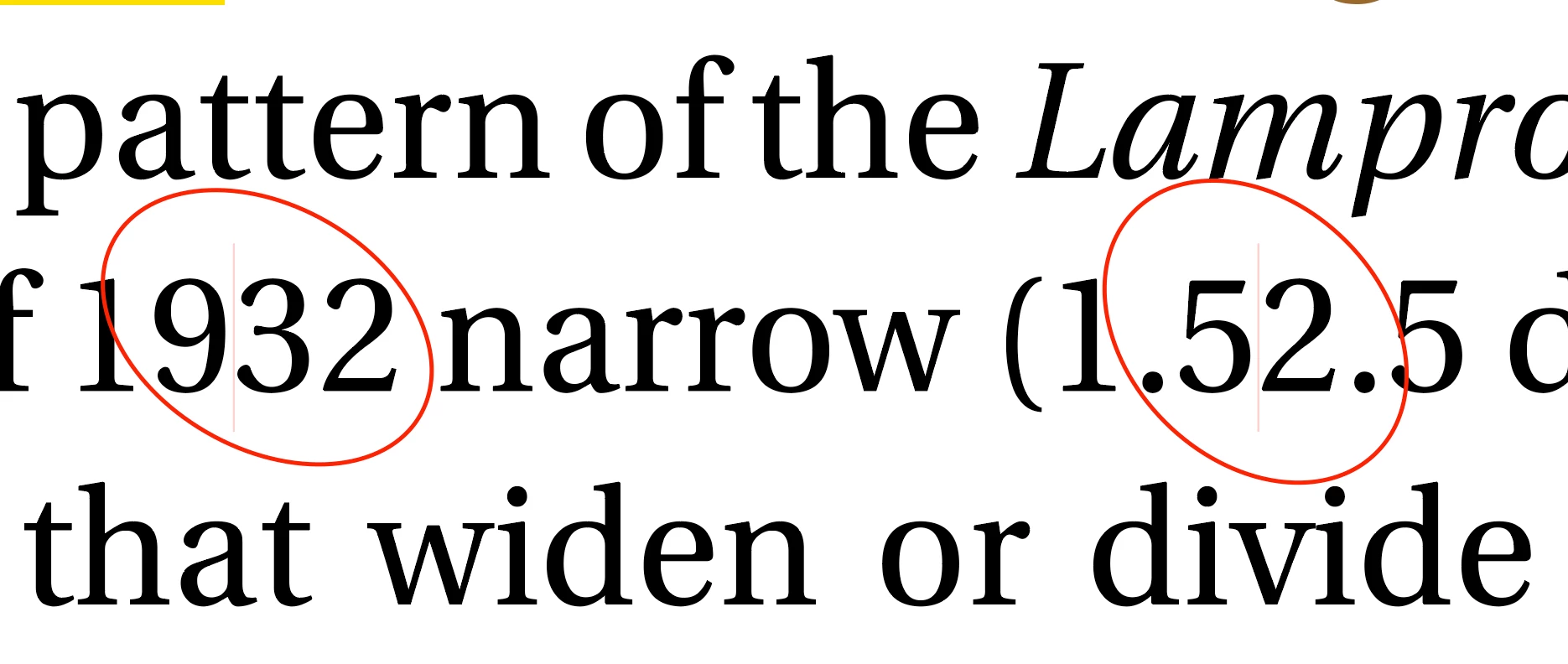
I have some missing font that comes from Word to Indesign with no pink crossed rectangle just a thin pink line that is very hard to see. ( I zoomed in 150X to see the line) Preflight panel does not find the error. I have checked the "Substituted Fonts and Glyphs" in the Preference Panel but the missing font is not found. I highlight the sentence that has the missing font and the font panel says that the font is all the same. Is there a setting that I am missing? How can I make the thin pink line more noticeable?  Is there a way to have Preflight find the error?
This topic has been closed for replies.
Correct answer aaikele

Thank you all for your help. I will use the find/change option. I have had so many problems with the font Utopia in the past. The client really likes the look of the font so I don't think they want it to change.

6 replies

aaikele
aaikeleAuthorCorrect answer
Inspiring
July 20, 2022

Thank you all for your help. I will use the find/change option. I have had so many problems with the font Utopia in the past. The client really likes the look of the font so I don't think they want it to change.

Community Expert
July 20, 2022

Hi @aaikele ,

what kind of Utopia font are you using?

Just tried the OTF version of Utopia Std Regular and the glyph FIGURE DASH is not missing.


Regards,
Uwe Laubender
( Adobe Community Professional )

Community Expert
July 20, 2022

Hi @aaikele ,

after looking more closely into the contents of your Word file, I think you could exchange the missing glyph with an EN DASH. Like it is typed in the expression 1193:1–39 for example.


FWIW: To detect missing glyphs and their Unicode code points you could use a script written by Peter Baumgartner that was adapted and expanded by Peter Kahrel:

MissingGlyphs.jsx

https://creativepro.com/files/kahrel/indesign/missing_glyphs.html


Back to your special case:

If you identified the Unicode code point like I did this in your text, you could do a Find/Change with e.g. Text Find/Change.

Just write the Unicode code point expression like that:

<2012>

Exchange the found text with an EN DASH for example:

^=


Regards,
Uwe Laubender
( Adobe Community Professional )

Community Expert
July 20, 2022

If I format the text with a font where the glyph is not available and if I configure the InDesign Preflight with a new profile where Missing Glyphs are flagged, InDesign is able to warn about the missing glyphs.


Regards,
Uwe Laubender
( Adobe Community Professional )

Community Expert
July 20, 2022

Hi @aaikele ,

placed your word file and had no missing glyph.

Instead a FIGURE DASH with Unicode code point 2012 was imported:


What is your applied font style?


Could be that your font is showing missing glyphs in a not so common way. With a glyph that has no width and no visible graphic like a crossed rectangle. It's the choice of the font designer how a missing glyph should show up.


Regards,
Uwe Laubender
( Adobe Community Professional )

Jumpenjax
Community Expert
Community Expert
July 20, 2022

Did you try to change the font on that section to see if it disappears?

Lee- Graphic Designer, Print Specialist, Photographer
aaikele
aaikeleAuthor
Inspiring
July 20, 2022

Thanks for your response. My problem is not wanting it to disappear. my problem is not being notified when the error happens.

Community Expert
July 20, 2022

You should probably consider using a different font set with the correct glyphs - or change these to another character.


You can read a bit more about it here


https://creativepro.com/finding-and-changing-glyphs/


Unfortunately - I don't know of a way to get a warning to pop up when this happens. And eyeballing this seems to be a nightmare as it's substituted the character and a very thin warning colour appears.


Seemingly it's only within numbers - you can do a find replace 

Copy the pink bit and do a find change

Find

Change to

^=


or

Change to

^_


Try them out and see which one suits best.


Diane Burns
Inspiring
July 19, 2022

Like to have a sample of that text to poke directly in InDesign. Possible to post a snippet?

aaikele
aaikeleAuthor
Inspiring
July 20, 2022

Hi Diane, thank you for your help. I have attached the word document. The font is there in the word document but when it is imported into indesign the dash font goes missing. The line in question is the second line.

Thanks again.

Diane Burns
Inspiring
July 20, 2022

When I flow the text, these figures have a dash between them. The text is in the default Minion. In the glyph panel, it shows as a figure dash. I don't know why your fonts isn't displaying it, likely doesn't have it but because it's so small, it won't display. Try this: change one of them to Minion, select the character, then Paste it into the Find field and Replace it with a regular hyhyen or n-dash. Here is screen shot of mine (the tool tip identifying it as a "figure dash" in the glyph panel didn't display properly.