
Inspiring
January 7, 2020
Answered

Missing glyphs in font

  • January 7, 2020
  • 3 replies
  • 12746 views

I am pasting some text into a text frame in InDesign that was copied from Microsoft Word. Most of the characters use the font Noto Sans Georgian. The numbers and punctuation use Noto Sans. In InDesign, the paragraph style uses Noto Sans Georgian, so most of the characters appear correctly. However, the numbers and punctuation appear as rectangles. If I highlight a rectangle and change its font to Noto Sans, it appears correctly.


However, I'm using a script to generate the InDesign document, so I can't manually highlight characters and change their font. I cannot figure out how to detect the rectangles in my script or any other way around this problem. Ideas? Thanks!
This topic has been closed for replies.
Correct answer Laubender

Hi Dan,

some years ago in 2012 Pete Baumgartner invented a method to list all missing glyphs by scripting InDesign:

https://community.adobe.com/t5/indesign/finding-unassigned-glyphs/td-p/4358355


Peter Kahrel advanced the script and gave it a user interface.

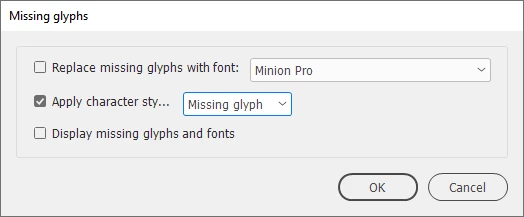
Recently Peter added an important feature: Now you can even add a character style to every missing glyph:


See into the ExtendScript (JavaScript) missing_glyphs.jsx script by Peter Kahrel:

https://creativepro.com/files/kahrel/indesign/missing_glyphs.html


Regards,
Uwe Laubender

( ACP )

3 replies

LaubenderCommunity ExpertCorrect answer
Community Expert
January 8, 2020

Hi Dan,

some years ago in 2012 Pete Baumgartner invented a method to list all missing glyphs by scripting InDesign:

https://community.adobe.com/t5/indesign/finding-unassigned-glyphs/td-p/4358355


Peter Kahrel advanced the script and gave it a user interface.

Recently Peter added an important feature: Now you can even add a character style to every missing glyph:


See into the ExtendScript (JavaScript) missing_glyphs.jsx script by Peter Kahrel:

https://creativepro.com/files/kahrel/indesign/missing_glyphs.html


Regards,
Uwe Laubender

( ACP )

Dan-BTPAuthor
Inspiring
January 8, 2020

Thanks, everyone, for the suggestions. Both ideas (adding GREP styles to paragraph styles and the missing_glyphs script) were very helpful. With them, I was able to solve my problem.

Jongware
Community Expert
Community Expert
January 8, 2020

You can create a composite font – either immediately through scripting it yourself, or using Marc Autret's FontMixer: http://www.indiscripts.com/post/2013/07/fontmixer-extend-typefaces-in-indesign


Alternatively: no need to use a script, just add a GREP style to your paragraph style(s) that sets the correct font for numbers and punctuation.

Steve Werner
Community Expert
Community Expert
January 7, 2020

Please tell us what operating system (exactly) you're running. Please tell us (exactly) what InDesign version you're using.


What happens if you choose File > Place and place the Word document. (Copying and pasting is inherently dangerous when dealing with some glyphs in some fonts.) Is the text in the language in the Word document the same as the language set in InDesign? In InDesign Clipboard settings, in the setting "Where Pasting Text and Tables..." which setting is chosen. What if you switch the setting?

Dan-BTPAuthor
Inspiring
January 8, 2020

Thanks for your reply, Steve!


I am running on a Windows 10 system with InDesign CS6 (Version 8.0). The language of the paragraph in InDesign is [No Language]. The Clipboard setting is Text only. Switching to All information doesn't change the result in the InDesign document.


My script is run from a VB.NET program that is reading the text from an Excel spreadsheet. The script creates a frame and adds the text to the frame's story. I haven't tried using File > Place, since the original data is coming from a cell in a spreadsheet. I will try this as a test tomorrow.

Steve Werner
Community Expert
Community Expert
January 8, 2020

Is this a Word DOC file or a text file you're importing? Do you know the Encoding of the Excel text?