June 4, 2018
Answered

Move frame without moving content

  • June 4, 2018
  • 2 replies
  • 3033 views

Hey friends,

according to Adobes Manuals I can move a graphics frame without moving its content: Work with frames and objects in InDesign

Use selection tool, select frame, switch to direct selection and drag via the center point. Doesn't work for me. I have made a cutout path that is empty at the center, so the center point doesn't even show up.

With another pure rectangle frame I see the little dot marking the center but it moves the whole image (obviously only the content if using the normal selection tool, because of the content grabber).

Am I missing something?

This is somewhat of a niche feature, and that is why i can't find a solution anywhere, but It is also a very obvious thing to implement and should work regardless.

For som cases it is absolutely essential and there is no workaround other than guessing.

Thanks in advance,

Timon
This topic has been closed for replies.
Correct answer rob day

The Direct Selection tool can be tricky because you have to watch what you are actually selecting, which could be anything—an image, an entire frame, single selection point, etc.

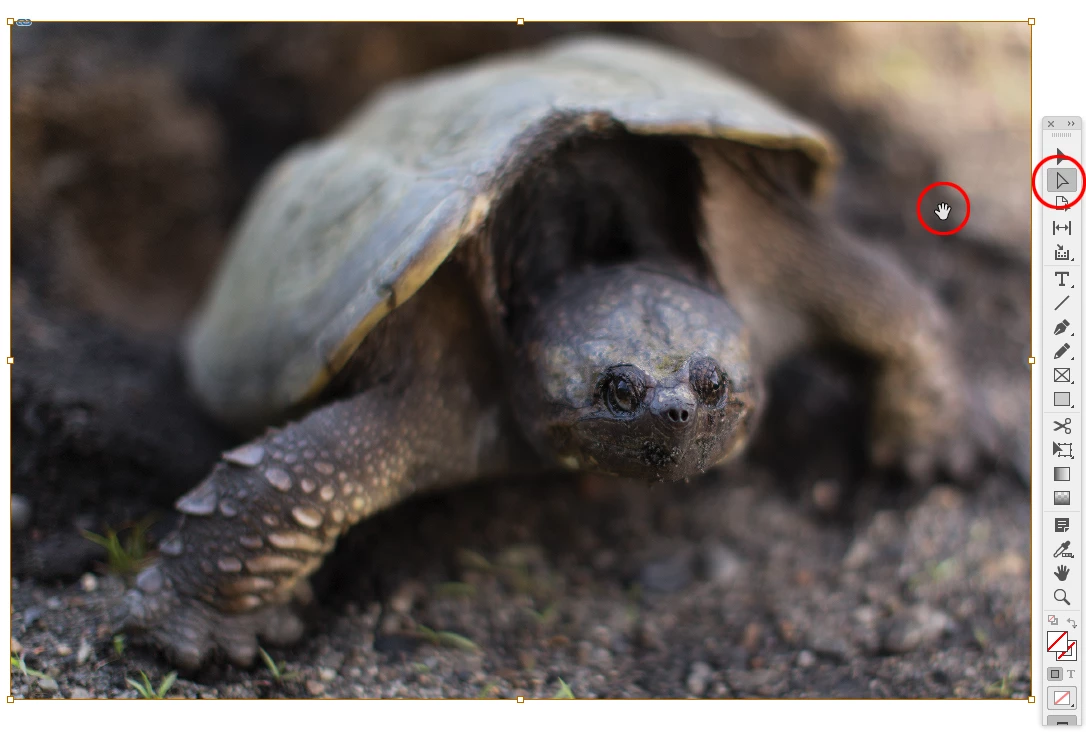
So you have to consider the tool, the selection icon, and the frame corner point icons. Here my tool is Direct Selection, and  selection icon is a hand so I've selected the image and not its frame

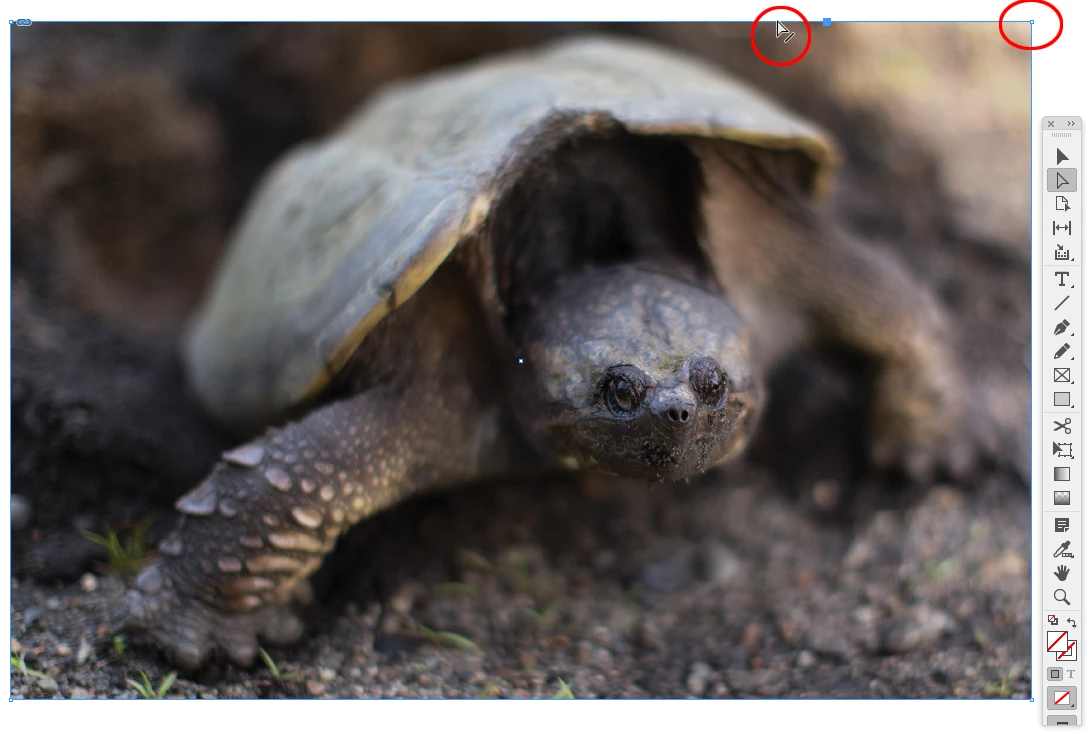
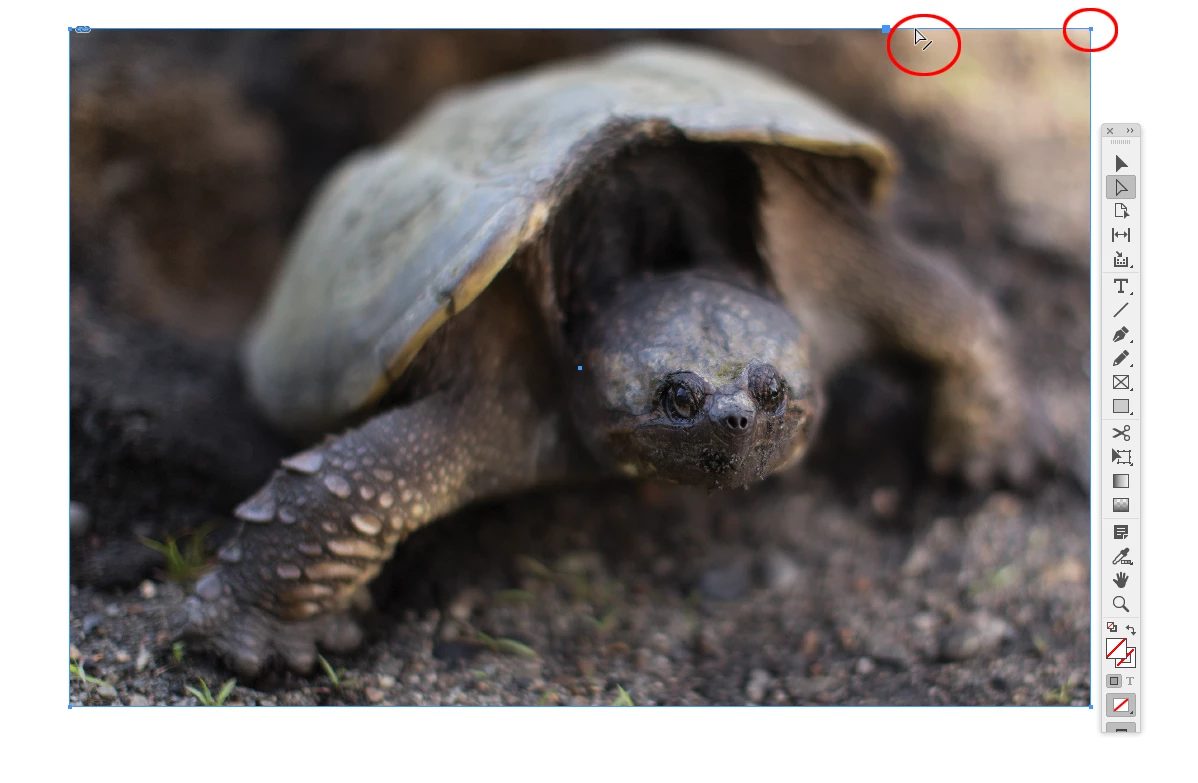
But here I've direct selected the container frame's top edge because I have an arrow icon and the frame's corner points are hollow. In this case if I click and drag only the top of the container frame will move.

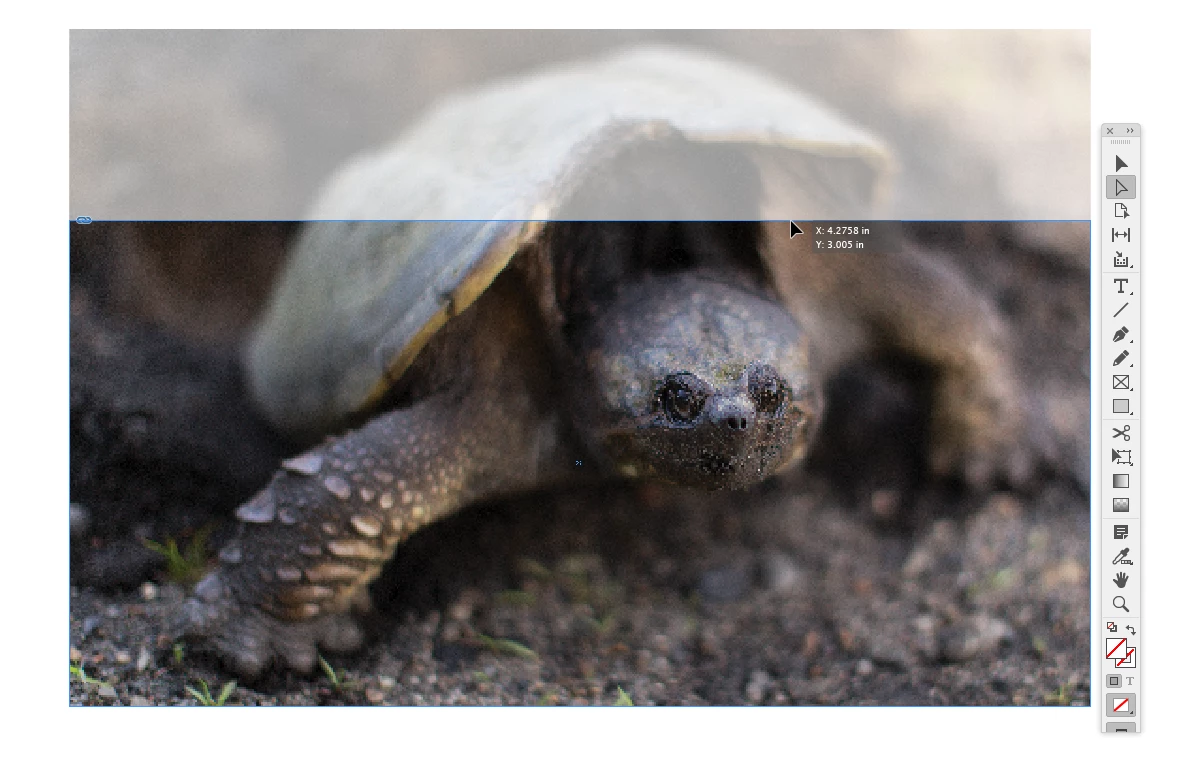
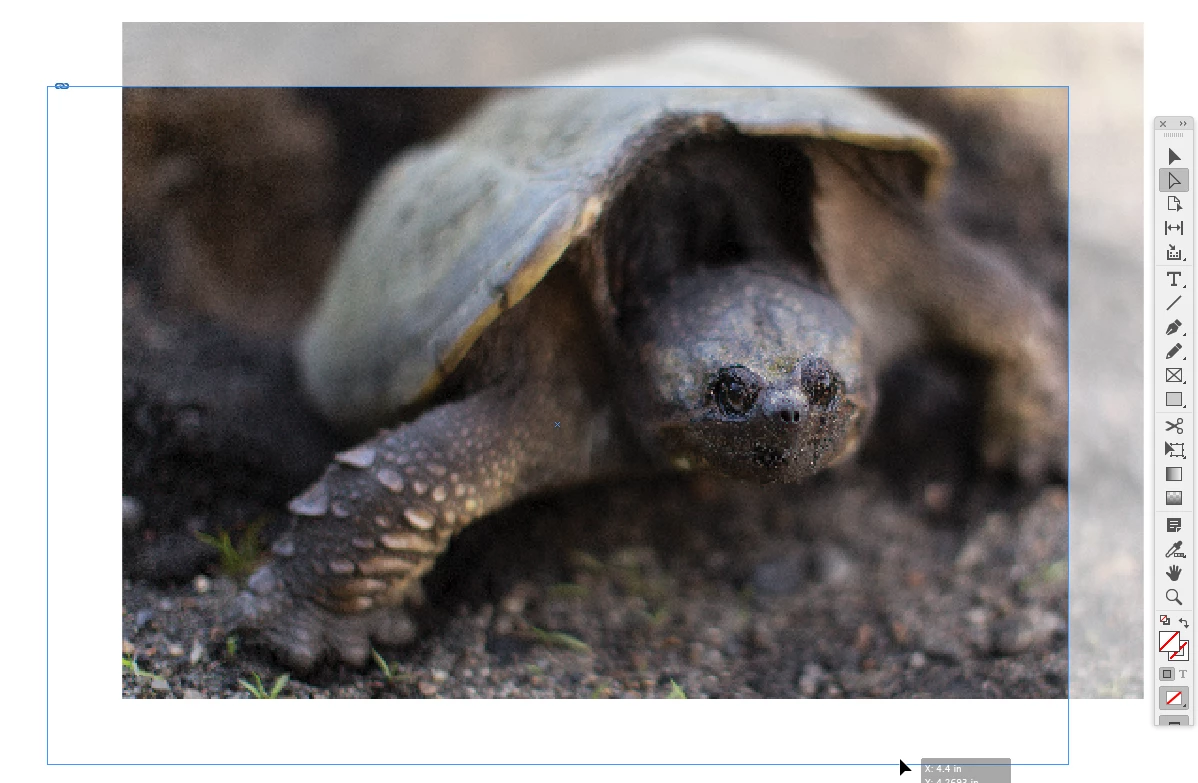
If I start by selecting the entire object with the black Selection Tool and switch to the white Direct Selection tool, all four corner points are solid indicating the frame path is selected (and not the image). I'll get an arrow icon when I touch any of the edges or the center point. Now if I click and drag the container frame will move, but not the image.

2 replies

June 5, 2018

Thanks for the detailed reply!

I work with InDesign every day but never had to use this - interesting. For anyone else having the same question:

  • Make sure that auto-fit is off or it doesn't work. That is what I did with the rectangle frame, which obviously can't work.
  • For cutout paths, as rob pointed out, you don't have to find the center point as per the Adobe Manual, just click and drag the path itself.
rob day
Community Expert
rob dayCommunity ExpertCorrect answer
Community Expert
June 4, 2018

The Direct Selection tool can be tricky because you have to watch what you are actually selecting, which could be anything—an image, an entire frame, single selection point, etc.

So you have to consider the tool, the selection icon, and the frame corner point icons. Here my tool is Direct Selection, and  selection icon is a hand so I've selected the image and not its frame

But here I've direct selected the container frame's top edge because I have an arrow icon and the frame's corner points are hollow. In this case if I click and drag only the top of the container frame will move.

If I start by selecting the entire object with the black Selection Tool and switch to the white Direct Selection tool, all four corner points are solid indicating the frame path is selected (and not the image). I'll get an arrow icon when I touch any of the edges or the center point. Now if I click and drag the container frame will move, but not the image.

June 5, 2018

Thanks for the detailed reply!

I work with InDesign every day but never had to use this - interesting. For anyone else having the same question:

  • Make sure that auto-fit is off or it doesn't work. That is what I did with the rectangle frame, which obviously can't work.
  • For cutout paths, as rob pointed out, you don't have to find the center point as per the Adobe Manual, just click and drag the path itself.